Getting started
Overview
Home: a quick look at your store today, and what needs you now.
Open the page in the dashboardWhat the home page shows
Home is a quick look at your store today and what needs your decision now. Each section loads on its own, so the page appears at once and fills in.
The four numbers at the top cover the last 14 days, and the arrow beside each one compares it with the 14 days before. The number, the line and the arrow always talk about the same period.
The numbers at the top
| Tile | What it counts |
|---|---|
| Capi revenue | Sales Capi brought in over the last 14 days, each order counted once. Same definition as the revenue page. |
| AI conversations | Conversations in the last 14 days. |
| Capi orders | The orders whose revenue is in “Capi revenue”. |
| Conversion rate | The share of conversations that ended in a purchase. |
When “Capi revenue” is zero the tile says “Shows here with the first sale Capi brings in”. That isn't an error: no sale has been attributed to the agent or your campaigns yet.
Read the home page
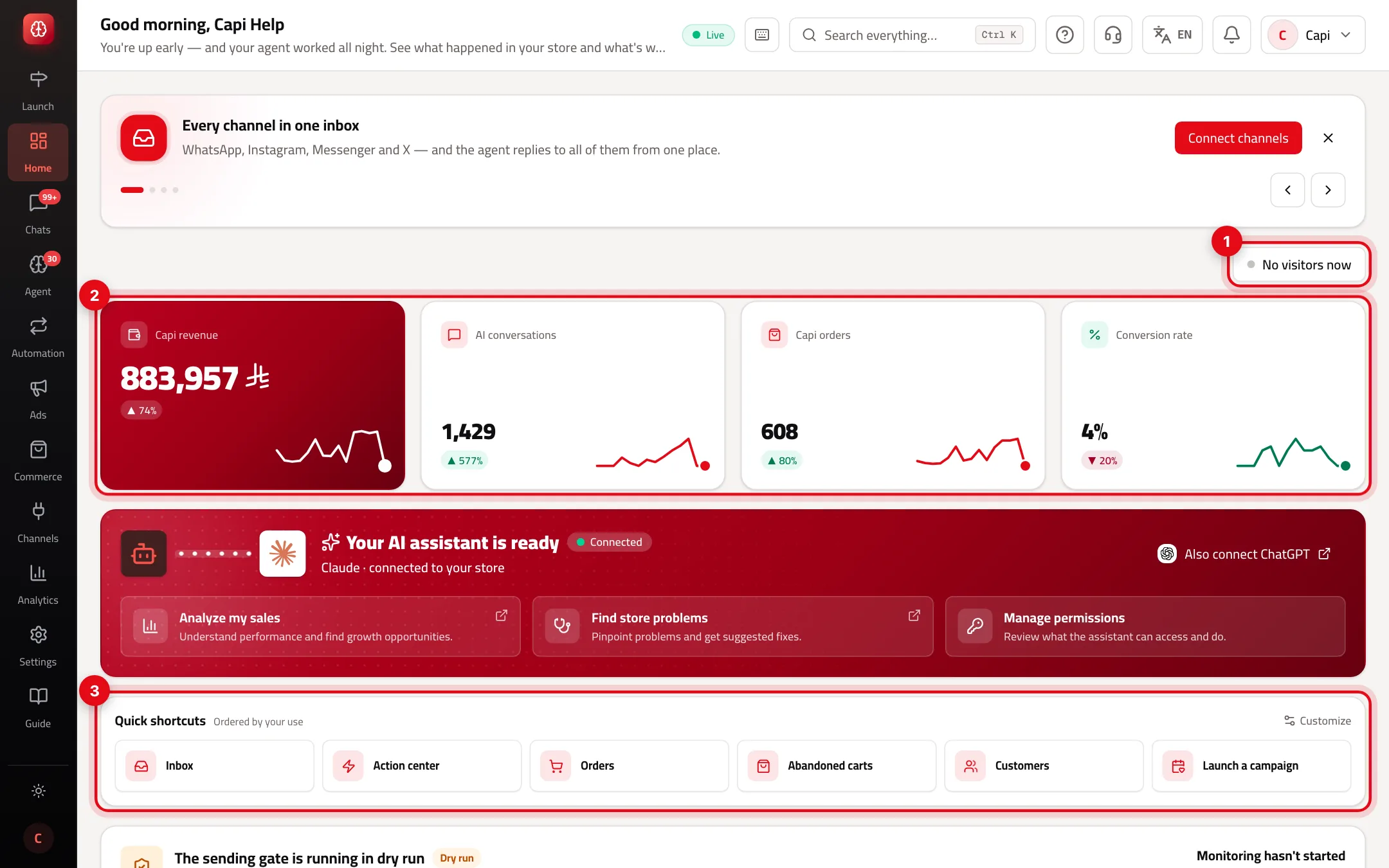
- 1Visitors on your store in the last 5 minutes. Click it to open chat campaigns.
- 2The four numbers: the last 14 days against the 14 before.
- 3“Quick shortcuts”: the pages you open most, ordered by your use, and the “Customize” button.
The rest of the page
Needs your attention
- What it is
- One list of what's waiting on you: follow-ups, Action Center suggestions and the next setup step. Most urgent first; five items are shown.
- When to use it
- Every morning. “Nothing is waiting on you” means there's nothing to decide.
- How to start
- Click an item to go to its page. “Task History” opens the tasks page.
The Capi card
- What it is
- A brief from your team manager: conversations in the last hours and how many are waiting for a person, pending decisions, and questions customers asked that the agent couldn't answer.
- When to use it
- When you want to know where the agent needs you.
- How to start
- A question asked repeatedly with no answer means a missing knowledge-base entry.
Revenue from your campaigns and automations
- What it is
- Revenue for the last 30 days per source: the agent, WhatsApp campaigns, automations, chat campaigns. Each order counts for one source, so the total equals what actually came in.
- When to use it
- To see which channel actually sells.
- How to start
- Press “View all” for the full table. With no attributed sales you'll see “Turn on an automation”.
Orders, carts and products
- What it is
- Recent orders, abandoned carts, best sellers, and ad performance if ads are connected.
- When to use it
- A daily look at what's happening in the store itself.
- How to start
- Each card links to its full page.
Customize your shortcuts
If you pick nothing, shortcuts are ordered automatically by the pages this device opens most.
- 1
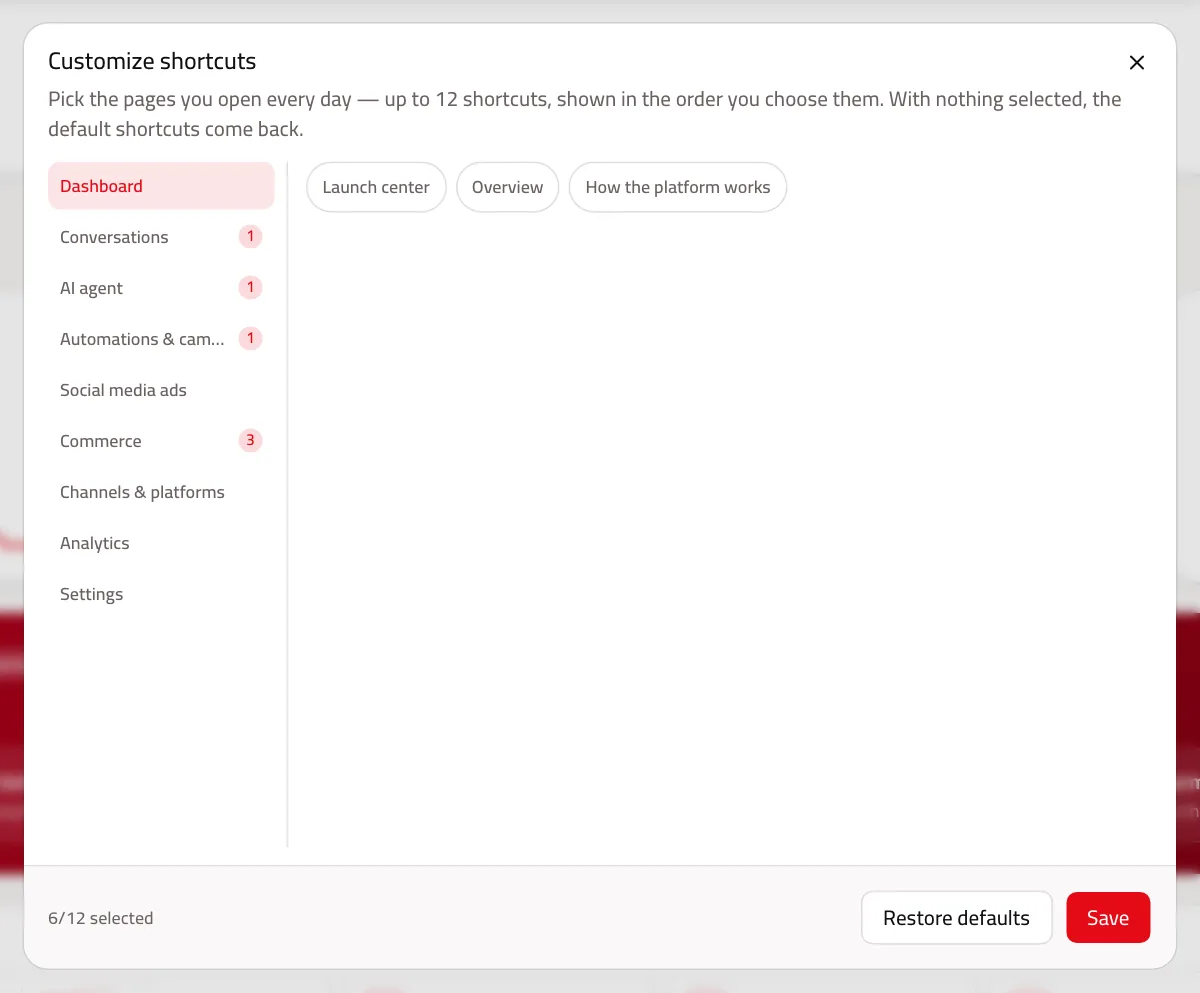
Open “Customize”
On the “Quick shortcuts” card press “Customize” in its corner.
- 2
Pick your pages
Choose up to 12 pages; they show in the order you pick them. Then press “Save”. Clearing every choice brings back the defaults, or press “Restore defaults”.
Best practices
- Start your day with “Needs your attention” — it's the only list ordered by urgency.
- If “AI conversations” rises while “Conversion rate” stays flat, look at the unanswered questions on the Capi card.
- Keep only the pages you use daily in shortcuts, such as the inbox and orders.
Common mistakes and how to fix them
Problem“Capi revenue” is lower than my store's sales.
FixThat's intended: the tile shows only what Capi brought in, not all store sales.
Problem“Quick shortcuts” keeps reordering itself.
FixWithout your choice it's ordered by use. Press “Customize” and pick your pages to fix the order.
ProblemIt says “No visitors now” although my store is open.
FixIt counts visitors in the last 5 minutes only, measured by the widget. Make sure chat is turned on for your website.
Screenshot from a demo store
Parts of the page
- 1
The numbers
Sales, orders and conversations, compared with the previous period.
ExampleA green arrow beside revenue means it's higher than the previous period of the same length. - 2
Happening now
Visitors on your store right now, conversations waiting for someone on your team, and decisions waiting for your approval.
- 3
Setup and shortcuts
The next step in setting up your store, and shortcuts to the pages you use most. You can customise the shortcuts.
- 4
Capi
A brief from your team manager: what changed and what it suggests you do.
Related articles
Didn't find your answer?