Social media ads
Autopilot
Autonomy, cap and kill switch
Smart management: what Capi may do to your ads on its own, spending limits, and the emergency stop.
Open the page in the dashboardHow Autopilot works
This is where you set what Capi may do in your ads on its own: the autonomy level, the largest daily budget change, the monthly cap and the kill switch. Below are the stock and margin rules, the cash-on-delivery cancellation risk, and a log of every change to your campaigns.
The advisor reviews the campaigns it manages once a day, after 06:00 store time, once the numbers have synced. It only manages campaigns you turned “Advisor” on for on the campaigns page. Changing any rule here needs the “Manage ads” permission.
The three key settings
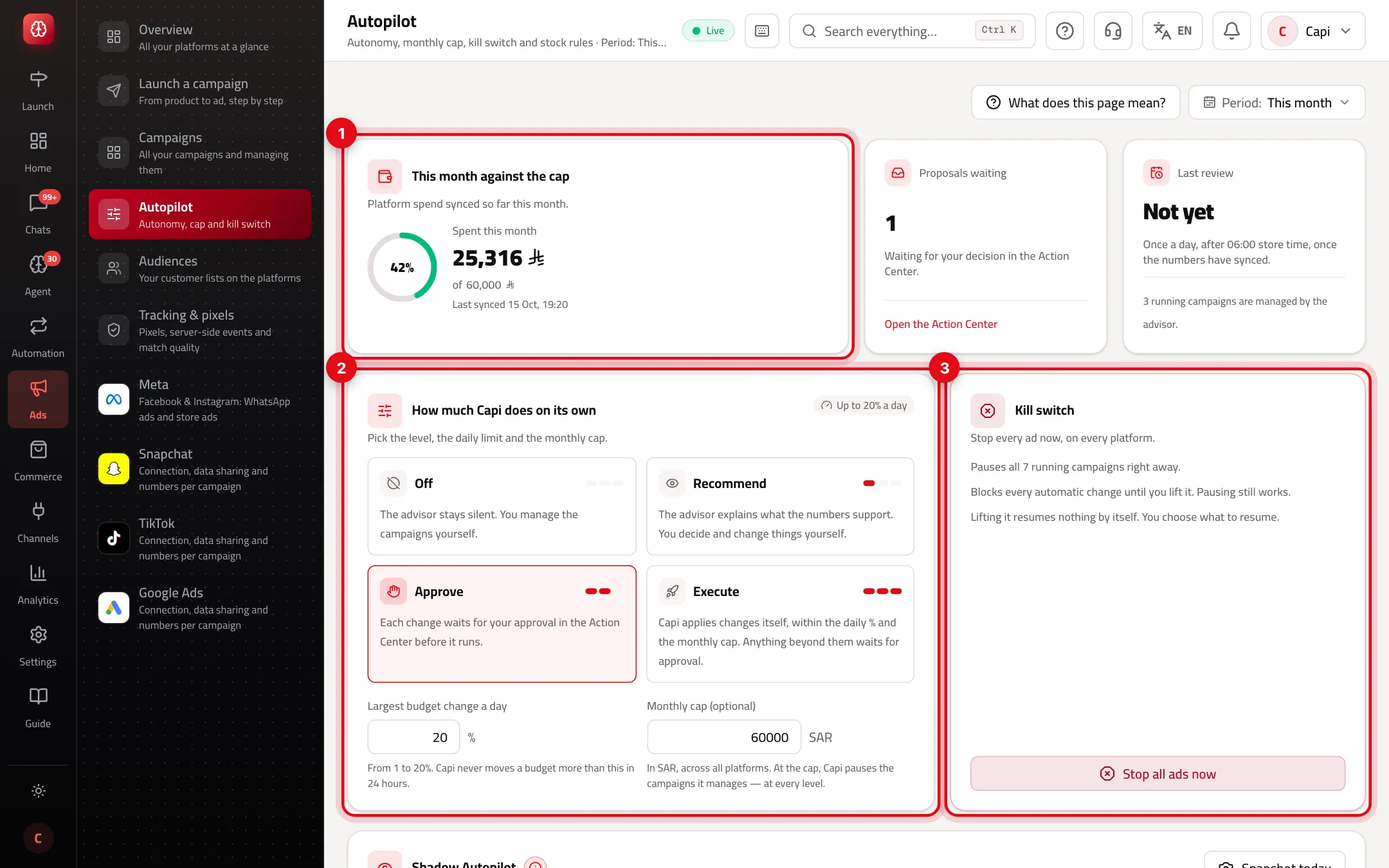
- 1“This month against the cap”: platform spend synced this month and its share of your cap — with proposals waiting and the last review beside it.
- 2“How much Capi does on its own”: the level, the largest daily budget change and the monthly cap.
- 3“Kill switch”: stop every ad now, on every platform.
Autopilot levels
Off
- What it is
- The advisor stays silent. You manage campaigns yourself.
- When to use it
- If you want full manual control.
- How to start
- Pick “Off” and save.
Recommend
- What it is
- The advisor explains what the numbers support; you decide and change things.
- When to use it
- At the start, to get to know its suggestions.
- How to start
- Pick “Recommend” and save.
Approve
- What it is
- Each change waits for your approval in the Action Center before it runs.
- When to use it
- When you trust the suggestions but want the last word.
- How to start
- Pick “Approve”. Proposals arrive in the Action Center.
Execute
- What it is
- Capi applies changes itself within the daily % and the monthly cap; anything beyond them waits for approval.
- When to use it
- When campaigns are stable and a cap is set.
- How to start
- Needs a monthly cap — it won't save without one.
Limits that protect your budget
| Limit | Value | What it does |
|---|---|---|
| Largest budget change a day | 1% to 20% | Capi never moves a budget more than this in 24 hours |
| Changing the same budget | Once an hour per campaign | Prevents rapid back-to-back changes |
| Monthly cap | An amount in your store's currency across all platforms (optional; required for Execute) | At the cap, Capi pauses the campaigns it manages — at every level |
| Kill switch | Manual, with a reason you write | Pauses running campaigns at once and blocks every launch, resume and budget change until you lift it |
Lifting the kill switch resumes nothing by itself: the campaigns it paused are listed with “Resume these campaigns”, and you choose.
Stock and margin rules, and cash-on-delivery risk
- 1
Ads follow stock and margin
Rules Capi applies to the campaigns you launched from it. Each rule shows a sentence saying exactly what will happen before you save.
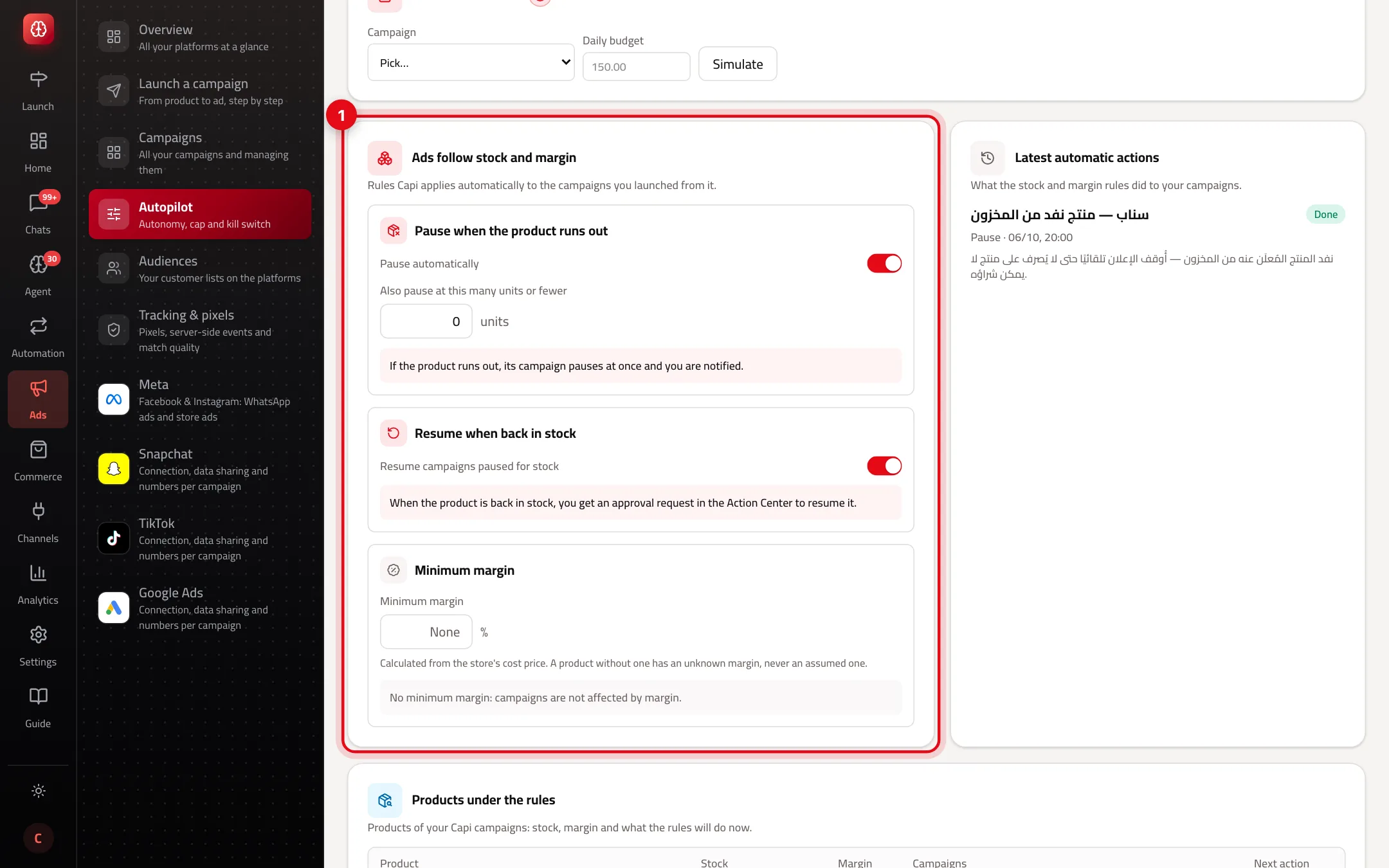
- 1“Pause when the product runs out” (optionally at a quantity you set), “Resume when back in stock” and “Minimum margin”. Then “Save rules”.
- 2
Cash-on-delivery cancellation risk
Each cash-on-delivery order gets a risk level (low, medium, high) from named signals — an address with no city, a new number, an order after midnight, an earlier cancellation. The score is rules, not a prediction.
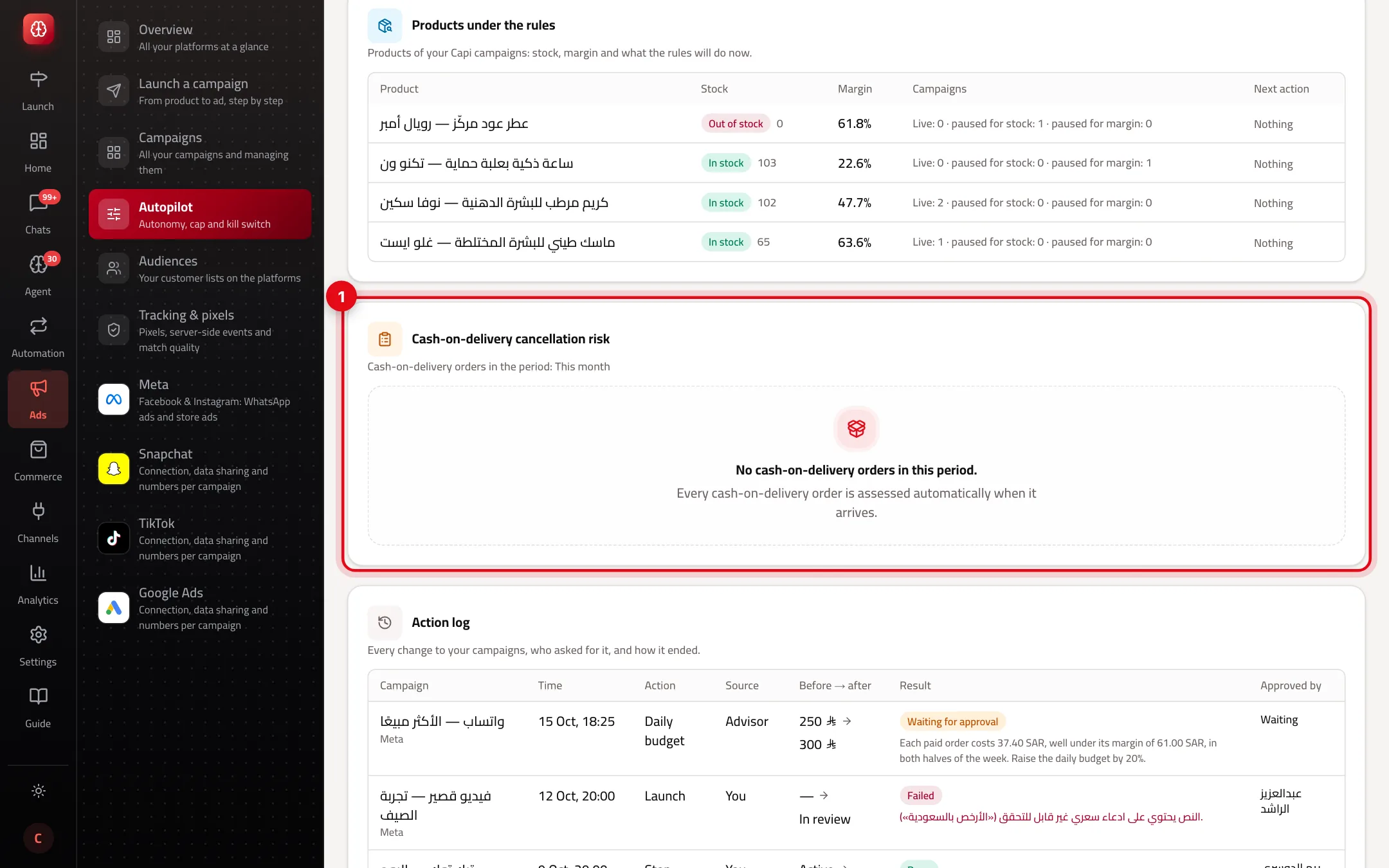
- 1Open orders by risk level, your store's cancellation rate and the most frequent signals. Expected cancellations show only after 30 resolved orders.
- 3
Action log
At the bottom, “Action log”: every change to your campaigns, who asked for it (you, the advisor, a stock rule, the monthly cap, the kill switch), before → after, the result and who approved.
Margin needs a cost price
Margin is calculated from the store's cost price. A product without one has an “unknown” margin — Capi never assumes one — so the margin rule doesn't touch it.
Starting safely
- Run “Recommend” for two weeks, then “Approve”. Don't move to “Execute” before setting a monthly cap you'd accept spending in full.
- Keep the daily change low (10–20%) — big changes send the platform back into learning.
- Turn on “Pause when the product runs out” with a small quantity like 3 units, so you don't pay for clicks on something nobody can buy.
- Enter cost prices for your products so the margin rule works.
- Use the kill switch for real problems only (a wrong price, a stock-out, a site problem), and write a clear reason for your team.
Common mistakes and fixes
Problem“Execute” won't save.
FixExecute needs a monthly cap. Enter one, then save.
ProblemThe advisor suggests nothing.
FixTurn “Advisor” on for campaigns on the campaigns page, and make sure the level isn't “Off”. It reviews once a day after 06:00.
ProblemI lifted the kill switch and campaigns didn't come back.
FixOn purpose: lifting resumes nothing. Press “Resume these campaigns” or resume them one by one.
ProblemThe COD risk shows no expected numbers.
FixIt needs at least 30 resolved orders in your store. Until then it says “Not enough history yet”.
Screenshot from a demo store
Parts of the page
- 1
Autonomy level
At “Recommend” Capi only suggests. At “Approve” it waits for your approval on every change. At “Execute” it changes budgets itself within ±20% a day.
ExampleA campaign selling at three times its cost: Capi raises its budget by 20% and writes the reason in the log. - 2
Monthly cap
The most spent per month across all platforms. At the cap campaigns stop, and you're alerted at 90%.
- 3
Emergency stop
Stops every campaign at once, with a reason you write. Lifting it restarts nothing on its own; you choose what comes back.
- 4
Stock and margin rules
Pause a campaign when its product runs out or its margin drops below a limit you choose.
ExampleOnly 3 left: the product's campaign pauses so you don't pay for taps on a product that's gone. - 5
Cash-on-delivery risk
An estimate of how likely an order is to be refused on delivery. No number shows before 30 settled orders.
Related articles
Didn't find your answer?