Automations & campaigns
Launch a campaign
Create and send a new campaign
A campaign is a message you send once to a group of customers, such as a Ramadan offer. An automation sends on its own when something happens, such as an abandoned cart.
Open the page in the dashboardWhat this page does
This page is for launching only. From here you start a new campaign: one message sent once to a group of customers you choose, now or at a time you set. Following a campaign after it is created (status, pause, cancel, retry) happens on “Scheduled campaigns”.
At the top is “New campaign”, and next to it “Or start from a goal”: four ready goals, each opening the wizard with the type already chosen. Below is “Your latest campaigns”: the last three, with “Report” and “Repeat it” to start a new campaign of the same type.
Every WhatsApp campaign needs a Meta-approved template. If you have none, a yellow line on the page says so, with a “Create a template” link. If the agent is still missing a basic setup step, a warning shows at the top — it only warns; the decision is yours.
The four goals, and when to pick each
The type sets the template category at Meta and suggests an audience. What isn't here (abandoned cart, welcome, win-back) runs on its own from “Automated campaigns”.
Product promotion
- What it is
- Spotlight one product.
- When to use it
- A product that sells well and deserves a push, or one back in stock.
- How to start
- Press the “Product promotion” tile. On the content step add the product; its name and price are read from the catalog at send time.
Flash sale
- What it is
- A short, time-limited discount.
- When to use it
- Weekend, end of month, or clearing extra stock.
- How to start
- Press the “Flash sale” tile. Put the end of the offer in the template text itself.
New product
- What it is
- Launch a new product or collection.
- When to use it
- The day it arrives, to people who bought from the same category.
- How to start
- Press the “New product” tile, then pick a segment interested in that category on the audience step.
Upsell
- What it is
- A higher tier of a product the customer bought.
- When to use it
- Weeks after the basic version was bought, not the next day.
- How to start
- Press the “Upsell” tile and target people who bought the basic product.
Read the “Launch a campaign” page
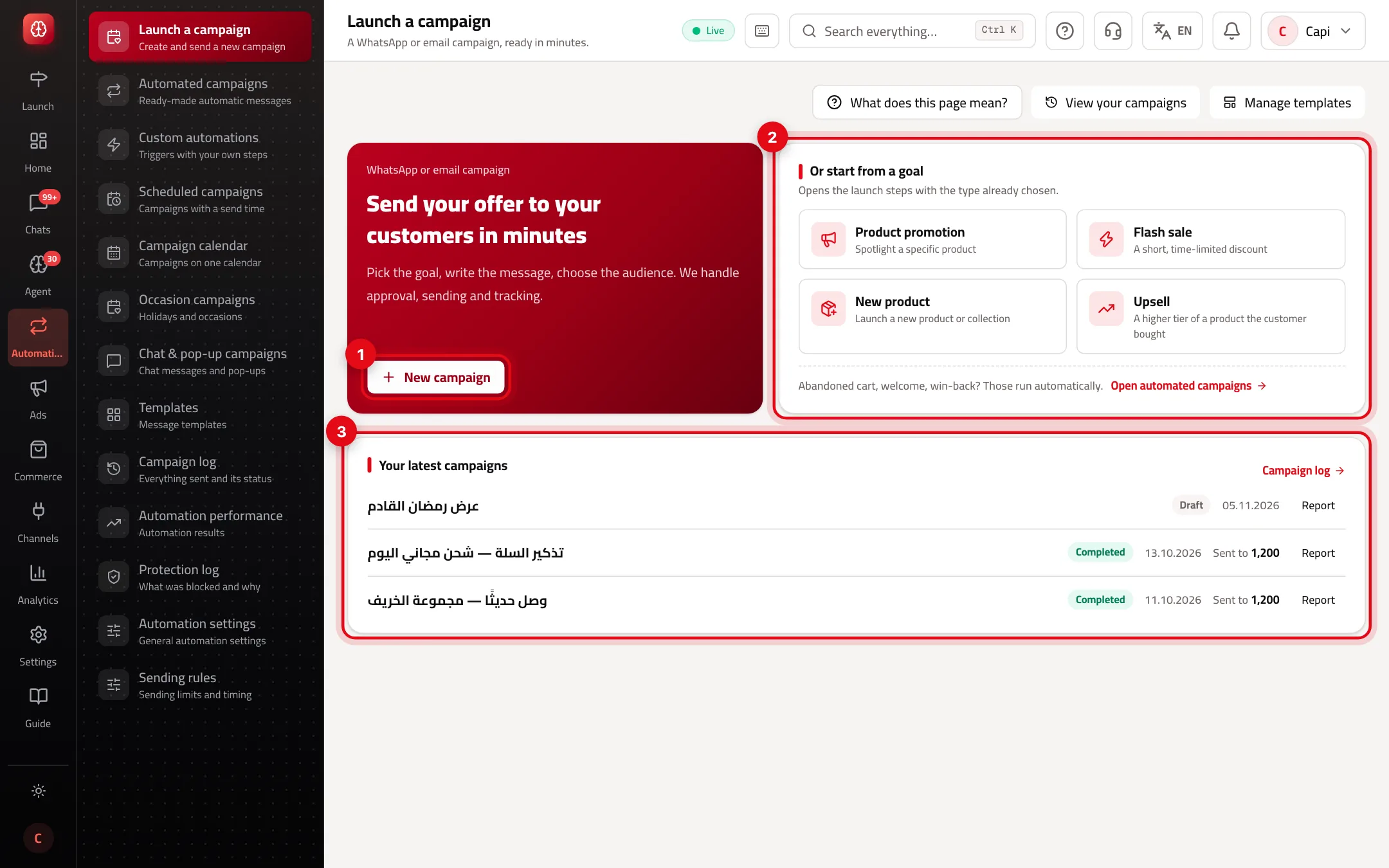
- 1“New campaign” opens the launch wizard at step one.
- 2“Or start from a goal” opens the wizard with the type already chosen.
- 3“Your latest campaigns”: “Report” opens a campaign's results, “Repeat it” starts a new one of the same type.
Launch a WhatsApp campaign
The wizard has six steps; you can't move on before the current one is complete. Every step and what happens after sending is covered in the “Scheduled campaigns” guide.
- 1
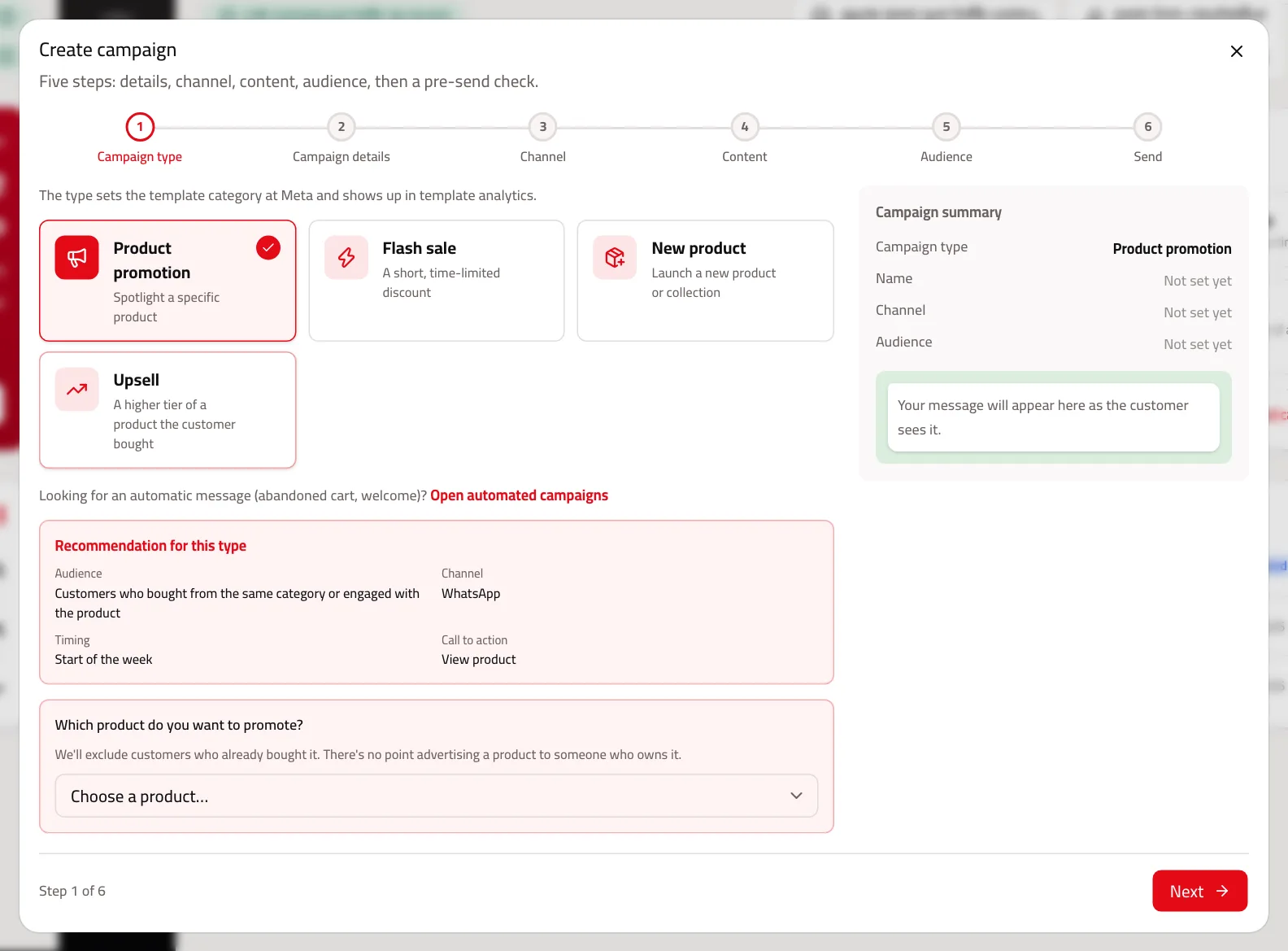
Pick the type
Press “New campaign” and pick a type, or press a goal tile to start at the next step.
- 2
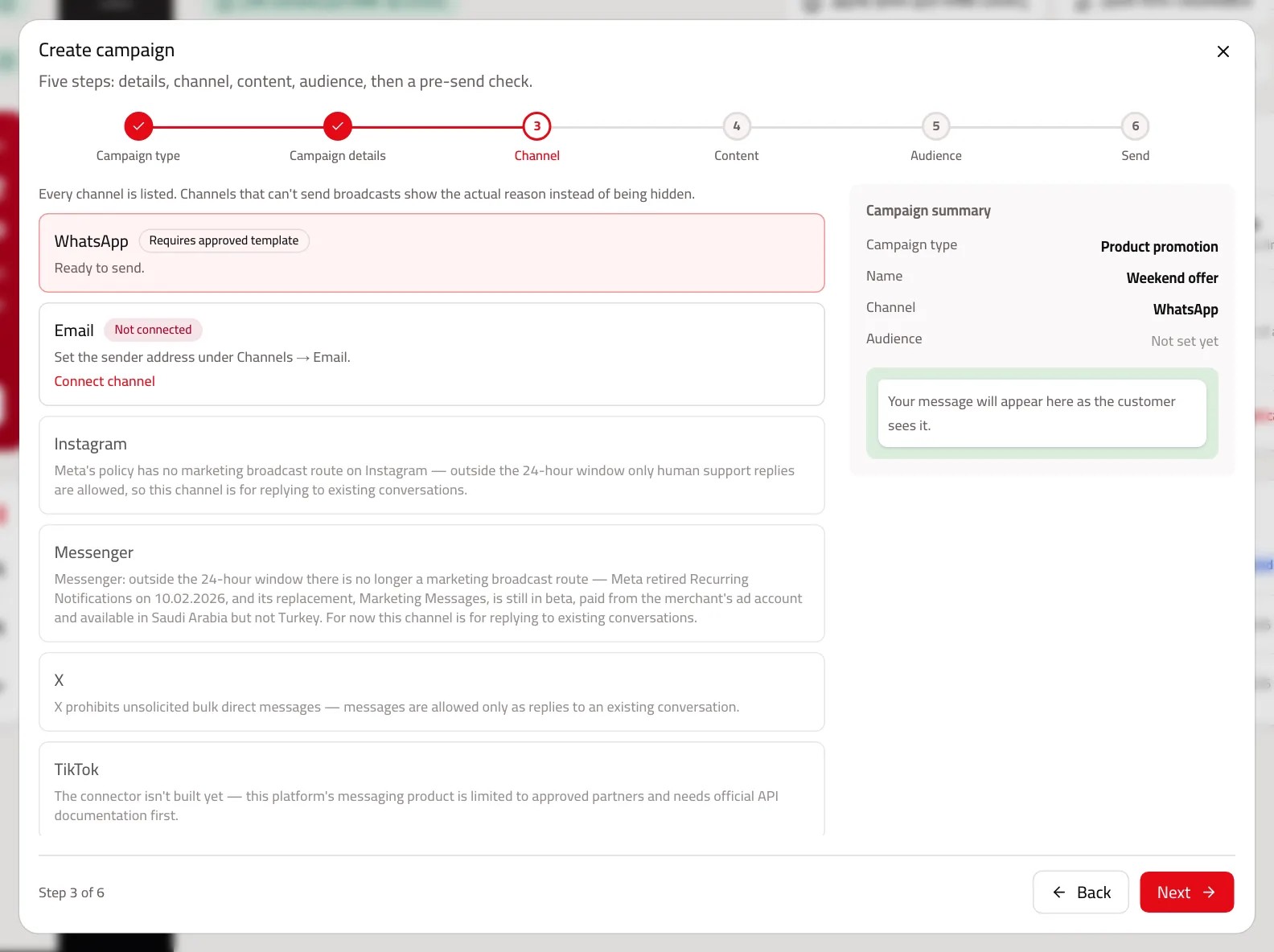
Name it and pick the channel
A name you'll recognize in reports, such as “Weekend offer”. Then pick “WhatsApp”; channels that can't take marketing broadcasts show the reason.
- 3
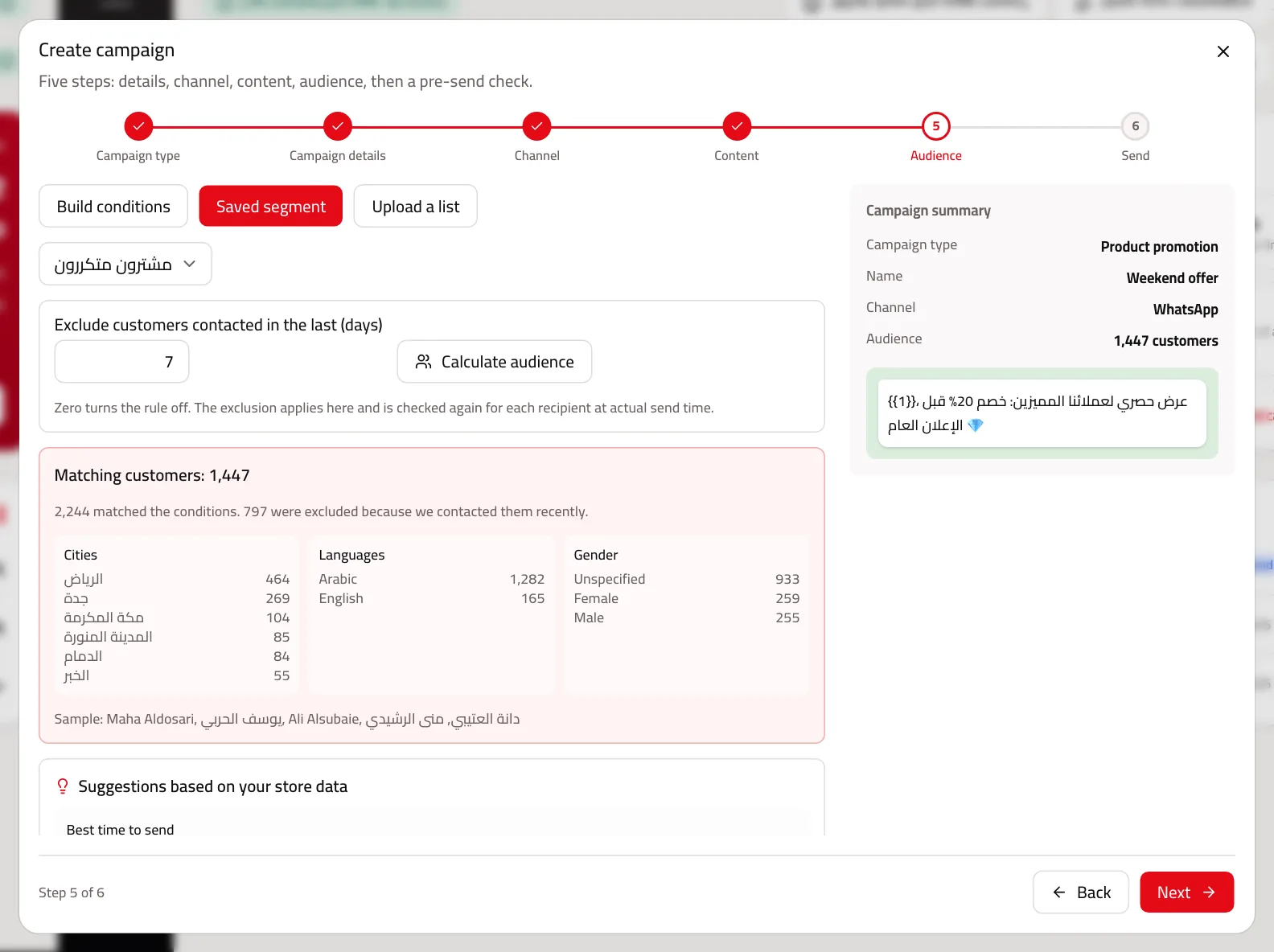
Pick the template and the audience
A Meta-approved template with a value for every variable, then a segment or conditions. Press “Calculate audience” for the real count and who was excluded, and why.
- 4
Pick the time and save
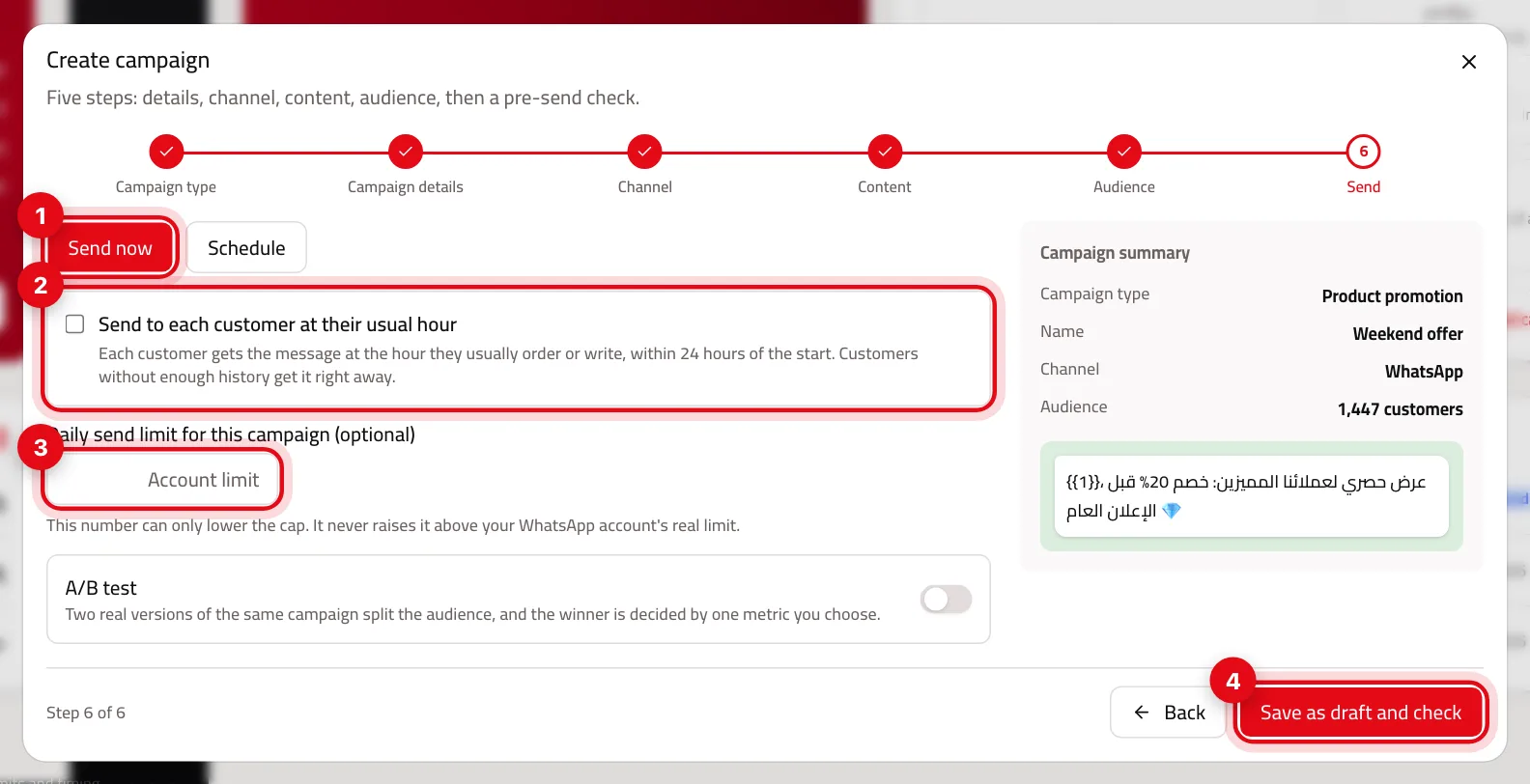
“Send now” or “Schedule”, then “Save as draft and check”. After the check you confirm, and the campaign is “Pending approval” until someone with permission approves it.
What you need before launching
| Requirement | Why | Where |
|---|---|---|
| A Meta-approved WhatsApp template | A marketing message on WhatsApp can't start without one. | “Templates” |
| A connected WhatsApp number | With a marketing number, campaigns send only from it; otherwise from the customer service number. | “Channels & platforms” → “Messaging channels” |
| A published store | Capi doesn't contact your customers before “Publish now”. | “Publish now” on the home page |
| A member with approval permission | Confirming submits the campaign for approval; it doesn't send it. | “Settings” → “Team & permissions” |
Practical tips
- Submit the template at least two days before the campaign; Meta's review can take time.
- When a campaign works, start from “Repeat it”: same type, and you only change the text and audience.
- Open each campaign's “Report” two days after sending, not in the first hour — buying takes time.
- Don't launch a campaign for something that repeats for every customer, like an abandoned cart. Turn on its automation once.
Common mistakes and how to fix them
ProblemA line says “You need a Meta-approved WhatsApp template before launch”.
FixPress “Create a template”, create a marketing template and submit it, then come back once it's approved.
ProblemThere's no “Repeat it” next to an older campaign.
FixIt shows only for campaigns created from one of the four goals. Create a new campaign of the right type.
ProblemYou want to pause or edit a campaign here.
FixPress “View your campaigns” at the top — all management is on “Scheduled campaigns”.
Screenshot from a demo store
Parts of the page
- 1
Launching a campaign
Four steps: type, content, audience, then review. You see the real number of recipients before sending.
ExampleA White Friday offer for everyone who bought in the last 90 days. - 2
Audience
Who receives the campaign: a ready-made segment or conditions you set. It never reaches anyone who unsubscribed.
- 3
Template and marketing number
A WhatsApp campaign needs a Meta-approved template, and sends from the marketing number only.
Playbooks that use this page
Related articles
Didn't find your answer?