Automations & campaigns
Automation settings
General automation settings
General automation settings: turn each type on or off in one place.
Open the page in the dashboardOne place to switch every type on or off
This page lists all thirteen types, each with an “On / Off” switch. It's the fastest way to stop every automation before a holiday, or to turn several on at once.
The switch here turns WhatsApp and email on or off together for that type. Turning off deletes none of your messages, steps or settings; turning back on restores them. Editing the text, timing or audience, or using just one channel, happens on the type's page under “Automated campaigns”.
Read the page
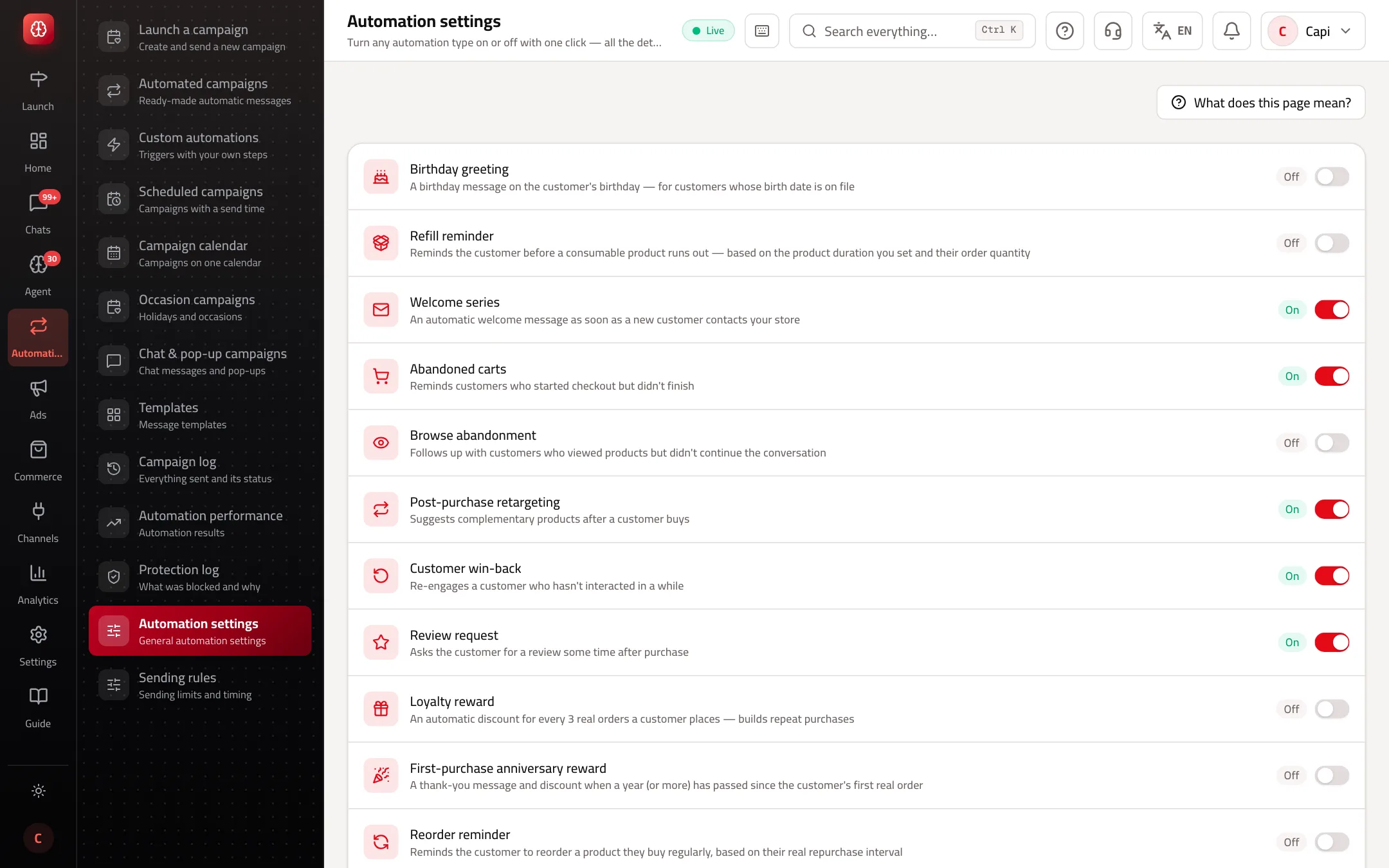
Pause every automation
- 1
Open “Automation settings”
From the “Automations & campaigns” menu, near the end.
- 2
Switch them off
Press the switch on every running type. The badge turns to “Off” and the change saves at once — no save button.
- 3
Switch back on later
Turn the same switches back on. Messages and steps are as you left them.
When to use it
- Before a big stock-out or a temporary closure: turn off “Abandoned carts” and “Reorder reminder” so you don't invite customers to a product you don't have.
- If you want WhatsApp only, without email, turn the channel on from the type's page instead; the switch here turns both on.
- “Order status notifications” are transactional and customers need them; don't switch them off with the marketing ones.
Common mistakes and how to fix them
ProblemYou switched a type on here and nothing was sent.
FixThe type runs, but messages are skipped for a reason. Open the “Campaign log” and read it — for example, no approved template.
ProblemYou want to stop just one step.
FixOpen the type under “Automated campaigns” and delete the step, or give it a condition.
Screenshot from a demo store
Parts of the page
- 1
On and off
Turning a type off here stops all its messages without deleting your messages or its settings.
Related articles
Didn't find your answer?