Settings
Your data & rights
Export, retention and account closure
Your data and rights: export all your data, how long it's kept, and closing the account.
Open the page in the dashboardYour data is yours
This page delivers what the privacy policy promises: a full copy of your data, a choice of how long conversations are kept, and closing the account. The periods shown are enforced by a daily cleanup.
Exporting, closing and changing retention need permission to edit settings, and each one is recorded in the audit log.
Read the page
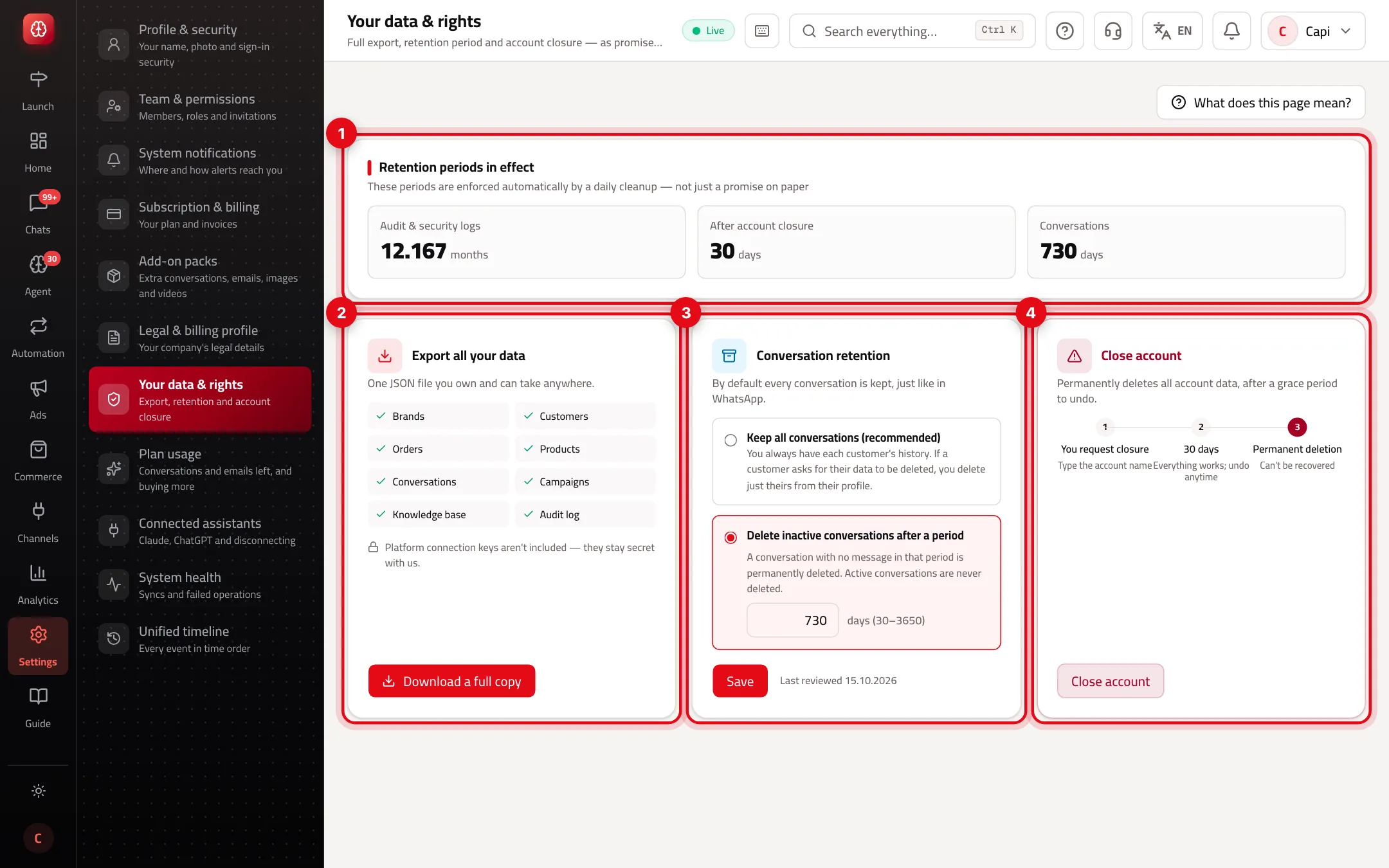
- 1“Retention periods in effect”: audit & security logs, after account closure, and conversations.
- 2“Export all your data”: what the file includes, and “Download a full copy”.
- 3“Conversation retention”: keep forever or delete after a period.
- 4“Close account”.
Periods in effect
| Data | Period |
|---|---|
| Audit & security logs | 12 months |
| All data after a closure request | 30 days to undo, then permanent deletion |
| Conversations | Your choice: keep forever, or delete inactive ones after 30 to 3650 days |
What you can do
Export all your data
- What it is
- One JSON file with brands, customers, orders, products, conversations, campaigns, knowledge base and audit log. Platform connection keys aren't included — they stay secret with us.
- When to use it
- A backup, or moving your data to another system.
- How to start
- Press “Download a full copy” and the download starts.
Conversation retention
- What it is
- “Keep all conversations (recommended)”, or “Delete inactive conversations after a period”: a conversation with no message in that period is permanently deleted, with its messages and attachments.
- When to use it
- When your policy or local rules require deleting old conversations.
- How to start
- Choose, enter the days (30–3650), press “Save” and confirm.
Close account
- What it is
- Schedules deletion of all account data — customers, orders, conversations and integrations — after 30 days.
- When to use it
- If you've decided to stop using Capi for good.
- How to start
- “Close account”, type the account name exactly to confirm, then “Schedule closure”.
Export your data
- 1
Open the page
From “Settings” choose “Your data & rights”.
- 2
Download the file
On “Export all your data” press “Download a full copy”. A large account may take a moment.
- 3
Store it safely
The file holds your customers' data. Keep it somewhere protected and don't email it around.
Deleted conversations and a closed account don't come back
A conversation removed by retention can't be recovered. Closing the account can be undone only within 30 days with “Undo closure”; until then everything keeps working. Export your data before closing.
Tips
- If one customer asks for their data to be deleted, don't change retention for everyone — delete just theirs from their profile.
- Retention never touches orders or customer data, and an active conversation is never deleted.
- Export a copy regularly if your company policy needs off-site backups.
Common mistakes and how to fix them
Problem“Schedule closure” doesn't work.
FixType the account name exactly as shown in the window.
ProblemI closed the account by mistake.
FixPress “Undo closure” before the 30 days are up and your account goes back to normal.
ProblemConversations show “Not set yet”.
FixNo policy has been chosen and conversations are currently kept. Choose and save to fix it.
Screenshot from a demo store
Parts of the page
- 1
Full export
A file with all of your account's data that you can download.
- 2
Retention
How long conversations are kept before they're deleted. Applied by a real daily sweep.
ExampleChoose “Keep forever” if you need your customers' full history, or a period if your policy requires deletion. - 3
Closing the account
A final step; data is then deleted according to the periods shown.
Related articles
Didn't find your answer?