AI agent
Knowledge suggestions
Questions it couldn't answer
Real questions from your customers' conversations: some the agent had no answer for, some drafted from your team's replies. Nothing is published until you approve it.
Open the page in the dashboardWhere suggestions come from
Here are real questions from your customers' conversations waiting for your answer. Some the agent had no answer for; some are ready drafts. Nothing is added to the knowledge base until you approve it.
Questions are sorted by how many customers asked them, so the top one matters most. Answer a question once, and the agent handles it on its own from then on.
Suggestion sources
| Source | When it appears | Has an answer? |
|---|---|---|
| Unanswered question | As soon as the agent searches the knowledge base and finds nothing; its count grows each time it's asked | No — you write it |
| From your team's replies | Weekly, from questions your team really answered in conversations | Yes, a draft from your team's reply |
| From your website | After “Read my site” in the Knowledge base | Yes, with a “Source page” link |
“Fill with AI” drafts also wait here until you approve them.
Approve a suggestion
- 1
Filter the list
“Waiting” or “Rejected”, and on the other side the source: “Unanswered”, “From your team”, “From your website”.
- 2
Review and edit the answer
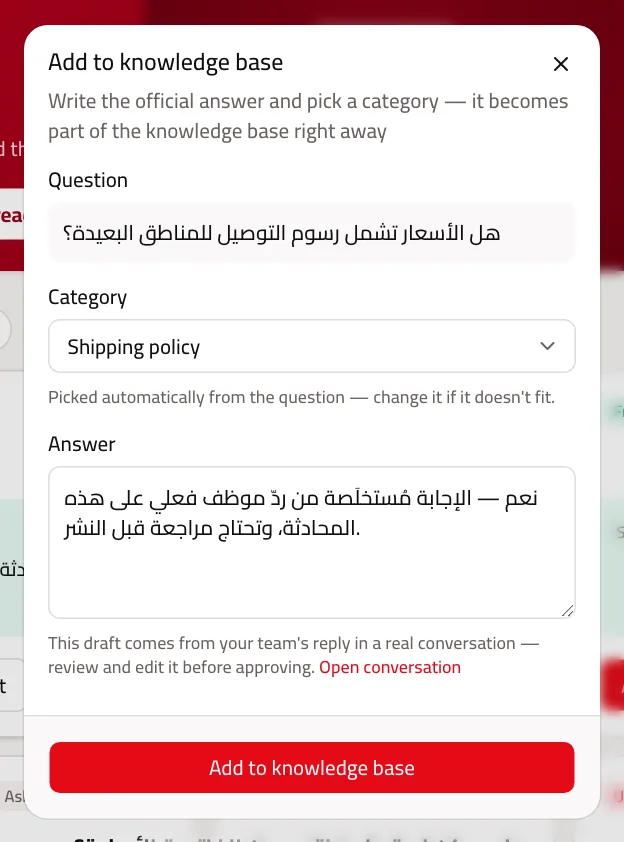
Press “Approve” on a suggestion with an answer, or “Write the answer” on one without. Edit the text, check the category picked automatically, then press “Add to knowledge base”.
- 3
Or approve the ready ones at once
“✓ Approve the ready ones” adds every suggestion that has an answer, each in the section closest to its topic, after you confirm. Questions without an answer stay in the list, and anything the knowledge base already answers stays and isn't duplicated.
- 4
Reject what doesn't fit
“Reject” moves the suggestion to “Rejected”, where you can still look at it.
Read the Suggestions page
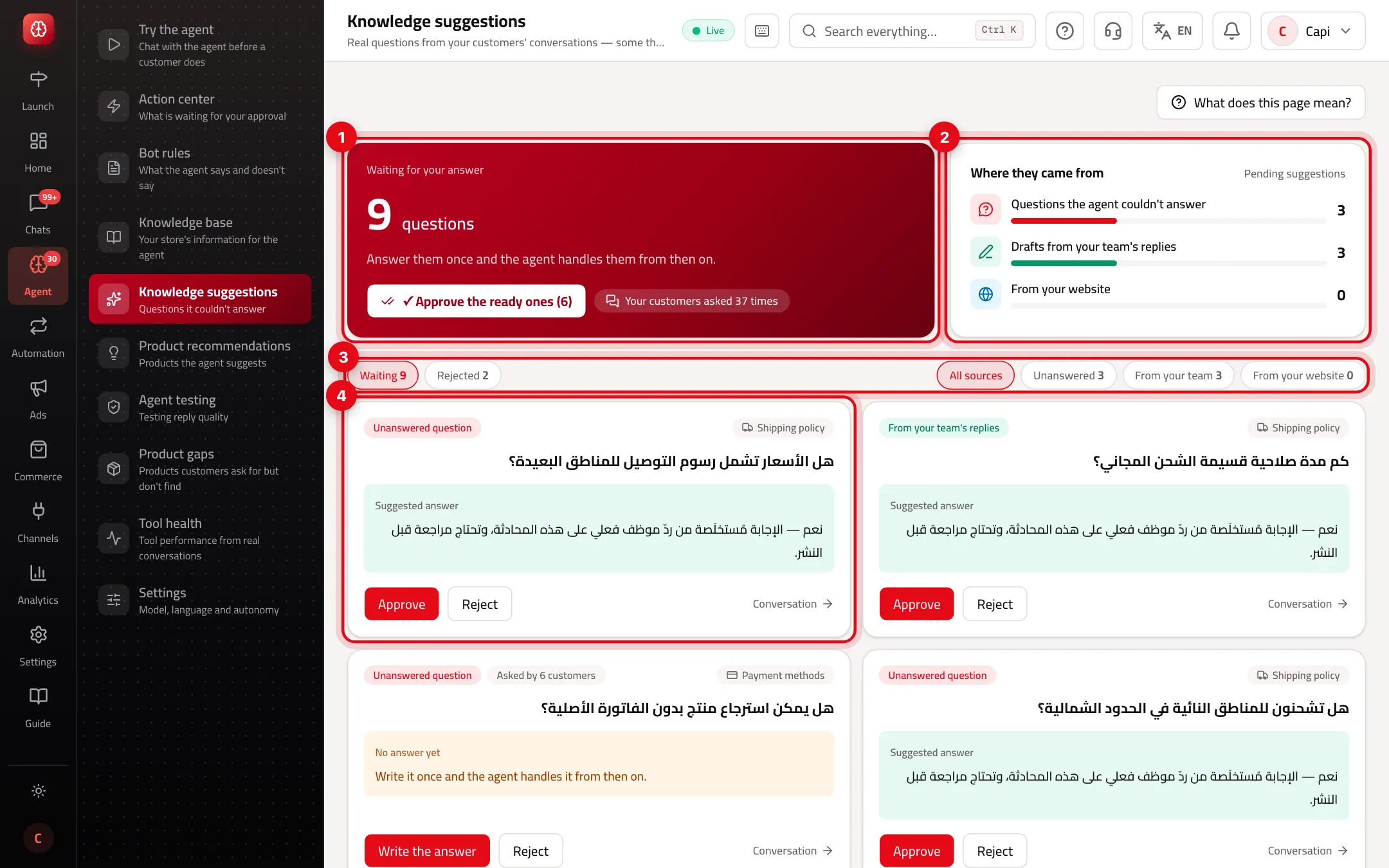
- 1How many questions wait for your answer, and “✓ Approve the ready ones” for everything that has an answer.
- 2Where the pending suggestions came from.
- 3Filter by status and source.
- 4A suggestion card: source, how many customers asked, section and the suggested answer.
Best practices
- Start at the top of the list: it's what most customers asked.
- Read “From your team's replies” drafts before approving; a team member wrote for one customer and it may need generalising.
- Before approving a “From your website” suggestion, open the “Source page” and check the fact is still true.
- If a question about a product you don't sell keeps coming up, check Product gaps too.
Common mistakes and how to fix them
ProblemI used “Approve the ready ones” and some questions stayed.
FixQuestions without an answer stay until you write one, and anything the knowledge base already answers isn't added twice.
ProblemI approved an answer into the wrong section.
FixOpen the section in the Knowledge base, edit or delete the entry, and add it under the right section.
Screenshot from a demo store
Parts of the page
- 1
Approving a suggestion
Review the drafted answer, edit it if needed, and approve it to add it to the knowledge base.
ExampleAsked 7 times: “Do you ship to Kuwait?”. Approve the answer once, and the agent answers it on its own from then on. - 2
Rejecting
A rejected suggestion moves to “Deleted content”, where you can come back to it.
Playbooks that use this page
Related articles
Didn't find your answer?