Settings
Connected assistants
Claude, ChatGPT and disconnecting
Connected assistants: AI assistants such as Claude and ChatGPT that read your store and change its settings with your permission.
Open the page in the dashboardYour AI assistant runs the store with you
You can connect Claude or ChatGPT to your Capi account. Then you ask your assistant, in your own words, about your sales and your store's problems, and ask it to change internal settings — the knowledge base, agent rules, working hours — and it does it inside Capi.
Clear limits: the assistant never reaches your customer list or their contact details. Every change is recorded in the activity log, and anything that reaches customers (like campaigns) stays a proposal until you approve it.
Read the page

- 1“Add to Claude” and “Add to ChatGPT” open the app's page in the assistant.
- 2What the assistant can do when you ask.
- 3The three connection steps.
What the assistant can do
Read and analyze
- What it is
- Sales and orders, what customers asked about, setup and connection problems.
- When to use it
- “How were my sales in the last 30 days?” or “What's missing from my store setup?”
- How to start
- A “Read only” connection is enough.
Change internal settings
- What it is
- Adds and edits knowledge-base articles, reads your website and imports shipping and returns, answers the questions your agent couldn't, edits agent rules and tone, sets working hours, and restores an earlier agent setup.
- When to use it
- When you'd rather finish setup by talking than by clicking through pages.
- How to start
- Needs a “Read and edit” connection.
Propose what reaches customers
- What it is
- Builds a complete campaign, saves it as a draft that stays off, and gives you its link.
- When to use it
- To prepare a campaign quickly.
- How to start
- You open the link, review it and launch it yourself. The assistant can't switch it on.
Connect Claude or ChatGPT
- 1
Add it to the assistant
Press “Add to Claude” or “Add to ChatGPT”. In Claude you can also search Connectors for Capi Agent for Merchants.
- 2
Approve the connection
Click Connect, then sign in to Capi and pick the store. On the approval page you also choose whether to allow editing or read only.
- 3
Always allow the tools
In the connector settings inside the assistant, set every tool to “Always allow” so it reads and edits without asking each time.
- 4
Start with a ready question
Under “Start with a ready question”, copy a sentence or press “Open in Claude” or “Open in ChatGPT”. Naming “Capi Agent” makes the assistant read your store's numbers instead of answering in general.
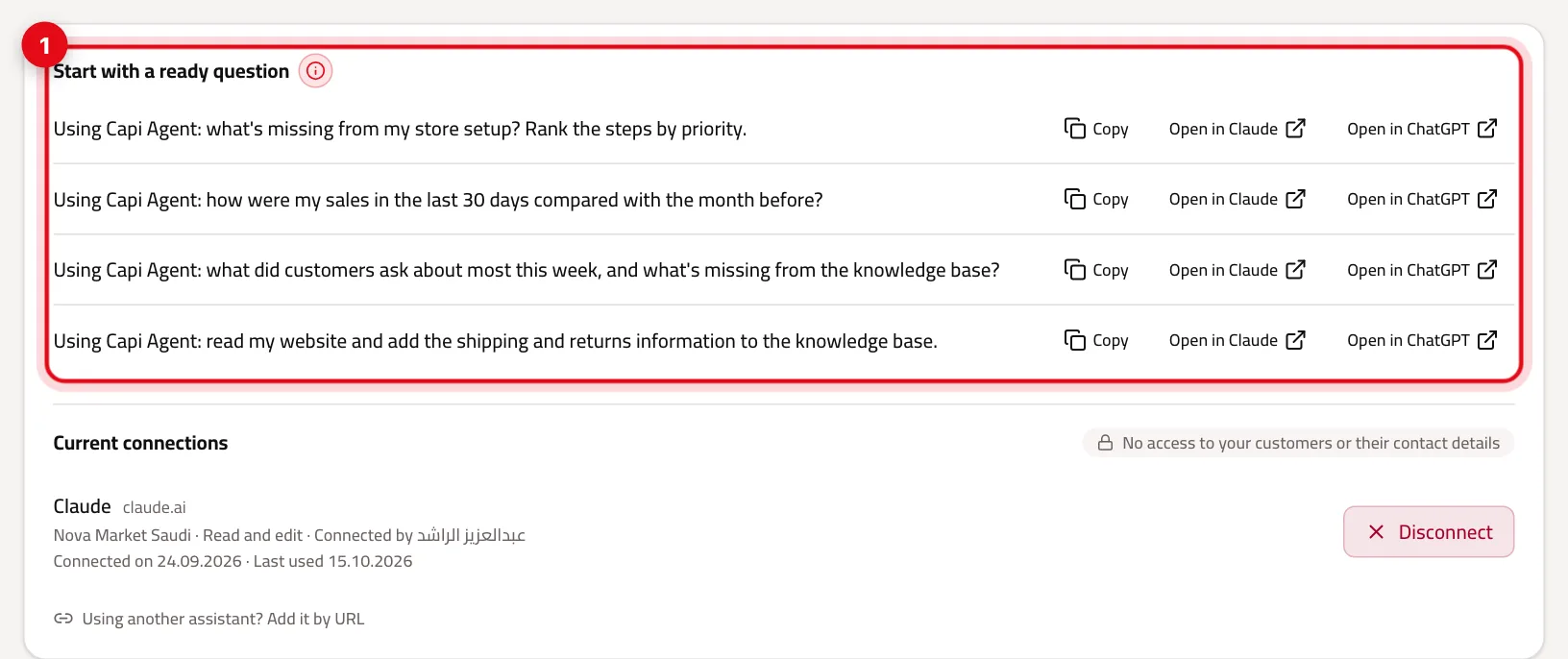
- 1Ready questions: “Copy”, “Open in Claude” or “Open in ChatGPT”.
“Current connections”
Below the ready questions is every assistant connected now:
| What you see | What it means |
|---|---|
| Assistant name and address | The app you connected. |
| Brand | Each connection covers one store. |
| “Read only” or “Read and edit” | What you approved when connecting. |
| “Connected by” | The team member who connected it. |
| “Connected on” and “Last used” | When it was connected and when the assistant last used it. |
| Disconnect button | Cuts the connection at once, after you confirm. |
Tips
- Start with “Read only” to try it, then reconnect with “Read and edit” once you trust the results.
- Review “Current connections” now and then, and disconnect any assistant nobody uses.
- In ChatGPT, make sure Capi Agent is turned on in the chat before you ask.
- Every change the assistant makes is in the “Unified timeline”, so you can always see what changed.
Common mistakes and how to fix them
ProblemIt says “The connection needs to be renewed”.
FixYour password or two-step verification changed, the connection was removed, or it expired. Press “Reconnect”.
ProblemThe assistant gives general e-commerce answers, not about my store.
FixStart with “Using Capi Agent:” as in the ready questions.
ProblemThe assistant says it can't make changes.
FixThe connection is read only. Disconnect and reconnect allowing edits.
ProblemI asked for a campaign and it wasn't sent.
FixThat's by design: it's saved as a draft. Open the link the assistant gave you and launch it.
Screenshot from a demo store
Parts of the page
- 1
What they can do
Ask your assistant about your sales and store problems, or ask it to update the knowledge base or working hours — as if you were talking to Capi.
ExampleFrom Claude: “How much did I sell this week, and what's the question the agent most often couldn't answer?” - 2
What they can't reach
No assistant reaches your customer list or their contact details. You can disconnect it any time.
Playbooks that use this page
Related articles
Didn't find your answer?