Conversations
Escalation rules
When the agent hands over to staff
Escalation hands a conversation from the agent to someone on your team: when it doesn't know the answer, when the customer asks for more than it may do, or when the customer is upset. Here you decide where it goes, who is alerted, and how soon it must be resolved.
Open the page in the dashboardHow escalation works
Escalation hands a conversation from the agent to someone on your team. It's the same path whether the agent escalated it (a frustrated customer, a refund above its limit…) or a team member used the “Escalate” button in the conversation.
On escalation, in order: the conversation goes to the team or person set for its type; its priority rises to the level the type calls for and is never lowered; the reply timer restarts; recipients are notified right away; and a task opens on the tasks page. It's closed with “Resolved”.
Teams are managed in one place, the Teams page. This page selects them; it can't create them.
Escalation types and their priority
The type sets the priority automatically. The first types can also be chosen by a team member from the “Escalate” button; the last ones are raised by the system only:
| Type | Priority | Raised by |
|---|---|---|
| Frustrated customer | Urgent | Agent or team member |
| Refund request | Urgent | Agent or team member |
| Customer asked for a human | High | Agent or team member |
| Order management | High | Agent or team member |
| Delivery management | High | Team member only |
| Action needs approval | High | Agent or team member |
| Missing knowledge | Normal | Agent or team member |
| AI quota used up / Subscription expired / No AI key connected | Urgent | System |
| Agent unavailable (switched off or outside working hours) | Normal | System |
Set up escalation
- 1
Read the page
The numbers at the top cover the last 30 days. Then the red card “What happens now when a conversation is escalated” sums up your current setup, and below it are three cards: “Who receives it”, “Who is notified” and “Resolution”.
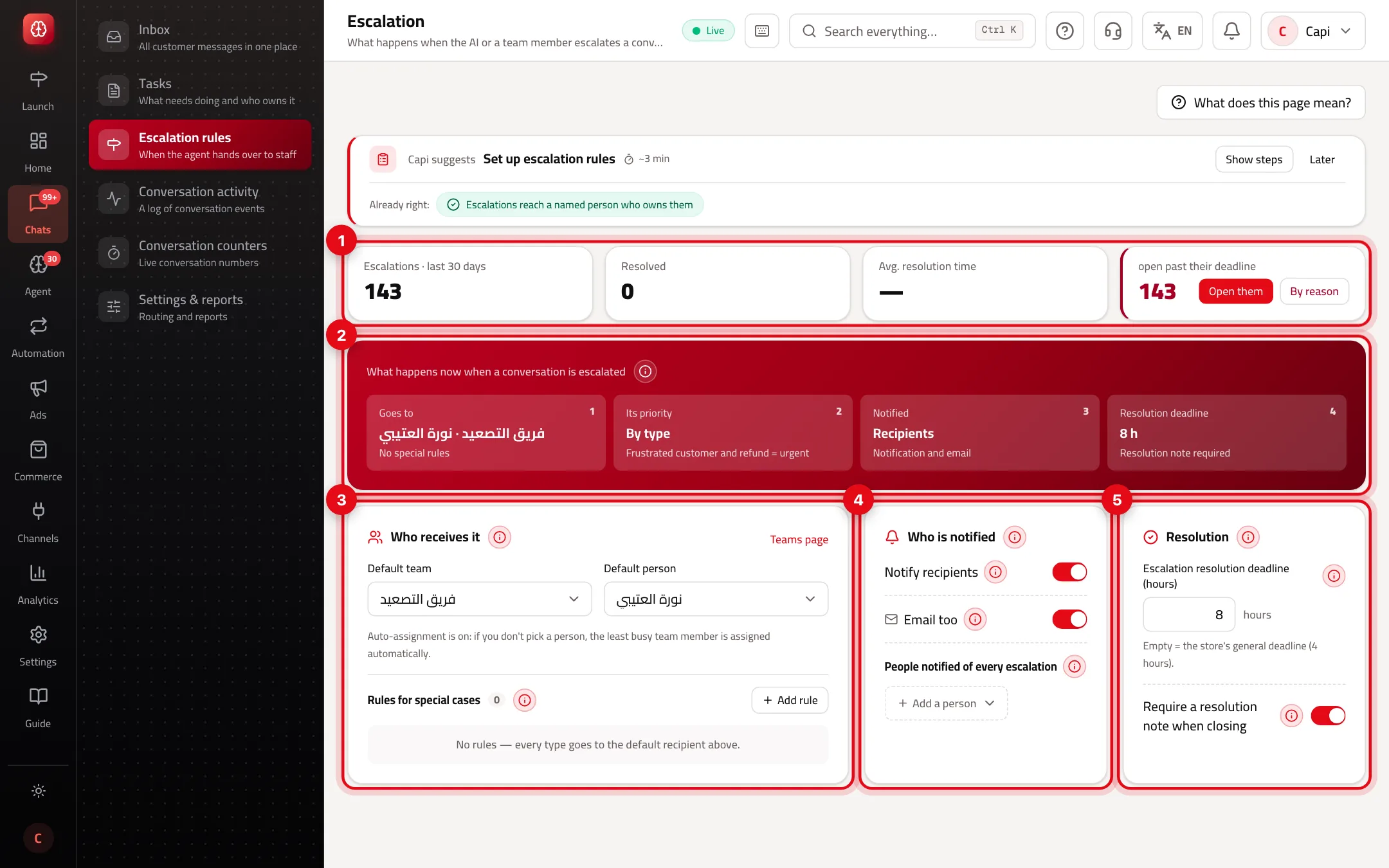
- 1The last 30 days: escalations, resolved, average resolution time, and open ones past their deadline with “Open them” and “By reason”.
- 2What happens now on escalation, calculated from your setup.
- 3“Who receives it”: the default recipient and rules for special cases.
- 4“Who is notified”.
- 5“Resolution”: the deadline and the resolution note.
- 2
Set the default recipient
In “Who receives it” pick a “Default team” and/or a “Default person”. The person is assigned; the team sets the queue. If you pick a team with no person: with auto-assignment on, the least busy team member is assigned; with it off, the conversation stays in the team queue until someone takes it.
- 3
Add rules for special cases
Press “Add rule”, choose “When the escalation type is”, then “Route it to the team” or “Or to the person”, and press “Apply rule”. One rule per type. A rule that routes nowhere is removed on save, and any type without a rule goes to the default recipient.
- 4
Choose who's notified
“Notify recipients” alerts the team members and the assigned person; with no specific recipient it goes to all members so nothing is lost. Turn on “Email too” to also send an email, according to each person's notification preferences, and use “Add a person” for a manager notified of every escalation. Whoever escalated doesn't get notified about their own escalation.
- 5
Set the deadline and save
“Escalation resolution deadline (hours)”: left empty, the store's general deadline from conversation settings applies. Once passed, an “overdue for resolution” badge shows in the conversation header. Turn on “Require a resolution note when closing” if you want the team member to record the fix. Then press “Save”.
Best practices
- Open “By reason” every week. If most handoffs are “Refund request”, raising the refund cap in the agent settings may be enough; if they're “Missing knowledge”, add the answers to the knowledge base.
- Route “Refund request” to someone who can pay out, and “Delivery management” to whoever follows shipping.
- Turn on “Require a resolution note when closing” — the written fix goes into the timeline and the quality report.
- Add a manager under “People notified of every escalation” in the first weeks to see the real escalation volume.
Common mistakes and how to fix them
Problem“Nobody will be notified of escalations” shows.
FixTurn on “Notify recipients” or add a person under “People notified of every escalation”.
ProblemNo team appears in the list.
FixTeams are created on the Teams page. Press “Add a team now”, then come back.
ProblemA rule disappeared after saving.
FixA rule with no team and no person is removed on save. Pick a target for it.
ProblemEscalations stay without an assignee.
FixPick a default person, or turn on auto-assignment in conversation settings.
Screenshot from a demo store
Parts of the page
- 1
Escalation report
How many conversations were handed off recently, how many were resolved, and the average time to resolve, split by reason.
ExampleIf most handoffs are “refund request”, raising the refund cap in the agent settings may be enough. - 2
Routing and rules
The default recipient (a team, a person, or both) takes every escalation, and rules send specific types elsewhere.
ExampleEverything to “Support”, except refund requests, which go to “Finance”. - 3
Alerts
Who is alerted the moment a conversation escalates: the recipients, email if you turned it on, and extra people such as a manager.
- 4
Deadlines
How many hours an escalation has to be resolved. Past it, the conversation shows an “Overdue” badge.
Playbooks that use this page
Related articles
Didn't find your answer?