Analytics
Revenue
What Capi brought in, and from where
Capi revenue: the sales we have evidence Capi brought in, each order counted once. It is the same figure on every analytics page.
Open the page in the dashboardWhat “Capi revenue” is
Capi revenue is the sales we have evidence Capi brought to your store. It's the same figure on every analytics page and in the monthly report, because it's computed in one place.
Two rules never change: each order counts once, for one source; and cancelled or refunded orders don't count. An order credited and then cancelled is taken out and shows under “Not counted”.
Buying after a message doesn't prove the message caused it. That's why the page has “Is Capi really the reason?”, which measures it against customers who didn't get the message.
The main figure and what surrounds it
The default period is “This month”. Change it with “Period” at the top.
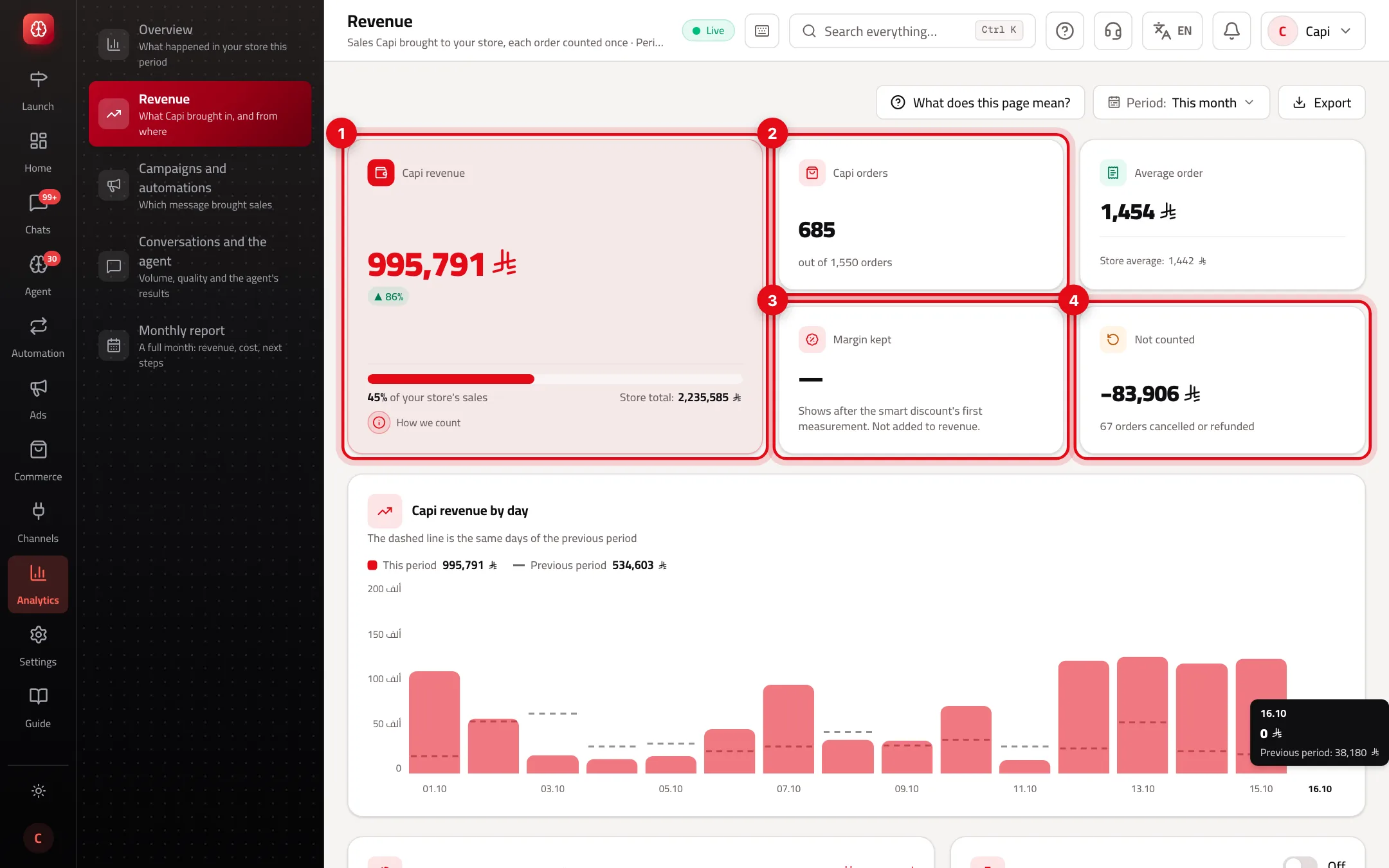
- 1“Capi revenue”: the figure, its share of your store's sales, the store total and the change on the previous period.
- 2“Capi orders”: orders credited to Capi out of all the store's orders in the period.
- 3“Margin kept”: the discount not given to a customer who would have bought anyway. Not revenue, so not added to the main figure.
- 4“Not counted”: orders credited to Capi and then cancelled or refunded, so taken out.
Revenue sources: evidence and credited amount
When several sources reached an order, it goes to the strongest evidence, in this order from top to bottom:
| Source | Evidence needed | Amount credited |
|---|---|---|
| The agent | The customer bought a product the agent had recommended in the chat | Only the recommended products, not the whole order |
| Abandoned carts | The cart reminder arrived, then the customer's first order came within the attribution window | The whole order |
| Asked but didn't order | Asked without buying, got the follow-up and bought within the window — also under a linked phone or email | The whole order |
| Refill reminder | The product was running out, we reminded them, and they bought within the window | The whole order |
| Campaigns and marketing | A campaign or marketing-automation message arrived, or they used a site popup, then ordered within the window | The whole order |
| Sales recorded by hand | A sale you recorded after a chat, such as cash on delivery | The amount you recorded |
The default window is 14 days after the message arrived, and 7 days after using a site popup. Change them on “Campaigns and automations” with “Change the window” (1–90 days; the click window always shorter). Amounts add up in the brand's currency only; orders in another currency are counted, not added.
Read the revenue breakdown step by step
- 1
See where the revenue came from
“Where the revenue came from” lists the six sources: each one's amount, orders and share. If an order was reached by several sources, a line says how many — each still counted once.
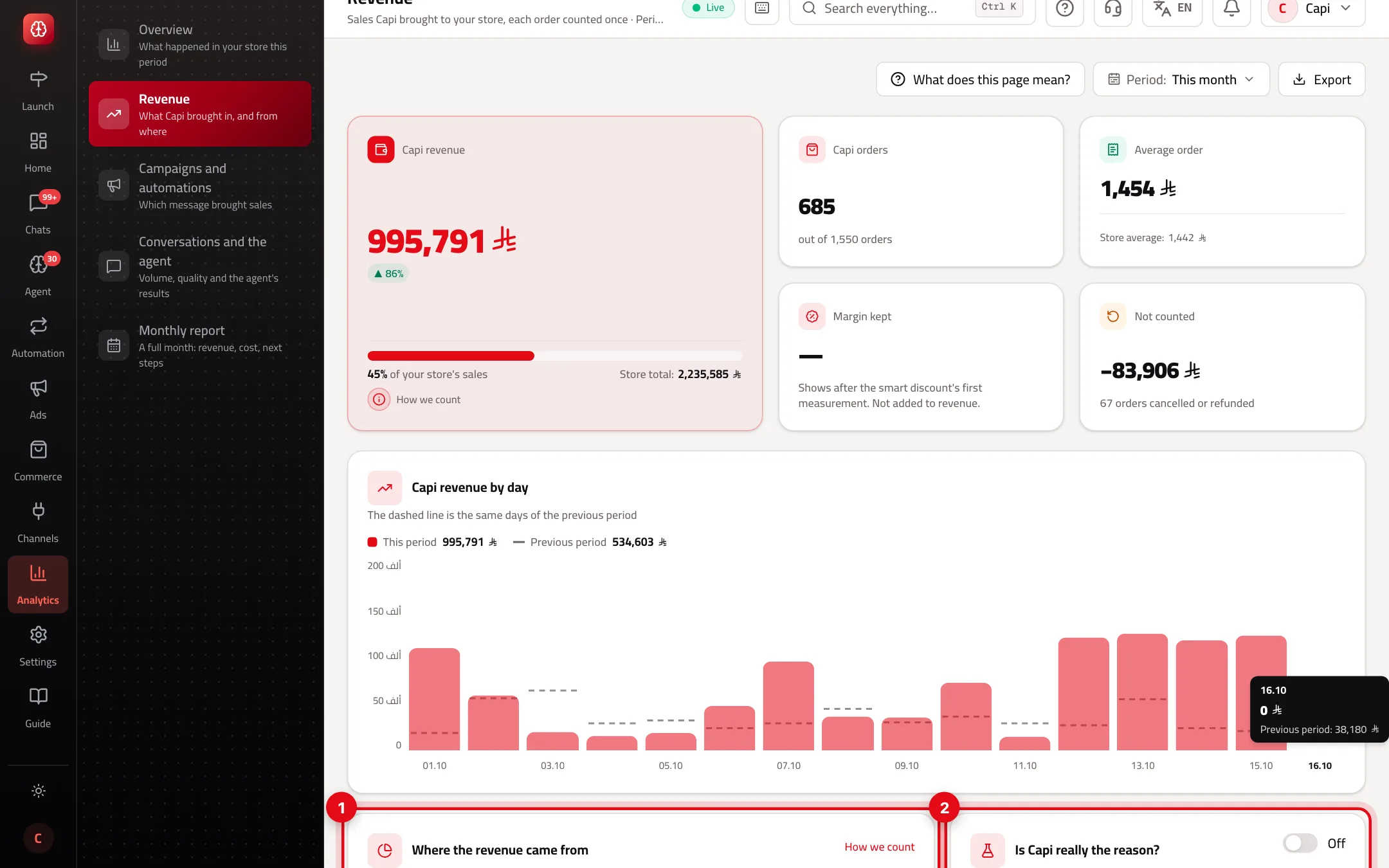
- 1The six sources. Select one to see its orders in the table below.
- 2“Is Capi really the reason?”: a comparison with customers deliberately not messaged. The switch beside the title starts it.
- 2
Check the counting rules
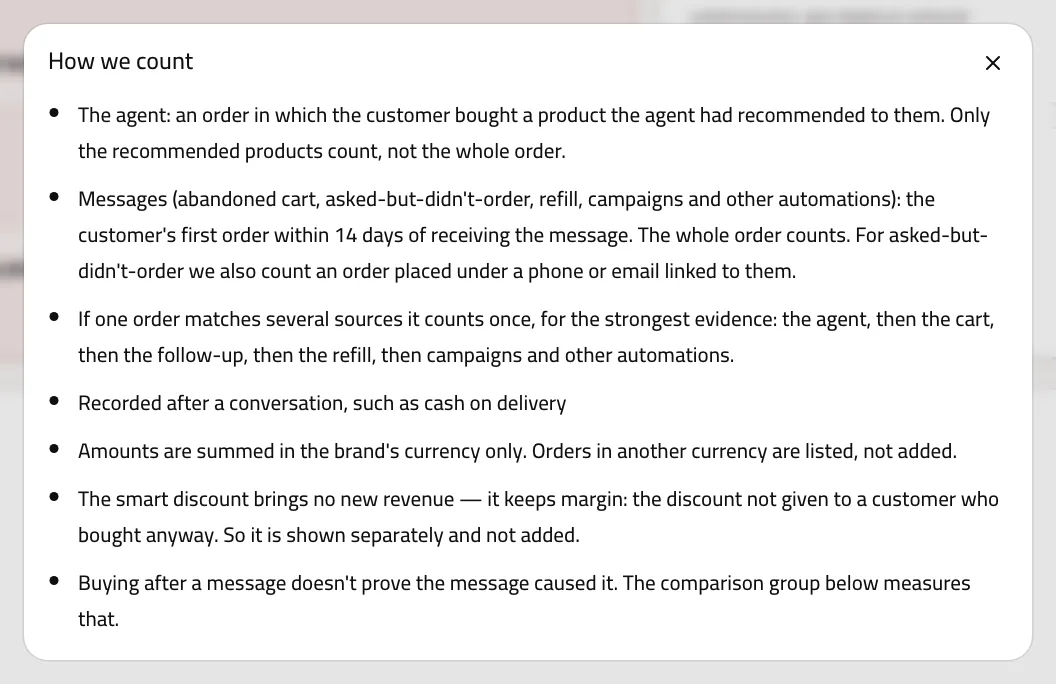
Press “How we count” in the sources card. A window lists every rule, including your store's current window.
- 3
Open the orders behind the figure
“The orders behind the figure” lists every order credited to Capi with its evidence: what happened, when, how long after the message, and which other source reached it. The chips filter by source; ten orders a page.
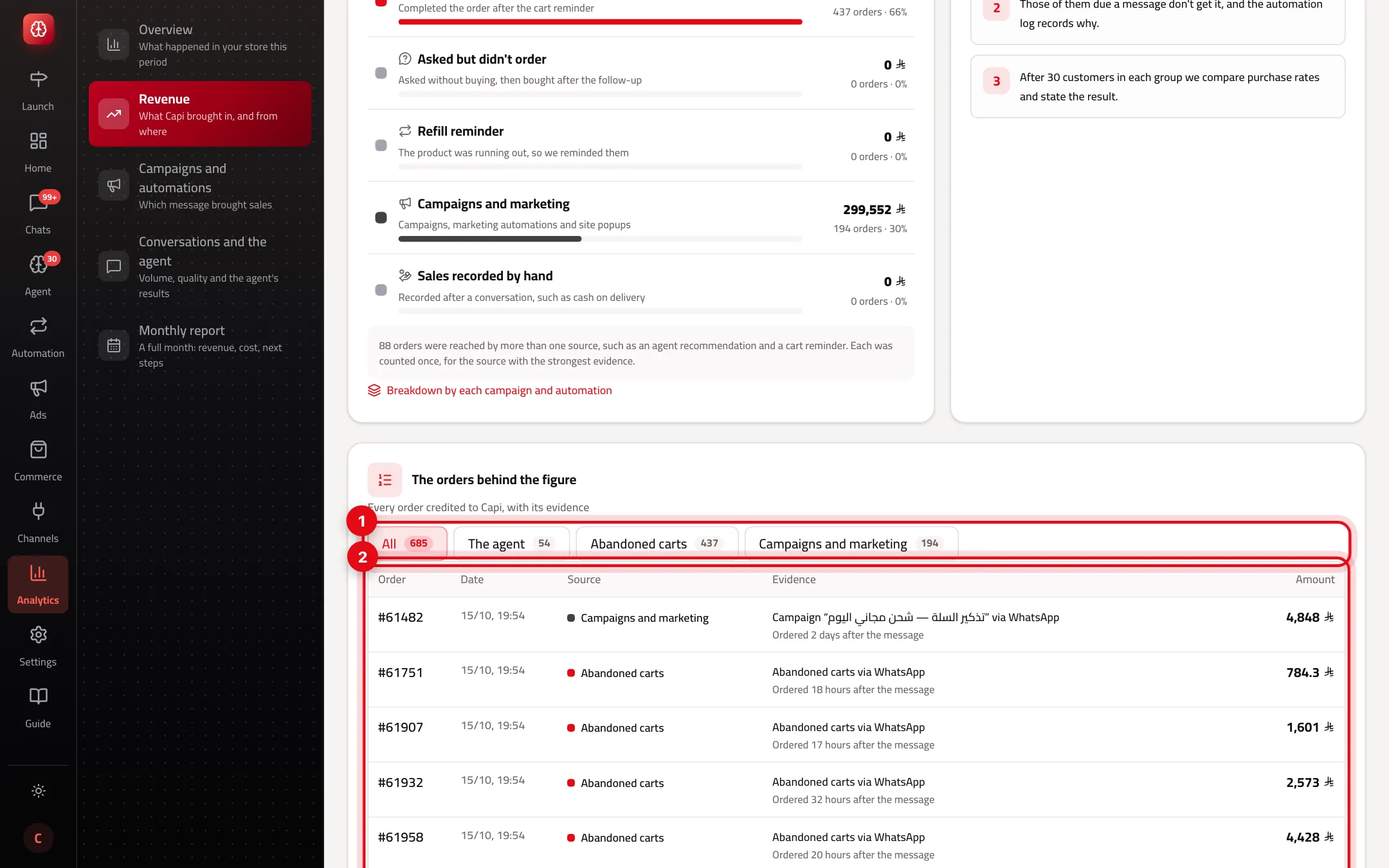
- 1Filter by source, with each source's order count.
- 2Each order: number, date, source, evidence and amount.
- 4
Go down to each campaign
Press “Breakdown by each campaign and automation” under the sources to see every campaign and automation separately. “Export” at the top downloads exactly what's on screen, with the same period and filter.
The comparison group: did the message cause the sale?
It covers the three messages whose job is to recover a sale: abandoned cart, asked-but-didn't-order and refill. It's off until you turn it on, because holding messages back can cost a few orders while measuring.
Measuring
- What it is
- Not enough customers yet.
- When to use it
- Until each group reaches 30 customers.
- How to start
- Wait. Each message shows how many customers were held back so far.
Adds sales
- What it is
- Customers who got the message buy at a really higher rate — not by chance.
- When to use it
- Once the sample is large enough and the difference is significant.
- How to start
- You see the difference in points and roughly how many extra orders the message brought.
No clear difference
- What it is
- The sample is large enough and the groups buy alike.
- When to use it
- When customers buy at about the same rate with and without the message.
- How to start
- Review the message text and timing in automations.
How the comparison group is picked
When on, 10% of customers by default (5–20%) are picked, fixed: each customer stays in their group across every message and step. A customer is held back only after passing every other check (channel, consent), and the automation log records why. Turning it on needs permission to edit campaigns and automations.
Acting on the numbers
- Compare Capi's share of your store's sales month by month — a rising share means Capi brings a bigger part.
- A small “The agent” source means the agent recommends too little: check its settings and the knowledge base.
- Abandoned carts at zero? Make sure the abandoned-cart automation is on under “Automated campaigns”.
- Turn on the comparison group once you send enough messages — it's the only way to know what a message really adds.
- A high “Not counted” means many cancellations after the sale. If you sell cash on delivery, check that section of the monthly report.
Common misreadings
ProblemAn order got the cart reminder and the agent's recommendation — why isn't it under carts?
FixEach order counts once, for the strongest evidence, and the agent comes first. Its evidence says it was “Also reached by” the cart reminder.
ProblemThe agent's amount is less than its orders' value.
FixOn purpose: the agent is credited with the recommended products only, not the rest of the order.
Problem“Margin kept” should be added to revenue.
FixNo — it's a discount not given to someone who would have bought: profit kept, not a new sale. So it stays separate.
ProblemThe orders table is locked.
Fix“The orders behind the figure” is part of advanced analytics in your plan. The figure and the sources show on every plan.
Screenshot from a demo store
Parts of the page
- 1
Capi revenue
An order whose product the agent recommended, an order that came after a message within the set window, or a sale you recorded by hand. Cancelled and refunded orders are left out.
ExampleA customer got the cart reminder and completed the order an hour later: it counts for the cart reminder. - 2
Counted once
If several sources reached an order, it counts for the one with the strongest evidence: the agent, then the cart, follow-up, refill, then campaigns.
- 3
The orders behind the figure
Every order in the figure with its evidence: what happened, when, and which other source reached it.
- 4
The comparison group
We hold the message back from a small share of customers and compare buying, to know whether the message really causes the sale.
- 5
Margin kept
A discount not given to a customer who would have bought anyway. It isn't revenue, so it is shown on its own.
Playbooks that use this page
Related articles
Didn't find your answer?