Settings
System notifications
Where and how alerts reach you
Notifications: what reaches you, and where — inside the dashboard or by email.
Open the page in the dashboardHow notifications reach you
Capi notifies you when something real happens in your store: a new order, a conversation needing a human, a failed campaign, low stock. Every notification has two channels: “In app” (the dashboard bell) and “Email”.
These settings are yours alone. Each team member chooses what they get, and your choices don't affect anyone else. Every switch saves the moment you flip it — there's no save button.
Read the page
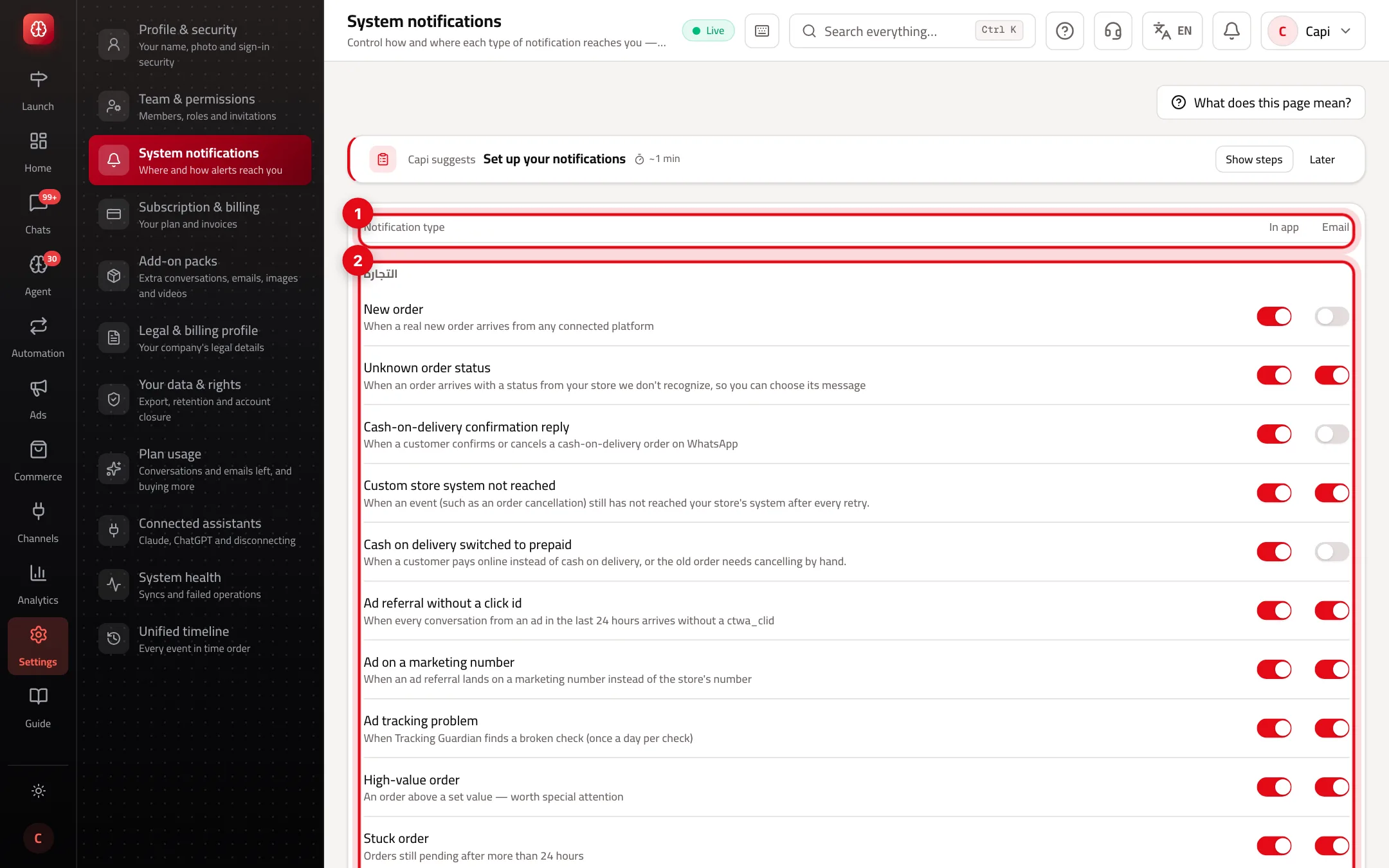
- 1The two columns: “In app” and “Email” — two independent switches per notification type.
- 2A notification group: each type's name and when it's sent.
Notification groups
Commerce
- What it is
- New order, high-value order, stuck order, late shipment, low stock, refund approved, plus cash-on-delivery and ad-tracking issues.
- When to use it
- For whoever follows orders and stock.
- How to start
- “New order” is in-app only by default because there are so many. Turn email on if you want it.
Customers
- What it is
- New VIP customer, customer complaint, new message from a customer.
- When to use it
- For the support team.
- How to start
- “Customer complaint” emails by default.
AI agent
- What it is
- Action needing approval, conversation needing a human, SLA breached, the agent's first sale, knowledge-base drafts, and agent test results.
- When to use it
- For whoever handles escalations and approves the agent's decisions.
- How to start
- Keep “conversation needs a human” on by email so no customer slips through.
Campaigns & templates
- What it is
- Campaign awaiting approval, campaign failed, campaign completed, Meta's decisions on templates, failing automations, and ad and spend alerts.
- When to use it
- For the marketing team.
- How to start
- “Campaign awaiting approval” goes to whoever can approve.
Platforms
- What it is
- Platform connection problem, WhatsApp account status, WhatsApp daily limit change, a platform's customer-data request.
- When to use it
- For whoever manages connections.
- How to start
- Leave “platform connection problem” on — a broken connection stops syncing.
Reports
- What it is
- The weekly AI report, the monthly report, the manager's daily brief.
- When to use it
- For the owner and managers.
- How to start
- The daily brief is in-app only by default.
System & operations
- What it is
- AI and email allowance (at 80% and 100%), subscription payment failed, temporary member expiring, failed jobs, and a platform support access request.
- When to use it
- For the account owner and whoever manages billing.
- How to start
- Don't switch off email for “subscription payment failed” or the AI allowance.
Set up your notifications
- 1
Open the page
From “Settings” choose “System notifications”.
- 2
Go through each group
Read the line under each type to see when it's sent.
- 3
Flip the switches
Turn “In app” and “Email” on or off per type. Changes save instantly.
- 4
Offers and news
At the bottom, “Capi Agent offers and news by email” is optional — turning it off doesn't affect your account notifications.
Tips
- Split notifications across the team: support keeps conversation alerts, marketing keeps campaign alerts, the owner keeps billing and allowance alerts.
- Turn email off for high-volume types like “New order” and keep them in-app, so important alerts don't drown in your inbox.
- A suspended or deactivated member gets no notifications.
Common mistakes and how to fix them
ProblemMy colleague doesn't get escalation alerts.
FixSettings are per person. Ask them to open “System notifications” from their own account and turn it on.
ProblemI don't get “New order” emails.
FixEmail is off by default for this type. Turn on the “Email” switch beside it.
ProblemI turned off Capi Agent offers — will my notifications stop?
FixNo. That switch only covers news and offers.
Screenshot from a demo store
Parts of the page
- 1
Each type, your choice
Turn each notification type on or off, in the dashboard and by email separately.
ExampleKeep escalation alerts by email so no customer slips past you, and turn off the ones you don't need.
Related articles
Didn't find your answer?