AI agent
Bot rules
What the agent says and doesn't say
Reply rules are fixed instructions the agent follows in every conversation.
Open the page in the dashboardRules: how the agent behaves
A rule is a short sentence the agent follows in every reply, such as “Never mention competitors' names”. Every enabled rule is added to the agent's instructions and affects replies from the next message on.
Rules are instructions for the model, not technical limits. The real limits — the discount cap, the automatic refund limit, mandatory approval — live in Agent settings, and the agent can't exceed them whatever you write here.
You start with ready-made rules grouped into sections; you can edit, turn off or delete them, and add your own.
Limits
| Item | Limit |
|---|---|
| Rules per brand (on and off) | 25 rules |
| Length of one rule | 200 characters |
| A duplicate rule | Refused, and you're shown where the existing one is |
Every rule is sent with every reply, so a short clear list is stronger than a long one.
Who is the rule for?
When you add a rule you choose who follows it:
Everyone
- What it is
- Applies to every reply, whatever the topic and channel.
- When to use it
- General tone, honesty, privacy.
- How to start
- Choose “Everyone” under “Who is this rule for?”.
One agent
- What it is
- Applies only when that agent replies, e.g. Seli on sales messages or Watso on WhatsApp.
- When to use it
- An instruction only for selling, or one channel.
- How to start
- Choose the agent's name under “Who is this rule for?”.
Add a rule
- 1
Start from an idea
In “Ideas for new rules” press “+ Add” on an idea; it fills the form so you can edit before saving.
- 2
Write the rule and choose who it's for
In “Add your own rule” write one clear sentence, choose who it's for and the section, then press “+ Add rule”.
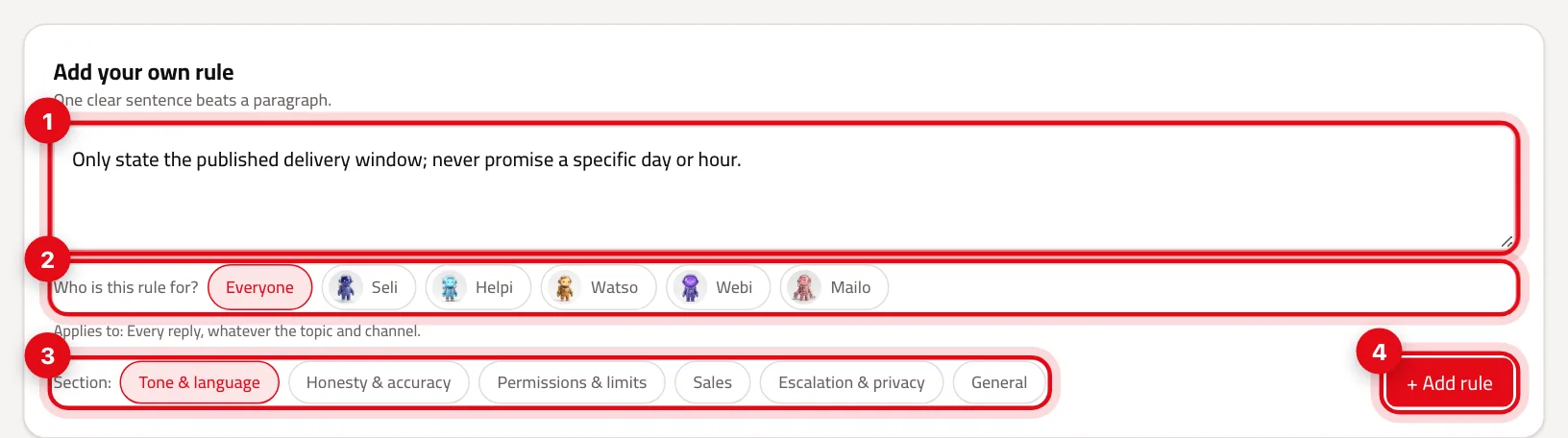
- 1The rule text: one sentence, up to 200 characters.
- 2“Who is this rule for?”: everyone or one agent.
- 3The section it's saved under.
- 4“+ Add rule”.
- 3
Test it
Open “Try the agent” and write a message that tests the rule. If Agent testing is on, it re-runs after every rules change.
- 4
Go back if needed
“Change history” shows every saved version of the rules and agent settings with what changed, and “Restore” takes you back to any version.
Read the Bot rules page
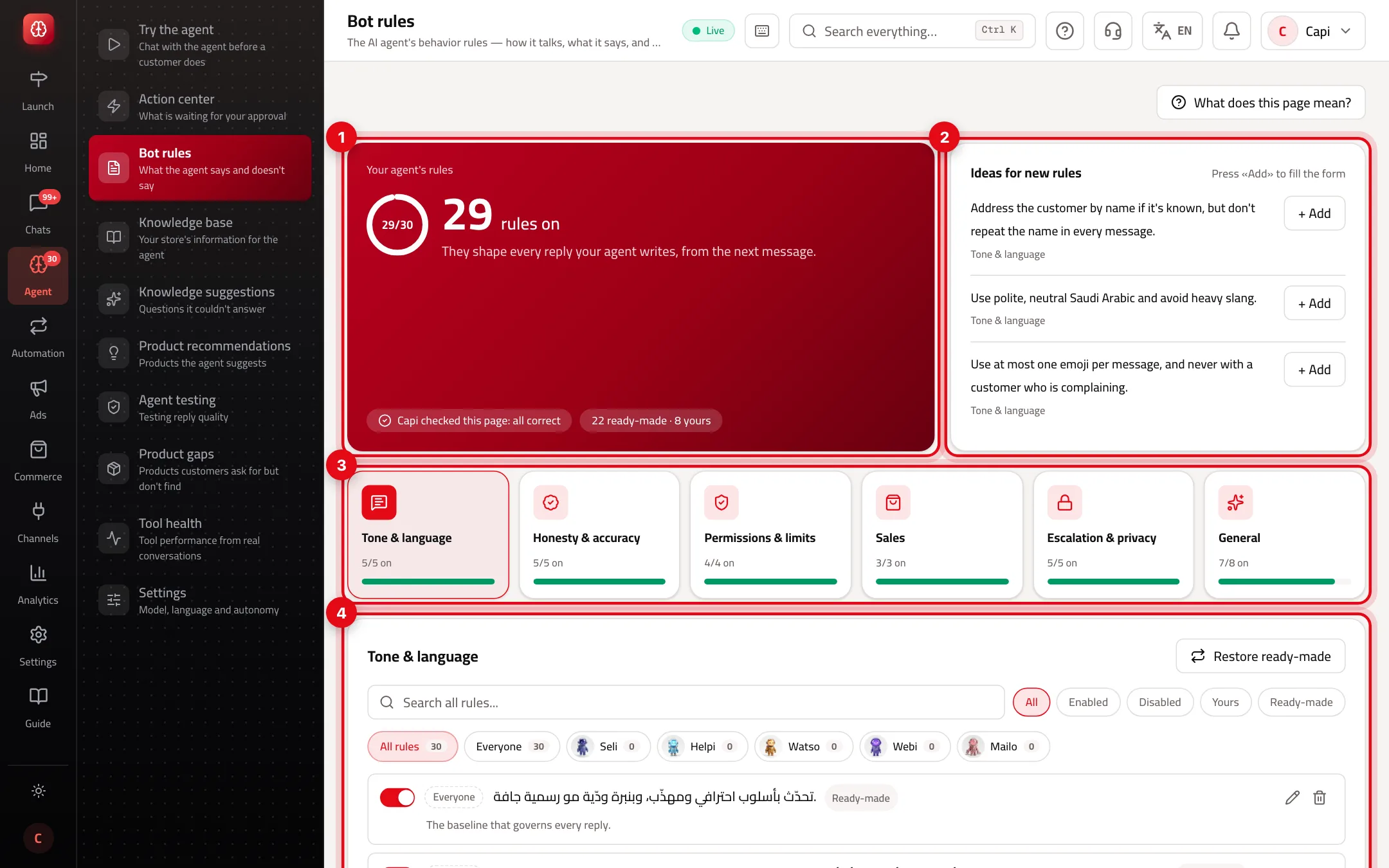
- 1How many rules are on, how many are ready-made and how many yours, and the last edit.
- 2“Ideas for new rules”: add one in a click.
- 3The sections: how many rules are on in each. Press a section to show its rules.
- 4The list: switch a rule on or off, edit it or delete it.
Best practices
- One clear sentence beats a paragraph; the model follows short instructions more closely.
- Say what to do rather than what to avoid when you can: “Offer an alternative from the same category” is clearer than “Don't say out of stock”.
- Don't put facts like delivery times or the returns policy in rules; they belong in the Knowledge base.
- Turn a rule off instead of deleting it while experimenting; you can bring it back in a click.
- With more than one brand, a shared rule changes for all of them. Use “Customize for this brand” to change it here only.
Common mistakes and how to fix them
Problem“You've reached the limit”.
FixDelete a rule you no longer need. The limit is 25, and rules that are off count too.
ProblemI wrote “Never give more than 5% off” and the agent still offers 10%.
FixReal limits live in Agent settings. Change “Maximum discount” there.
ProblemI deleted a ready-made rule and want it back.
FixPress “Restore ready-made”. It resets the ready-made rules and brings back deleted ones, without touching your own rules.
Screenshot from a demo store
Parts of the page
- 1
Rules
Each rule is one sentence you can turn on or off. The agent ignores a rule that's off.
Example“Never promise a specific delivery date.” or “Don't mention competing stores by name.” - 2
Ready-made ideas
Suggested rules you add in one click and then adjust if needed.
- 3
Change history
Every change to the agent's settings and rules, with a way back to an earlier version.
Playbooks that use this page
Related articles
Didn't find your answer?