Automations & campaigns
Scheduled campaigns
Campaigns with a send time
Every scheduled or sent campaign with its real status, managed from here.
Open the page in the dashboardHow campaigns work in Capi
A campaign is one message sent once to a chosen group of your customers, now or at a time you pick. Every campaign follows the same path: you create it, someone with approval permission approves it, then it is sent in batches and you follow the result.
This page is where you see every campaign and its status, and control it: pause it, cancel it, retry the failed ones, or run a successful campaign again.
Campaign types — which one fits
Not every message is a campaign. Pick the type by what you want to achieve:
WhatsApp campaign to a segment
- What it is
- A message using a Meta-approved WhatsApp template, sent once to a segment you choose.
- When to use it
- A limited offer, a new product, a product promotion, or an upgrade for past buyers.
- How to start
- In “Launch a campaign”, press “New campaign”, or pick a ready goal such as “Product promotion”.
Chat & pop-up campaign
- What it is
- Not a message that is sent. It is an offer shown to visitors who are on your store right now, and it opens a chat with the agent.
- When to use it
- Turning a hesitant visitor into a buyer: a discount after 30 seconds on a product page, or today's announcement.
- How to start
- From “Chat & pop-up campaigns”. They also appear here under the “Chat campaigns” tab.
Campaign suggested by Capi
- What it is
- Capi reads your store's data daily and suggests at most one campaign a day. It never sends anything itself.
- When to use it
- When you want an idea built on your own numbers: products left in carts, or payday.
- How to start
- From the Action Center: edit the message, discount and time if you like, then approve. It becomes a campaign “Awaiting approval”.
Automations (not a campaign)
- What it is
- Messages that run on their own when something happens, such as an abandoned cart or a new customer.
- When to use it
- Anything that repeats for every customer. Don't create a campaign for something that should happen automatically.
- How to start
- From “Automated campaigns”. The campaign wizard refuses these types and points you there.
Launch a campaign step by step
The wizard has six steps. You can't move on before the current step is complete, and the reason shows at the bottom of the window.
- 1
Open the wizard
From the automations menu open “Launch a campaign” and press “New campaign”. You can also start from a ready goal below it; the wizard opens with the type already chosen.
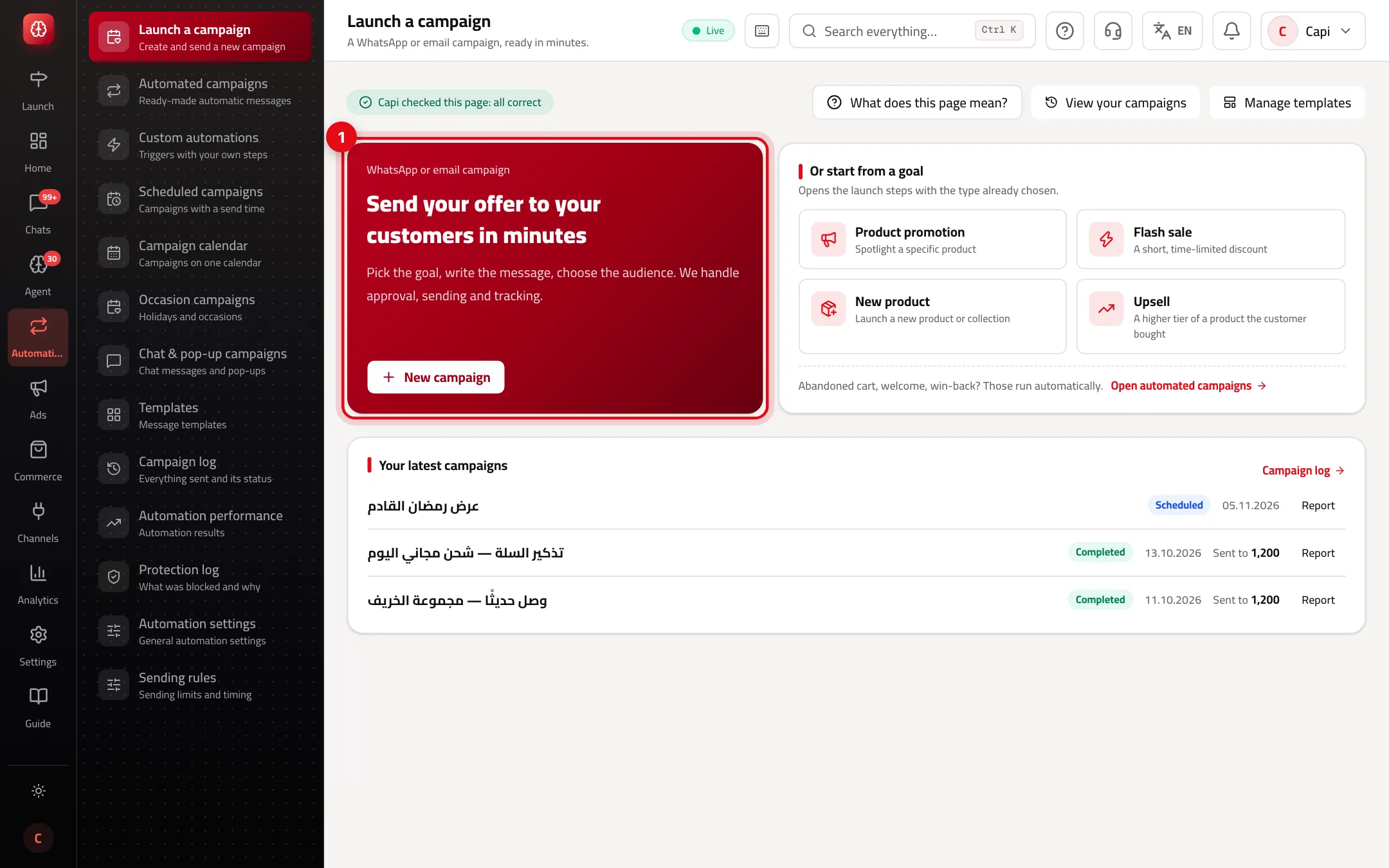
- 1“New campaign” opens the wizard.
- 2
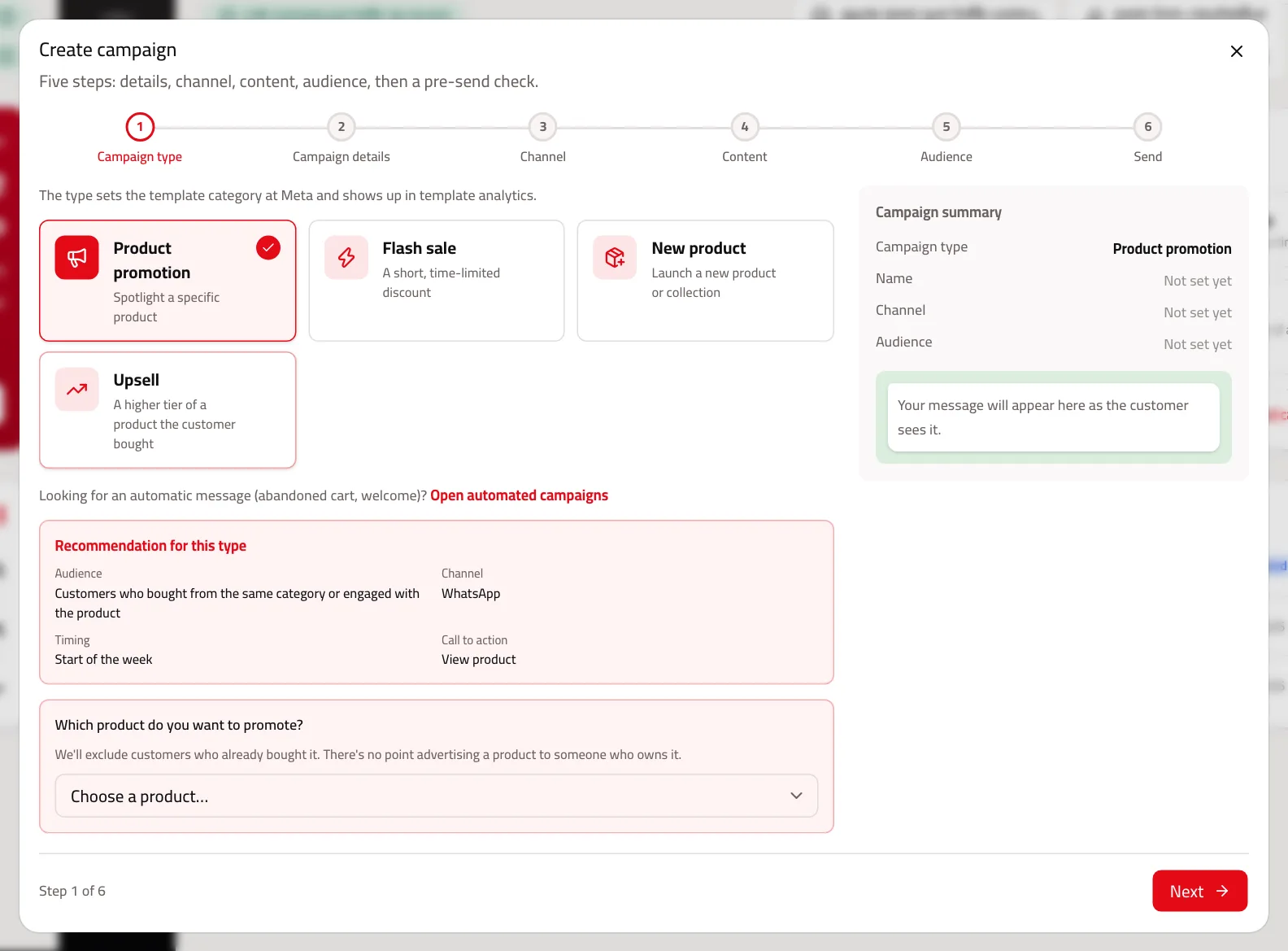
Choose the campaign type
Product promotion, quick offer, new product or order upgrade. The type sets the template category at Meta and suggests the right audience.
- 3
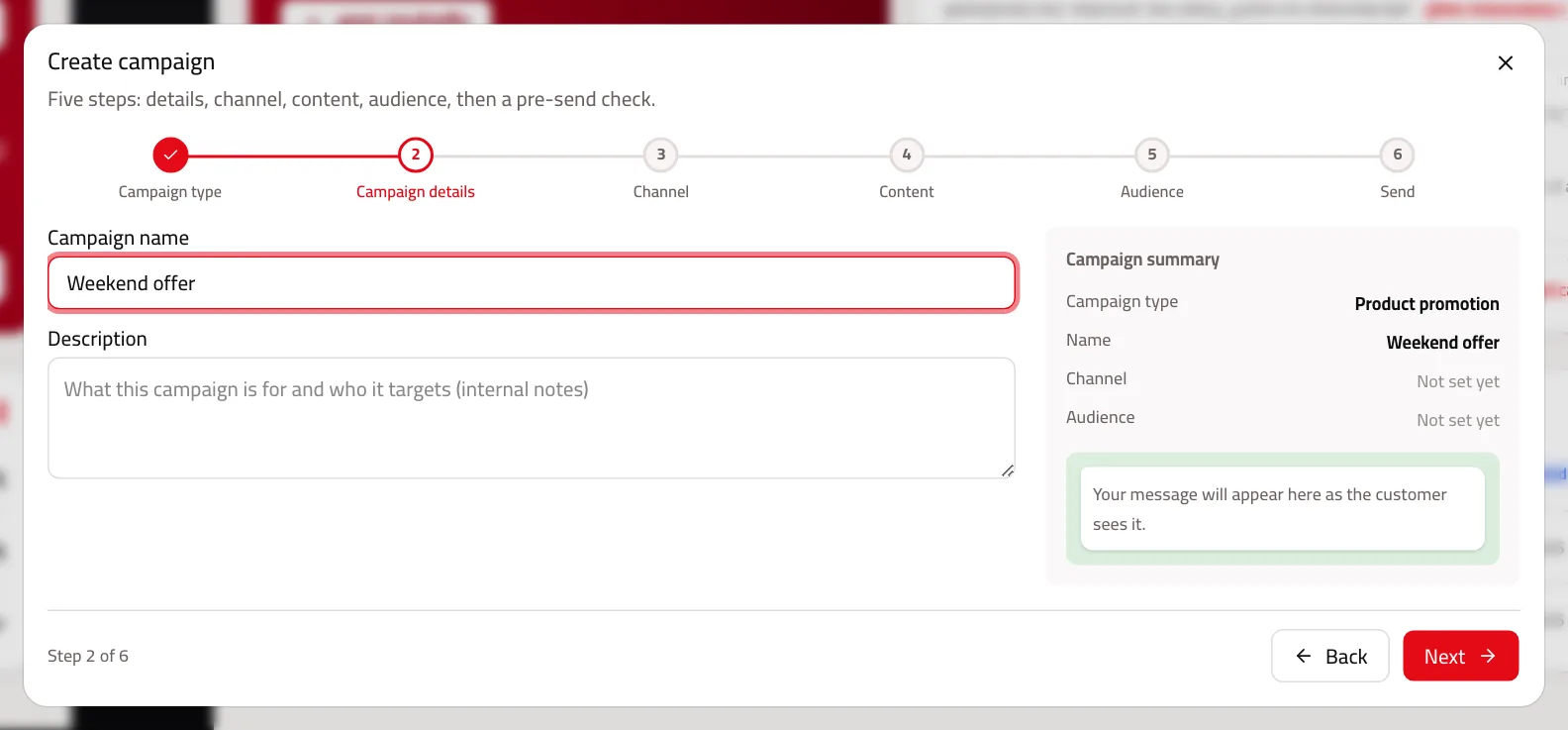
Name the campaign
A clear name you'll recognize later in the log and reports, such as “Weekend offer”. The description is optional.
- 4
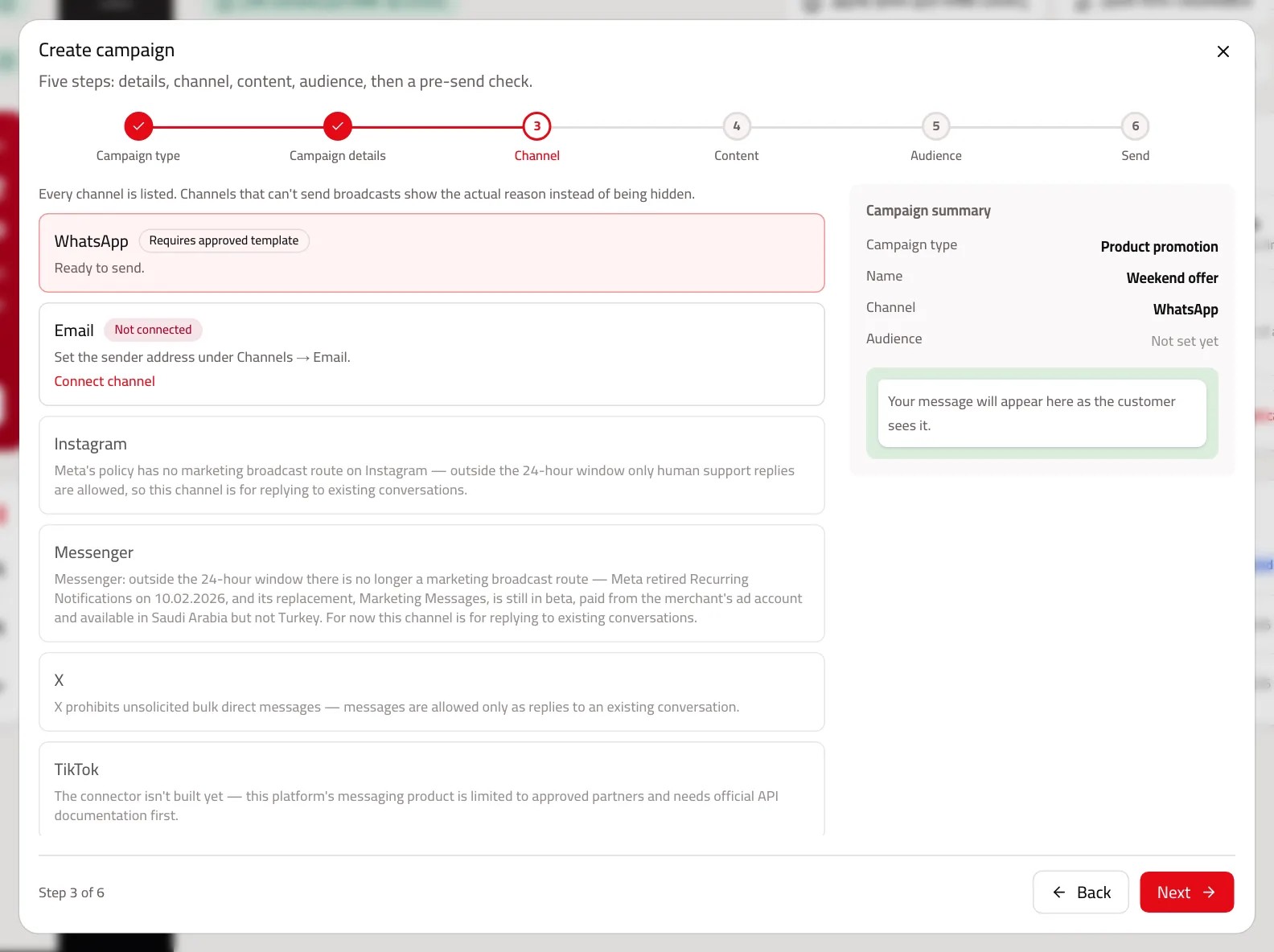
Choose the channel
WhatsApp is the broadcast channel that's ready. Channels that can't receive marketing broadcasts are shown with the real reason next to them, such as Meta's policy on Instagram and Messenger.
- 5
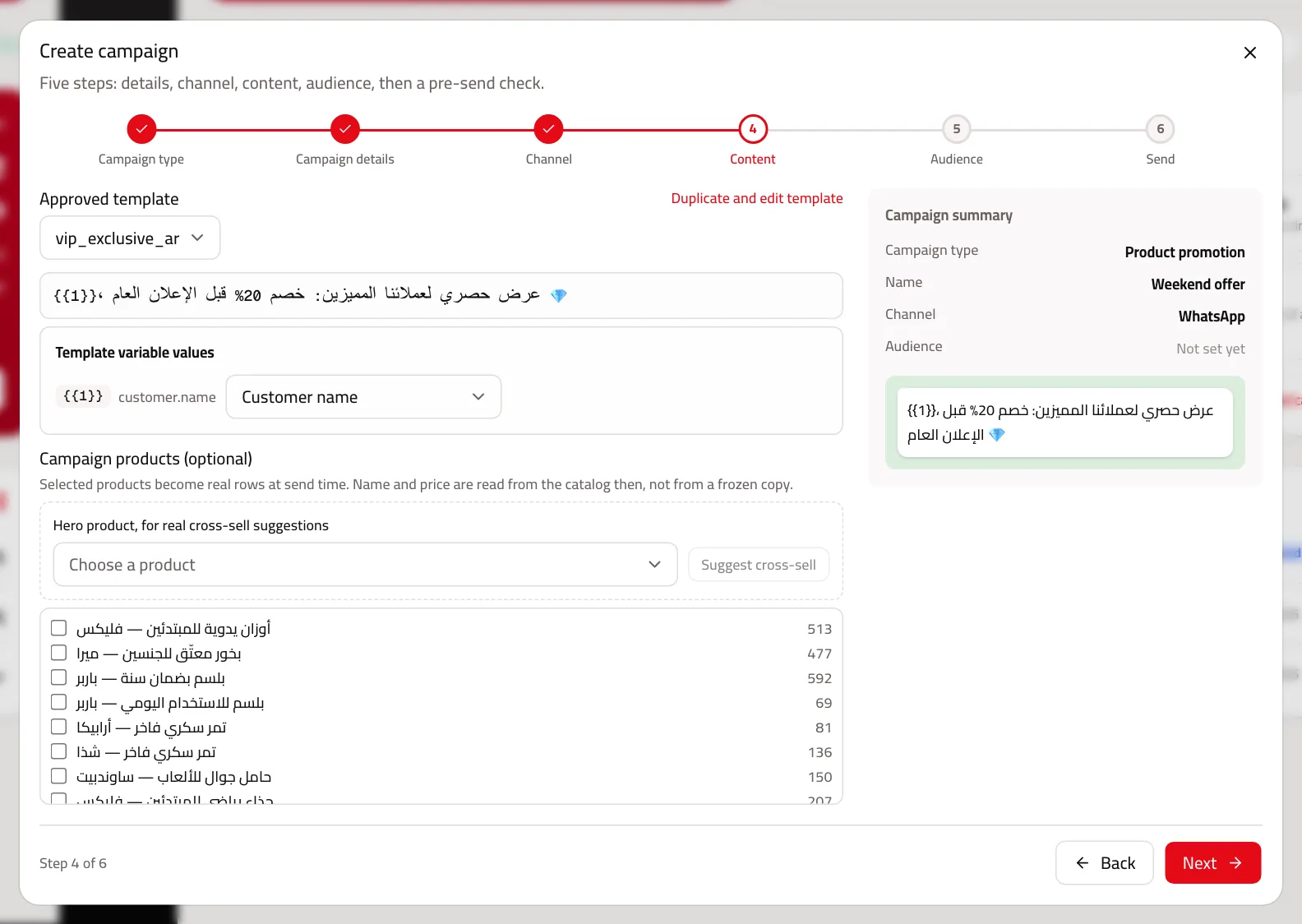
Choose the template and fill its variables
Pick a Meta-approved template, then set every variable, e.g. {{1}} = customer name. You can add products to the campaign; their name and price are read from the catalog at send time.
- 6
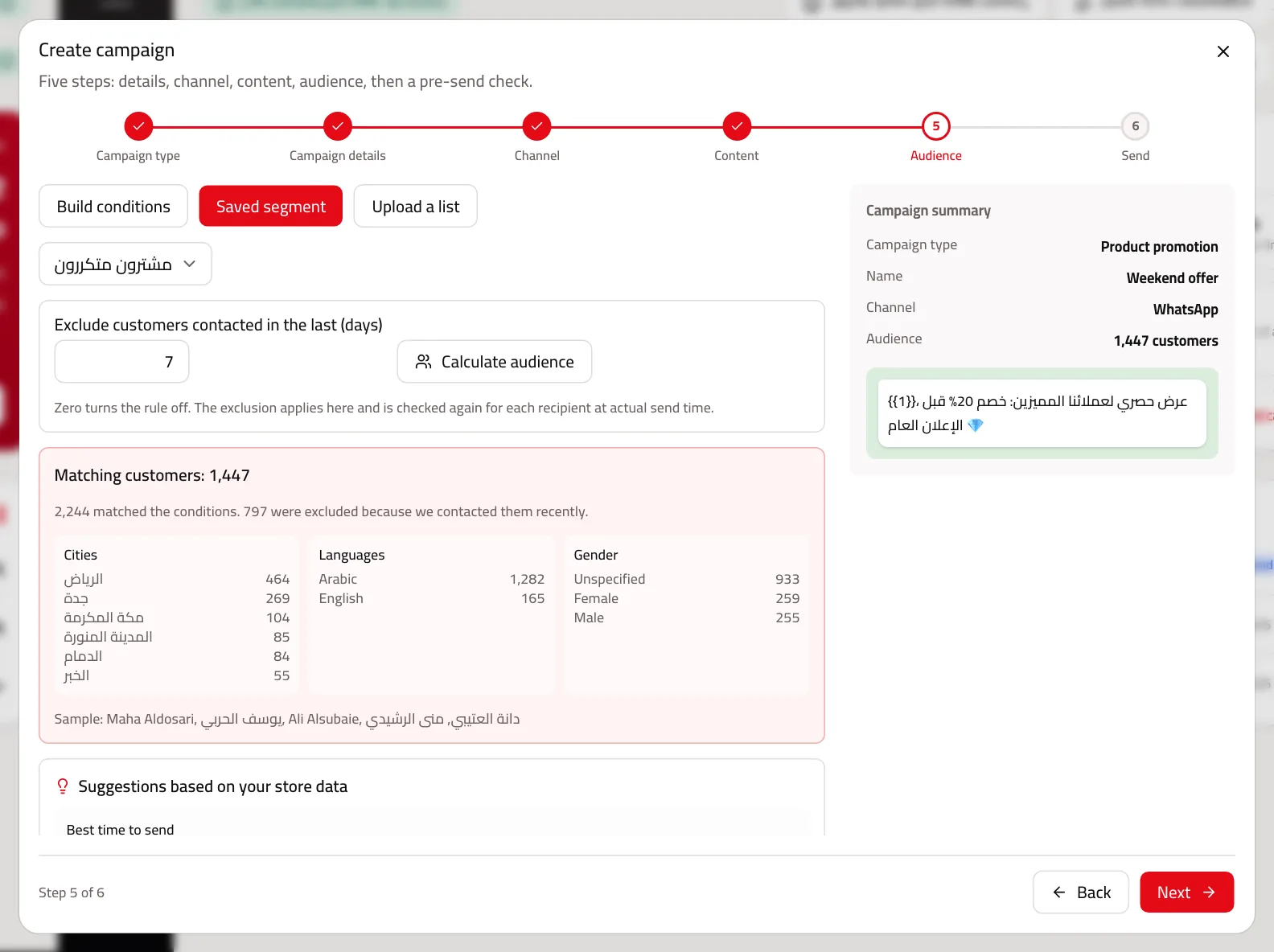
Set and calculate the audience
Build conditions, pick a saved segment, or upload a list. Then press “Calculate audience”: you see the real count, who was excluded and why, and the split by city and language. “Exclude customers we contacted in the last (days)” protects customers from too many messages.
- 7
Pick the send time and check
Now, or scheduled for later. Then press “Save as draft and check”: Capi runs a pre-send check and shows any problem, and then you press “Confirm and send” or “Confirm schedule”.
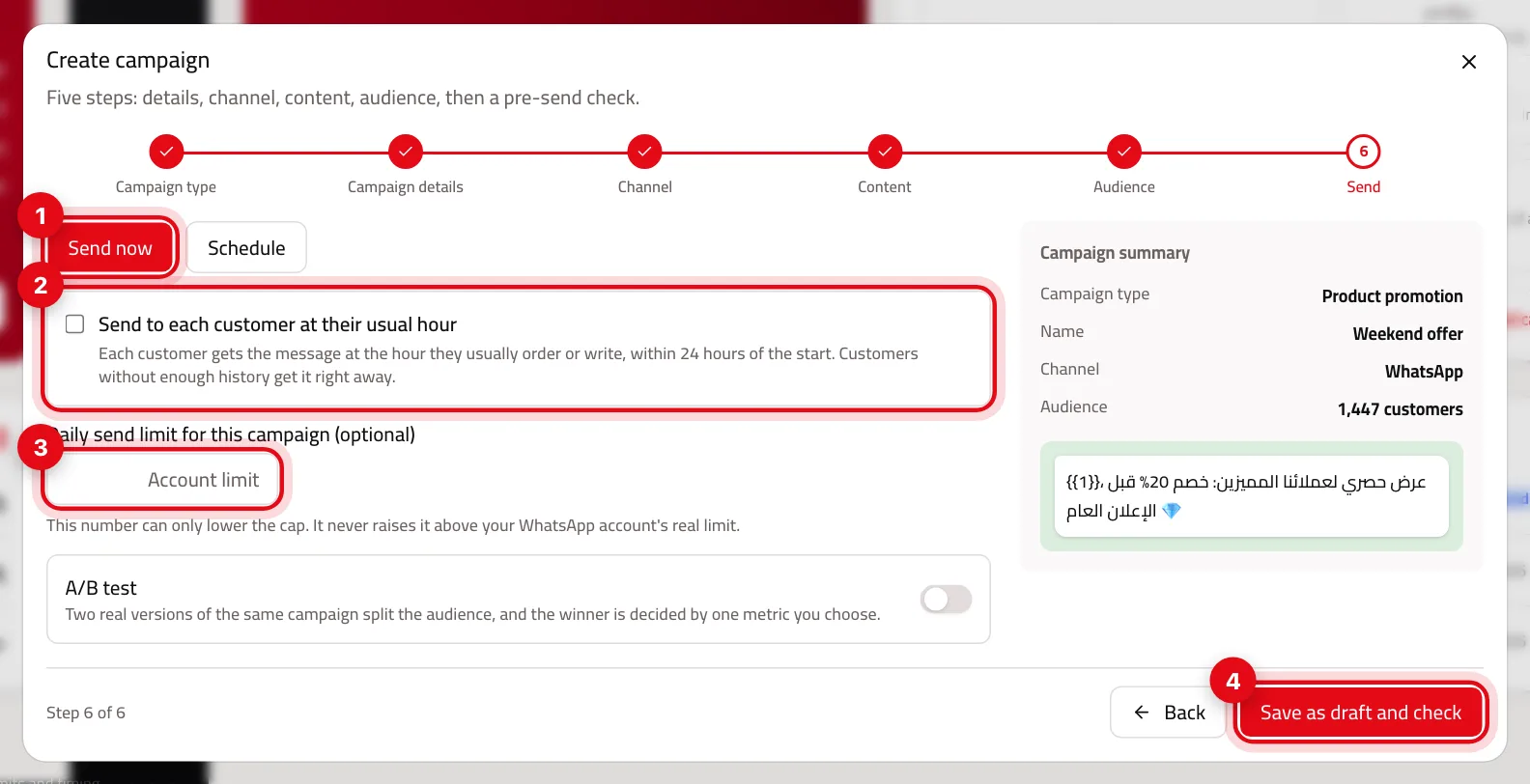
- 1“Send now”, or “Schedule” with a date and time.
- 2“Send to each customer at their usual hour”: each customer gets the message at the hour they usually buy or write, within 24 hours.
- 3A daily send limit for this campaign. It can only lower the cap, never go above the WhatsApp number's limit.
- 4“Save as draft and check” before confirming.
- 8
Approval
Confirming does not send the campaign right away. It becomes “Awaiting approval” and your team is notified. Someone with approval permission opens the campaign page and presses “Approve and launch”, or rejects it with a reason. On approval the check runs again and the audience is recalculated at that moment.
Read the scheduled campaigns page
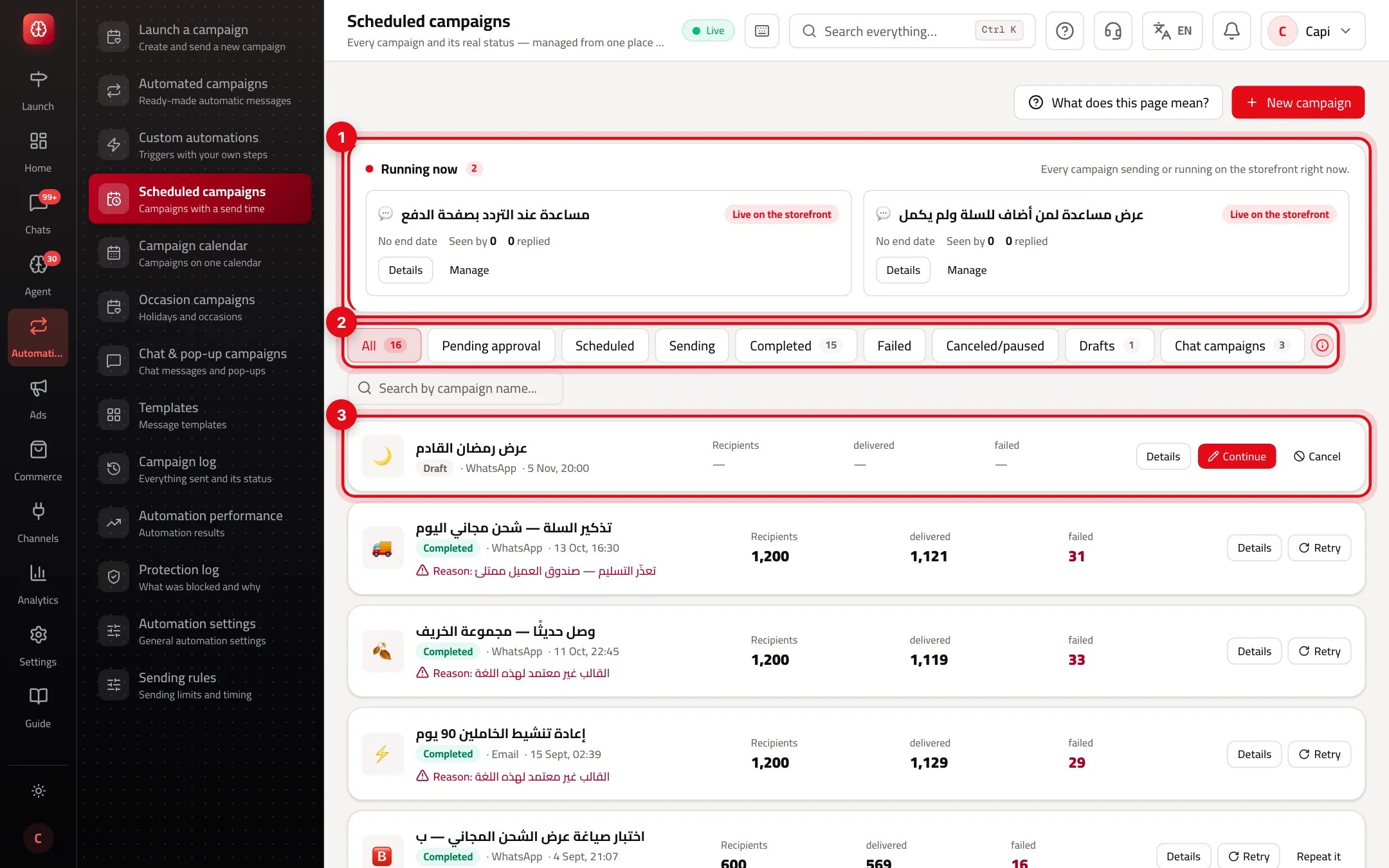
- 1“Running now”: campaigns sending right now with a progress bar, and chat campaigns live on your store.
- 2The tabs: every status with its count, and the search by campaign name beside them.
- 3A campaign card: status, channel and date; recipients, delivered and failed; and the management buttons.
Campaign statuses and what you can do
| Status | What it means | What you can do |
|---|---|---|
| Draft | Saved, not yet submitted for approval. | Complete and edit it, or cancel it |
| Awaiting approval | Sent to someone with approval permission. | Review it, or cancel it |
| Scheduled | Sends automatically at its set time. | Edit it, pause it, or cancel it |
| Sending | Being sent now, in batches. | Pause it, or cancel it |
| Paused | The remaining batches are on hold. | Resume (it returns to its date if that hasn't come yet), cancel, or retry |
| Completed | Sending has finished. | Retry the failed ones, or run it again |
| Failed | Sending didn't finish; the reason is on the card. | Retry after fixing the reason |
Editing returns the campaign to draft, so you confirm it and someone with permission approves it again. Pausing and cancelling never take back what was delivered — they only stop the remaining batches. A recipient whose message failed is retried automatically after 4 hours, then 24, then 48.
Sending rules that protect your customers
When sending rules are on for your store, every marketing message passes through them before it goes out. These are the defaults; you can change them on the “Sending rules” page within limits that can't be exceeded:
| Rule | Default | Limit |
|---|---|---|
| Quiet hours (your store's time) | 22:00 – 09:00 | Nothing is ever sent between 23:00 and 07:00 |
| Friday prayer | No sending 11:00 – 14:00 | — |
| Promotional messages per customer per week | 1 | 3 |
| All marketing messages per customer per week | 3 | 7 |
| Gap between two promotional messages | 48 hours | At least 12 hours |
| After a purchase | 3 days without promotional messages | — |
A customer who unsubscribed or is blocked receives no campaign, and this is checked again for every recipient at send time. Each WhatsApp number's daily limit is set by Meta (250, then 1,000, then 10,000…).
Best practices
- Prepare the WhatsApp template and submit it for approval at least two days before the campaign; you can't launch without an approved template.
- Start with a small engaged segment such as “Repeat buyers” before sending to every customer.
- Give each campaign one goal and one button. A message selling three things sells nothing.
- Use “Send to each customer at their usual hour” for general offers — the message lands when the customer usually buys.
- Try an “A/B test” on a large campaign: two versions of the same campaign, with the winner picked by a metric you choose.
- After every campaign open its report: what arrived, what was read, who bought, and the revenue attributed to it.
Common mistakes and how to fix them
Problem“Next” doesn't work on the audience step.
FixAdd at least one targeting condition or pick a segment, then press “Calculate audience”. If the count is zero, change the conditions.
ProblemNo template shows on the content step.
FixThere's no approved WhatsApp template yet. Create one under “Templates” and wait for Meta's approval.
ProblemThe campaign stays “Awaiting approval”.
FixConfirming only submits it. Someone with approval permission opens its page and presses “Approve and launch”.
ProblemThe campaign reached fewer people than expected.
FixOpen the campaign report: it shows why each recipient wasn't sent to, such as unsubscribed, quiet hours or the weekly message limit.
ProblemThe campaign failed.
FixThe reason is written on its card, for example a template not approved for this language. Fix it and press “Retry”.
Screenshot from a demo store
Parts of the page
- 1
Status
Draft, awaiting approval, scheduled, sending, sent, or failed with the reason.
- 2
Managing
Change the time or content before it sends, or stop the campaign.
Related articles
Didn't find your answer?