Automations & campaigns
Automation performance
Automation results
Automation results from real runs and orders actually attributed — not estimates.
Open the page in the dashboardWhere the numbers come from
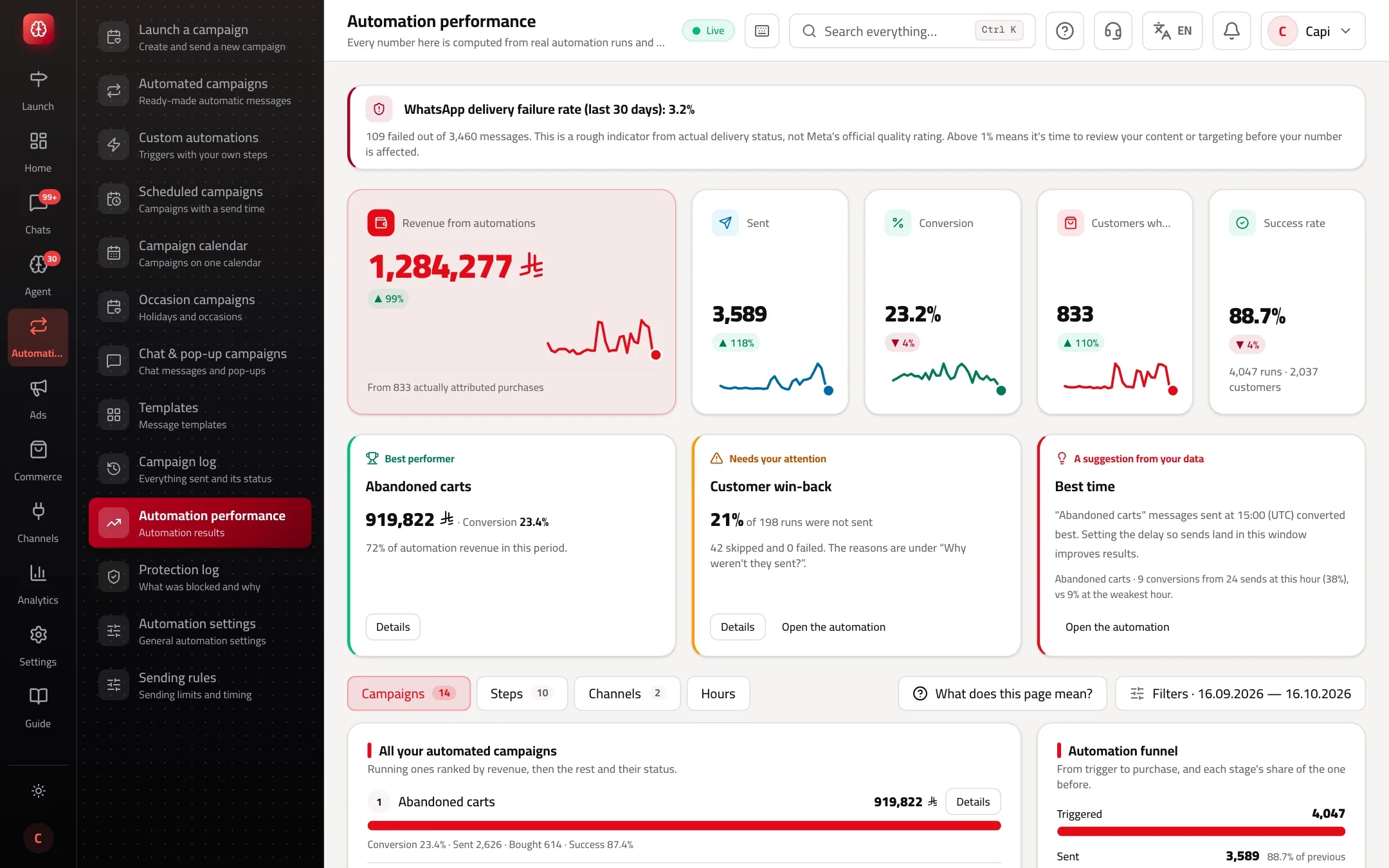
Every number here is computed from real automation runs and actually attributed orders, not an estimate. An order is attributed to an automation message if the customer bought within the attribution window after it arrived (14 days by default); cancelled and refunded orders don't count.
The default period is the last 30 days, and every indicator is compared with the previous period of the same length. The page covers built-in and custom automations together, and you can pick one under the filters.
The indicators
| Indicator | What it means |
|---|---|
| Revenue from automations | The value of orders attributed to automation messages. |
| Sent | Messages that actually went out. |
| Conversion | The share of sent messages that led to a purchase. |
| Customers who bought | Distinct customers who bought after a message. |
| Success rate | What was sent out of all runs; the rest were skipped or failed. |
| WhatsApp number health | The share of messages not delivered over the last 30 days. Above 1%, review your content and targeting. |
Read the performance page
The four views
Campaigns
- What it is
- Running automations ranked by revenue, then the rest and their status.
- When to use it
- To see which ones sell.
- How to start
- Press any row to open its details.
Steps
- What it is
- Results for every step of every sequence.
- When to use it
- To see whether the third reminder is worth it.
- How to start
- Compare conversion across steps.
Channels
- What it is
- Each channel's share of sends, its conversion and revenue.
- When to use it
- When more than one channel is on.
- How to start
- Keep the channel that sells.
Hours
- What it is
- Hours of the day in your store's time zone.
- When to use it
- To find the best time to send.
- How to start
- Move the automation's timing towards the strongest hours.
Read it and decide
- “Best performer” says which automation brings the largest share of revenue. Improve its text first — a change there moves the most money.
- “Needs your attention” appears for an automation with at least 10 runs of which 20% or more weren't sent. Open “Why weren't they sent?” and fix the reason.
- Pick a single automation in the filter to see “Suggestions based on your store's performance”. They work on built-in types only, and none appears without evidence in your data.
- Don't judge an automation on less than two weeks of data — small numbers swing.
Common mistakes and how to fix them
Problem“No runs in this period”.
FixWiden the period, or turn on an automation. Abandoned-cart reminders usually earn the most.
ProblemWhatsApp failure rate is above 1%.
FixSwitch off the weakest automation and narrow its audience. This is an approximate signal from delivery status, not Meta's official rating.
ProblemNo suggestions show.
FixPick one built-in automation under the filters.
Screenshot from a demo store
Parts of the page
- 1
Revenue from automation
The value of orders placed by customers after an automation message reached them, compared with the previous period of the same length.
- 2
Automation funnel
From run to sent to purchase, with each stage as a share of the one before.
- 3
WhatsApp delivery failures
The share of messages not delivered in the last 30 days. Above 1%, review the content and targeting before your number suffers.
Example20 failures out of 1,000 messages = 2%: pause the weakest automation and review who it goes to.
Related articles
Didn't find your answer?