Conversations
Conversation activity
A log of conversation events
A log of everything that happened in conversations: who picked up, who replied, who closed, and when — for the whole brand.
Open the page in the dashboardWhat conversation activity is
A log of everything that happened in conversations: who picked up, who replied, who closed, and when. It's the same log shown inside each conversation, for the whole brand.
It opens on “Team actions” only, so it stays readable: pickups, assignments, status and priority changes, tags, internal notes, team replies, escalations, snoozes, closes, reopens and exports. Choose “All events” to also see customer messages and agent replies.
Find out what happened to a conversation
- 1
Narrow the log
Pick the period first, then use the filters: “Event type”, “Team member”, “Actor” (team member, AI agent, customer or system) and “Channel”.
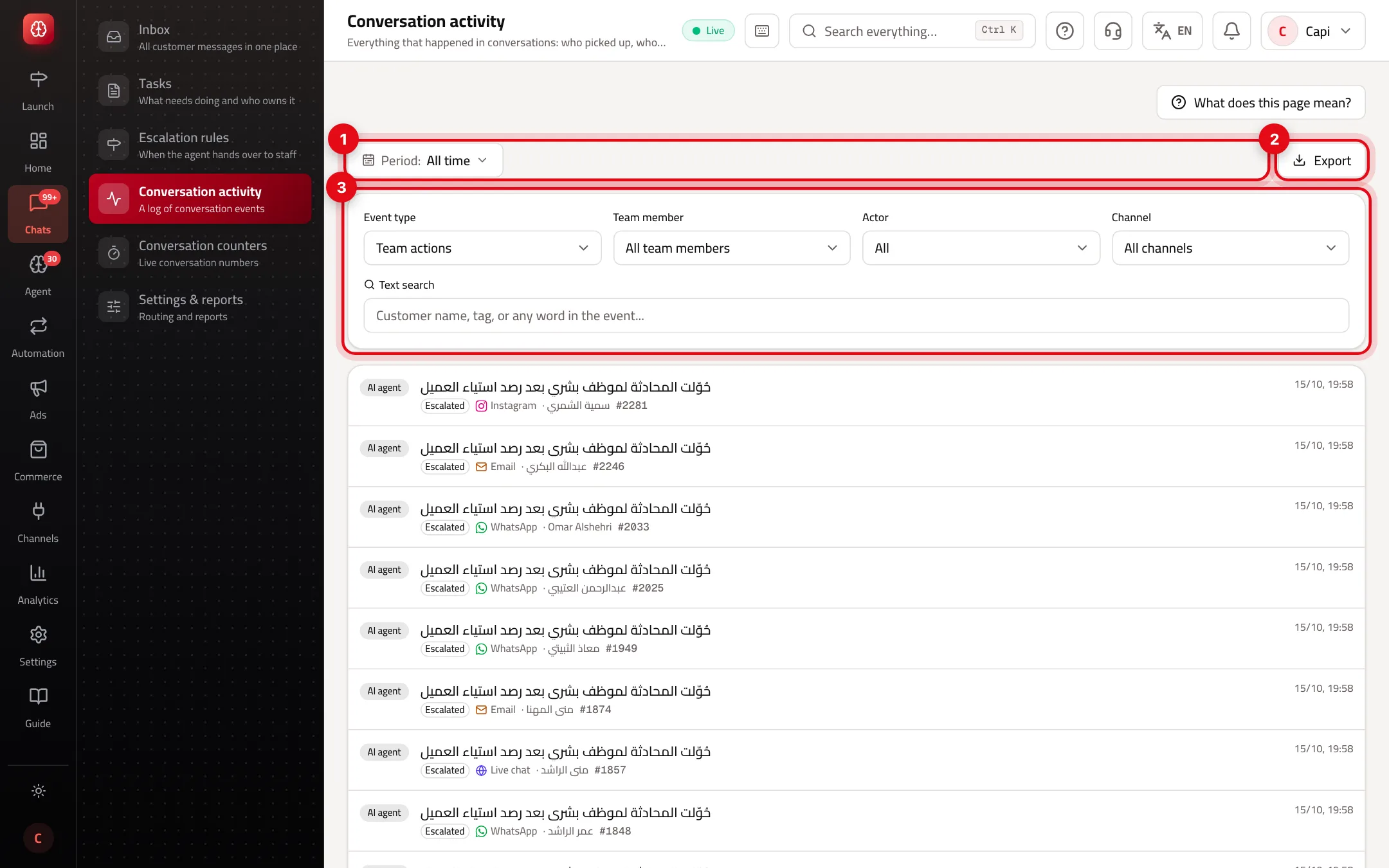
- 1The time period.
- 2“Export” with the same filters.
- 3The filters: event type, team member, actor, channel and text search.
- 2
Search by text
Type a customer name, a tag or any word in the event into “Text search”.
- 3
Export if you need to
Press “Export” to download the events with the same filters, to review or share them.
The events that matter most
| Event | When it's recorded |
|---|---|
| Handling started | A team member pressed “Start conversation”. |
| Assigned to a team member / Assigned to a team | The conversation was assigned by hand or by auto-assignment. |
| AI handoff to a team member | The agent handed the conversation to your team. |
| Escalated | The conversation was escalated, with its type and reason. |
| Reply overdue / Resolution deadline missed | The conversation went past one of the conversation-settings targets. |
| Closed / Reopened | The conversation was closed with a reason, or came back after closing. |
| Exported | The conversation record was exported. |
Best practices
- When a customer says nobody answered, search their name to see when their message arrived and who picked it up.
- Pick a “Team member” and “Closed” to see how each person closes conversations and why.
- Choose “Resolution deadline missed” as the event type to see the conversations that were actually late, then review targets or assignment.
Common mistakes and how to fix them
ProblemI don't see customer messages in the log.
FixThe default is “Team actions”. Change “Event type” to “All events”.
Problem“You don't have access” shows.
FixThe log is available to members who can view conversations. Ask the account owner for it.
Problem“No events match these filters.”
FixWiden the period or set the filters back to “All”.
Screenshot from a demo store
Parts of the page
- 1
When to use it
When you want to know what happened to a conversation, or who closed it and why.
ExampleA customer says nobody answered: find their conversation to see when it arrived and who picked it up.
Related articles
Didn't find your answer?