Social media ads
Audiences
Your customer lists on the platforms
Lists of your customers you upload to ad platforms to target or exclude them.
Open the page in the dashboardHow audiences work
An audience is a list of your store's customers that Capi uploads to an ad platform, to leave them out of your ads or target them. Lists refresh daily.
Only phone and email leave your store, hashed (SHA-256), so the platform never sees them as text. Names, addresses, orders and message text are never sent. Only consenting, unblocked customers are uploaded; anyone who withdraws consent is removed on the next sync.
Capi gives the list a neutral name on the platform, so your segment's name never appears there.
The audiences page
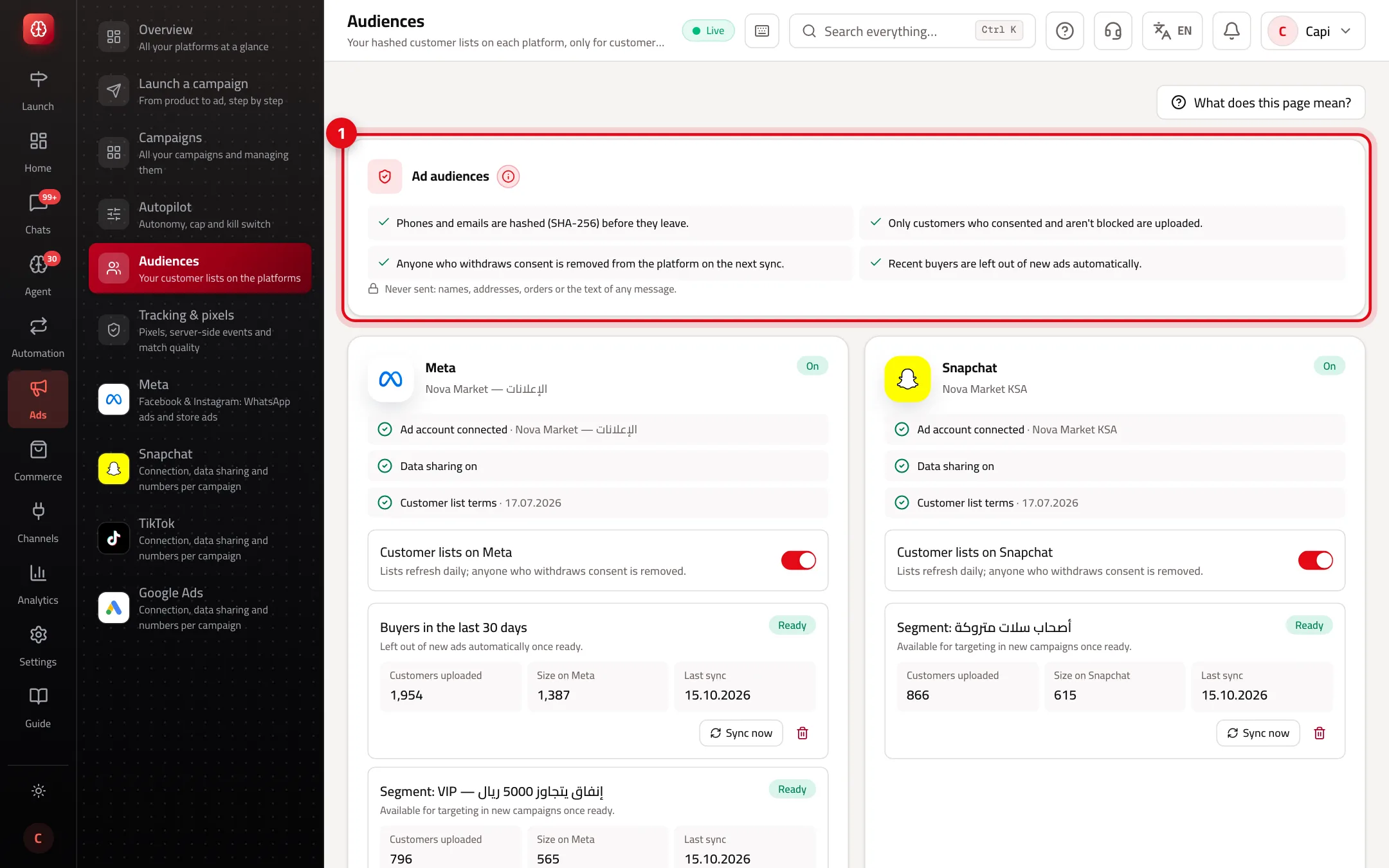
- 1“Ad audiences”: the rules that protect your customers' data.
Kinds of list
Recent buyers
- What it is
- Customers who bought within a window you set (default 30 days, 7–180).
- When to use it
- To leave them out of new ads so you don't pay to reach people who just bought.
- How to start
- Created after the first sync; left out of new ads once “Ready”.
One of your segments
- What it is
- Customers of a segment saved on the Customers page.
- When to use it
- To target them — e.g. “no purchase in 90 days” for a “we miss you” ad.
- How to start
- “New list”, then pick the segment. Needs a saved segment first.
All customers
- What it is
- Every consenting customer with a phone or email.
- When to use it
- To target all your customers, or build a similar audience on Meta.
- How to start
- “New list”, then “All customers”.
Turn on lists for a platform
- 1
Check the requirements
A platform card shows three: ad account connected, data sharing on (from the platform page), and the platform's customer list terms. Each missing one has its fix link.
- 2
Turn the switch on
Turn on “Customer lists on …”. You confirm your customers consented to their data being used for advertising, and accept the platform's terms.
- 3
Add a list
Press “New list” and choose who's on it. It uploads and shows its state: “Waiting to sync”, “Uploading”, then “Ready”. “Sync now” refreshes it at once.
List states
| State | Meaning | What to do |
|---|---|---|
| Ready | Uploaded and in use by the platform | Nothing — new campaigns use it |
| Waiting to sync / Uploading / Processing | On its way to the platform | Wait |
| Terms needed | The platform wants its customer list terms accepted | Use the accept-terms link |
| Too small | Below the platform's minimum | Widen the segment or window |
| Error | The platform refused the upload | Read “… said:” under the list |
Some customers aren't uploaded because their phone or email isn't valid; the count shows under the list.
Turning lists off
“Turn off and remove from the platform” removes every uploaded customer from your lists on that platform. Running campaigns stay, but lose that targeting.
Getting value from audiences
- Turn on “Recent buyers” first on every platform — the simplest way to save budget.
- Build a segment of customers who haven't bought in a while and target them with a come-back offer.
- A list that's too small won't run — widen the window or segment.
Common mistakes and fixes
ProblemThe switch won't turn on.
FixA requirement on the card is missing — usually data sharing is off. Turn it on from the platform page.
ProblemThe size on the platform is smaller than the customers uploaded.
FixNormal: the platform shows only those it could match to its accounts.
ProblemMy segments don't appear when creating a list.
FixThere are no saved segments. Create one on the Customers page first.
Screenshot from a demo store
Parts of the page
- 1
Lists
Phone and email are hashed before upload, so the platform never sees them as text. Anyone who bought in the last 30 days is excluded automatically.
ExampleA list of “customers who haven't bought in 90 days” for a “We miss you” ad. - 2
Who is in the lists
Only those who consented. When a customer withdraws consent, they're removed from the platform too.
Related articles
Didn't find your answer?