Automations & campaigns
Templates
Message templates
Templates are ready-made messages used by campaigns, automations and manual replies. WhatsApp templates must be approved by Meta before sending.
Open the page in the dashboardWhy you need templates
WhatsApp won't let you start a conversation with a customer except with a Meta-approved template. Within 24 hours of the customer's last message you can reply freely; after that, and in every campaign, only an approved template gets through.
Campaigns, automations and manual replies all use the same templates. You write one here, check it, submit it for Meta's review, and follow its status in the list. Templates that need you (rejected, paused, disabled) come first.
Your WhatsApp Business Account ID (WABA ID) must be saved in the integration settings before you can submit templates to Meta.
Template categories
Pick the right category. Meta reviews the content and may change the category, which also changes the message price.
Marketing
- What it is
- Offers and campaigns. Needs customer consent.
- When to use it
- Every campaign, and marketing automations outside the 24-hour window.
- How to start
- Add a footer or a quick-reply button as the opt-out; the check rejects a marketing template without one.
Utility
- What it is
- Order confirmation, shipping, reminders. The cheapest.
- When to use it
- Order status notifications outside the 24-hour window.
- How to start
- Write news about the customer's own order, with no offer or discount.
Authentication
- What it is
- A one-time verification code.
- When to use it
- Only for login and verification codes.
- How to start
- No media header and no link buttons — quick reply or call only.
Read the templates page

- 1The channel: “WhatsApp” with how many templates you have.
- 2Filter by status: each status with its count, so you see what needs you first.
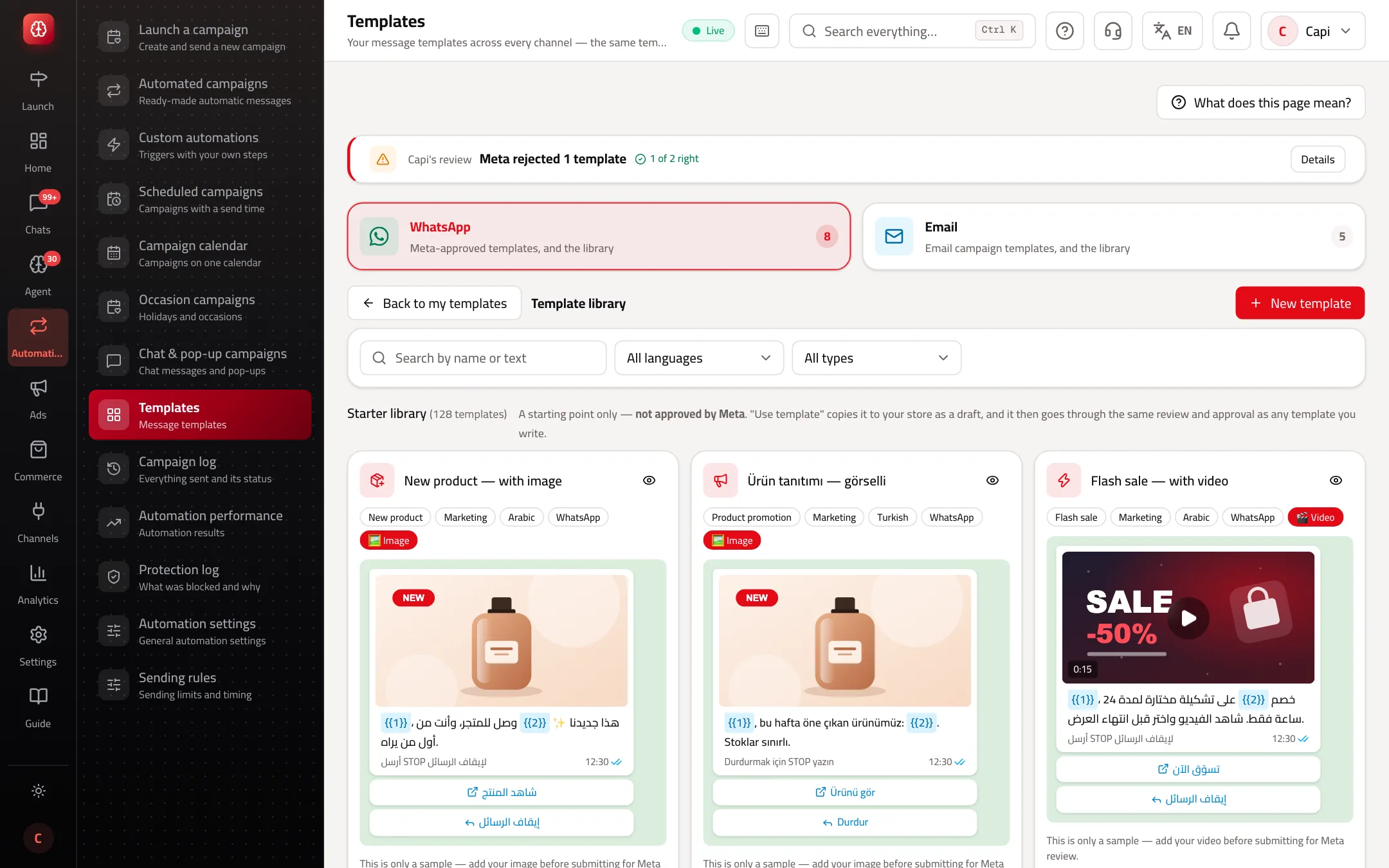
- 3“New template”, with the “Template library” next to it to start from a ready one.
Write a template and submit it to Meta
- 1
Start from the library or a blank page
The “Template library” has written, categorized templates: pick one and edit it. Or press “New template”.
- 2
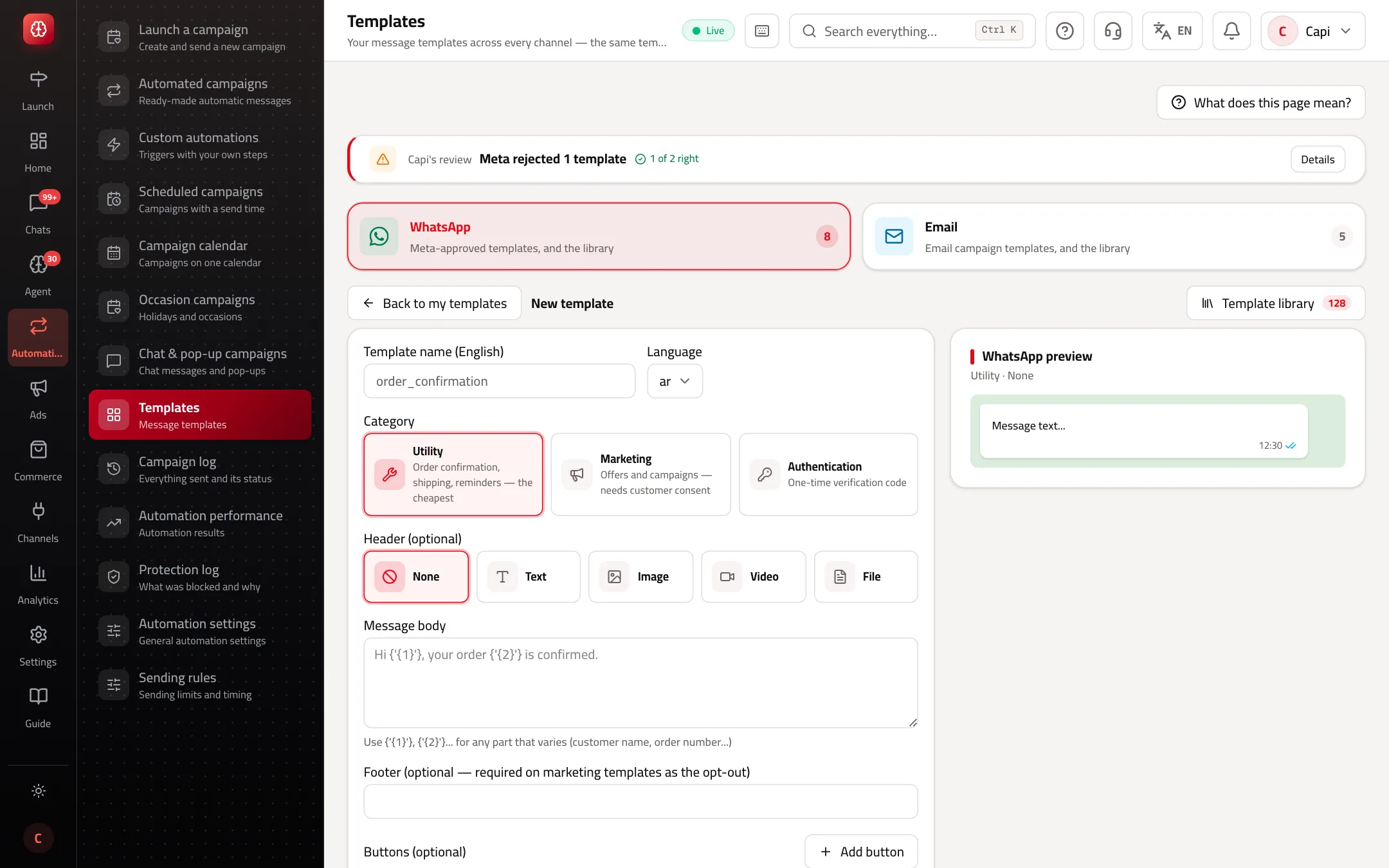
Name, language and category
“Template name (English)”: lowercase English letters and underscores, such as order_confirmation. “Language”: Arabic, English or Türkçe. Then the category.
- 3
Header, body and buttons
“Header (optional)”: text, image, video or file. The “Message body” uses {{1}}, {{2}} for every part that varies, and each variable needs a required “Sample value”. “Buttons (optional)”: link, call or quick reply. If you have a marketing number, pick the “Number that sends this template”.
- 4
Check, then submit
“Compliance check” finds visible problems; then “Save as draft” or “Submit for Meta review”. The status becomes “In Meta review”. “Sync status from Meta” fetches it now instead of waiting.
Template statuses
| Status | What it means | What to do |
|---|---|---|
| Draft | Saved, not sent to Meta. | “Submit for Meta review” |
| In Meta review | Meta is reviewing it. | Wait, or “Sync status from Meta” |
| Approved by Meta | Ready for campaigns and automations. | Use it |
| Rejected by Meta | The reason is written on the card. | “Edit and resubmit” |
| Paused by Meta | Low quality. Campaigns using it pause and resume when it's reactivated. | Improve the content and targeting |
| Disabled by Meta | Meta disabled it permanently. | Create a new template with different wording |
Limits Capi checks before you submit
| Part | Limit |
|---|---|
| Header text | 60 characters |
| Message body | 1024 characters |
| Footer | 60 characters |
| Buttons | 3; a catalog button must be the only one |
| Carousel cards | 10 cards, two buttons per card |
| Header image | JPG or PNG up to 5 MB |
| Header video or file | MP4 or PDF up to 16 MB |
| Links | No shortened links such as bit.ly |
Passing the check doesn't guarantee Meta's approval, but it prevents the most common rejections.
Templates that get approved and sell
- Prepare at least two on day one: a marketing one for campaigns and a utility one for order notifications.
- Make variables only of what really changes: customer name, order number, product name. Fixed text stays fixed.
- Sample values are shown to Meta: make them real, such as “Sarah” and “#1045”.
- One template per language: if customers write in English and Arabic, create both versions under the same name.
- When a template's quality drops, pause the campaigns using it and change their audience before Meta pauses it.
Common mistakes and how to fix them
ProblemSubmitting doesn't work and asks for a WABA ID.
FixAdd your WhatsApp Business Account ID in the integration settings under “Messaging channels”.
ProblemThe template was rejected.
FixRead the “Rejection reason” on the card, then “Edit and resubmit”. Common reasons: a variable with no sample value, or a marketing template with no opt-out.
ProblemThe template is approved but doesn't show in the campaign.
FixPress “Sync status from Meta” on its card — Meta may have approved it before the status arrived. Only templates “Approved by Meta” show in campaigns.
ProblemMeta changed the category from utility to marketing.
FixThe text promotes something. Remove the offer from the utility template, or use it as a marketing one.
Screenshot from a demo store
Parts of the page
- 1
Your templates
Each template with its status: draft, in review, approved, or rejected with the reason.
ExampleAn “Your order is on its way” template sent when an order ships. - 2
Why does Meta have to approve?
WhatsApp only lets you start a conversation with a customer using an approved template. Within 24 hours of the customer's last message you can reply freely.
- 3
Library
Ready-made templates you copy and adapt to your store.
Playbooks that use this page
Related articles
Didn't find your answer?