Conversations
Tasks
What needs doing and who owns it
Tasks: everything that needs doing, who owns it, and when.
Open the page in the dashboardHow tasks work
A task is something that needs doing, with an owner and a due time, and usually a link to a conversation or a customer. The top of the page shows “Your day”: how many tasks are open for you, how many are late or due soon, what you've done this week, and “Most important now” with an “Open it” button.
Below that, tasks are grouped by when they're due: “Overdue”, “Today”, “This week”, “Later”, “No deadline”. You can switch to “Board” to see tasks in columns by status and drag them between columns (on larger screens).
Where tasks come from
From escalation
- What it is
- When a conversation is escalated, a task opens on its own with the same assignee, team, priority and deadline.
- When to use it
- Automatically, with nothing to do on your part.
- How to start
- It closes on its own when its conversation closes. To finish it, open the conversation and close it.
From conversation
- What it is
- A task you open from the conversation header, linked to it and its customer.
- When to use it
- A follow-up that needs time outside the chat, such as calling the courier.
- How to start
- In the conversation header press “Open a task for this conversation”.
From customer profile
- What it is
- A task linked to a customer without a specific conversation.
- When to use it
- Something about the customer as a whole, such as reviewing their returns.
- How to start
- Open a new task from the customer's profile.
Manual
- What it is
- A task you create on this page.
- When to use it
- Any team work that needs an owner and a due time.
- How to start
- Press “New task” at the top of the page.
Create and assign a task
- 1
Open “New task”
Press “New task” at the top of the page.

- 1“New task”.
- 2“Your day”: what's open for you, what's late, the week's progress, and the most important task now.
- 3Views with their counts, the search, and the switch between “List” and “Board”.
- 4A task: the circle marks it done in one click; the title opens its details.
- 2
Fill in the task
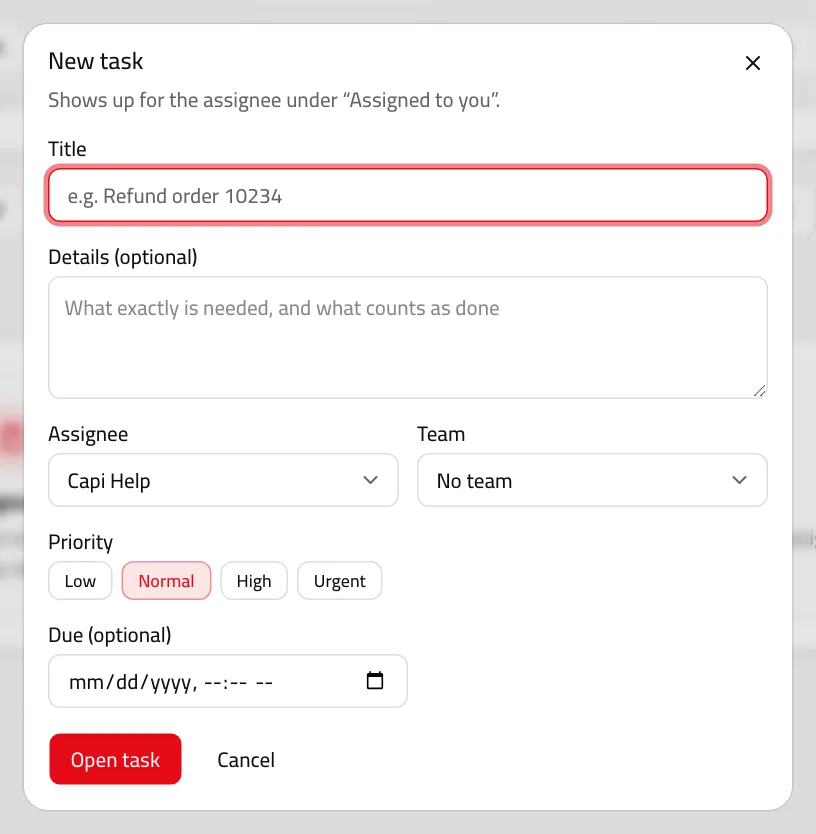
Give it a clear “Title” such as “Refund order 10234”. In “Details” write what exactly is needed and what counts as done. Then pick the “Assignee”, “Team”, “Priority” and “Due”. It shows up for the assignee under “Assigned to you”. Press “Open task”.
- 3
Follow it to done
Click the task title to open its details: change the “Status”, press “Take it”, or write a comment or update. “History” shows everything that changed and who changed it. When it's done, write a “Completion note” on what was fixed.
Task statuses
| Status | What it means |
|---|---|
| Open | Work hasn't started yet. |
| In progress | The assignee is working on it now. |
| Waiting on others | Blocked on someone outside the team, such as the customer or the courier. |
| Done | Finished. Shows under “Done (30 days)”. |
| Canceled | No longer needed. It has no column on the board. |
An escalation task isn't finished here: it closes when its conversation closes. In the list its circle is a “Closes with its conversation — open it” link.
Best practices
- Put the action and the outcome in the title, not just the topic: “Call the customer about the late order” beats “Late order”.
- Give every task a due time. “No deadline” tasks are always late because they never show under “Overdue”.
- Start your day with “Overdue”, then “Due soon” — due soon means within 24 hours.
- Use “Postpone a day” rather than leaving a task late, so the numbers in “Your day” stay honest.
- Always write the “Completion note”; it's what a colleague reads when the same situation comes back.
Common mistakes and how to fix them
ProblemI can't mark a “From escalation” task done.
FixAn escalation task closes with its conversation. Open the conversation and close it; the task is done on its own.
ProblemI can't see a task assigned to a colleague.
Fix“Assigned to you” shows only your tasks. Open “Your team” or “All open”.
ProblemSearch doesn't find the task.
FixSearch by task number, a word from the title or the customer's name. It searches within the selected view, so try “All open”.
Screenshot from a demo store
Parts of the page
- 1
Tasks that arrive on their own
When the agent hands a conversation to your team, a task opens here automatically and closes when the conversation closes.
- 2
Views
Your tasks, overdue ones (past or near their due time), and the whole team's.
- 3
New task
Create a task by hand and assign it to a teammate with a due time.
Example“Call the customer about the late order” — assigned to Sara, due by 5 pm.
Related articles
Didn't find your answer?