Conversations
Settings & reports
Routing and reports
Here you set how your team works in conversations: how fast it must reply, who picks up the conversation, and the rules for replying and closing.
Open the page in the dashboardWhat this page sets
Here you set how your team works in conversations: how fast it must reply, who picks up the conversation, the rules for replying and closing, whether customers are asked how satisfied they were, and when you get a scheduled summary.
On the side, “What happens to one conversation” is calculated from your current settings and updates as you edit, before you save.
Reading needs permission to view settings, saving needs permission to edit them. A team member working the inbox can't move the deadline they're measured against.
The settings and their defaults
| Setting | Default | Notes |
|---|---|---|
| First reply (for a new customer) | 15 min | 1 minute to 7 days. |
| Follow-up reply (for each reply after the first) | 10 min | 1 minute to 7 days. |
| Full resolution (until the conversation is closed) | 4 hours | 1 hour to 30 days. |
| Auto-assignment to team members | Off | “Least busy”, “Round robin” or “Within the team”; “Max open conversations per team member” 5. |
| Respect working hours | On | Nothing is assigned to a team member outside store hours. |
| Require starting the conversation before replying | On | Records who picked it up and when, and stops two team members replying at once. |
| Require a closing reason | On | The only structured record of why customers get in touch and how conversations end. |
| Store time zone | Riyadh | Deadlines and reports are calculated in this zone. |
| AI quality analysis of team members | Off | Turning it on makes the customer recording notice mandatory. |
| Request a rating after closing | Off | A link in the customer's language to rate from 1 to 5 stars, once per conversation, during working hours. |
| Scheduled report | Off | Daily or weekly, up to 20 emails. No default recipient. |
Values outside the limits are adjusted on the server when you save, and “We adjusted these values to stay within limits” appears.
Set up your rules
- 1
Reply and resolution deadlines
Open “Reply and resolution deadlines” and enter “First reply” and “Follow-up reply” in minutes and “Full resolution” in hours. This is the timer team members see; a delay is recorded when it runs out.
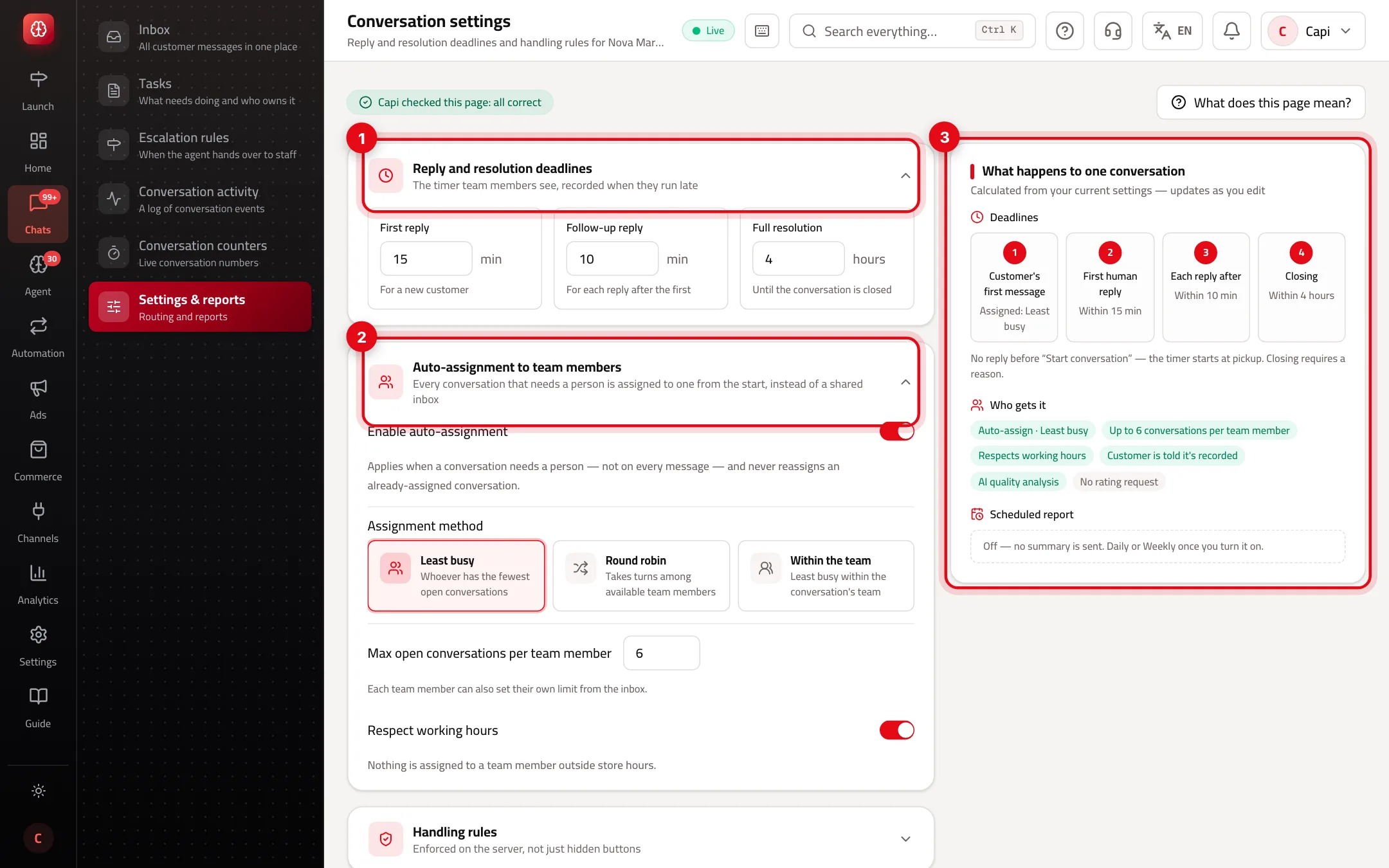
- 1“Reply and resolution deadlines”.
- 2“Auto-assignment to team members”.
- 3“What happens to one conversation”: calculated from your settings, and updated as you edit.
- 2
Auto-assignment
Turn on “Enable auto-assignment” if you want every conversation that needs a person assigned to one from the start, instead of a shared inbox. Choose the “Assignment method”: “Least busy” goes to whoever has the fewest open conversations; “Round robin” takes turns among available members; “Within the team” picks the least busy member of the conversation's team. It applies when a conversation needs a person — not on every message — and never reassigns an already-assigned conversation.
- 3
Handling rules
“Require starting the conversation before replying” and “Require a closing reason” are enforced on the server, not just hidden buttons. Choose the “Store time zone”, then press “Save settings”.
- 4
Scheduled report
In “Scheduled report” turn on “Enable scheduled report”, choose the “Frequency”, “Send day” and “Send time”, and enter “Recipient emails”, one per line. Daily covers the previous day; weekly covers the last seven full days. “Include team performance” adds a table of team members and their numbers. Press “Save schedule”, or “Send a copy now” to try it.
Best practices
- Set a first-reply target your team can actually keep, then lower it gradually. A target nobody meets makes every conversation “Overdue” and the timer loses its meaning.
- Start with “Least busy” if your team works at different speeds, and “Round robin” if you want an even split.
- Keep “Require a closing reason” on — without it you can't tell why customers get in touch.
- Turn on “Request a rating after closing” once the team has settled in, to measure satisfaction with the agent and with team members separately.
- For a one-person store, turn off “Include team performance” in the report.
Common mistakes and how to fix them
ProblemI turned on the scheduled report and nothing arrived.
Fix“Recipient emails” is empty; there's no default recipient. Add at least one email. If “No email provider is configured” shows, no report is sent until it's configured.
ProblemA value changed after I saved.
FixIt was outside the limits and got adjusted. First and follow-up replies are 1 minute to 7 days; resolution is 1 hour to 30 days.
ProblemAuto-assignment never assigns a particular person.
FixCheck their inbox status is “Available”, that it's within working hours, and that they haven't reached “Max open conversations per team member”.
ProblemI can't save the settings.
FixSaving needs permission to edit settings. Ask the account owner for it.
Screenshot from a demo store
Parts of the page
- 1
Reply and resolution targets
First reply: time to your team's first reply. Next reply: between messages. Resolution: until the conversation closes. Staff see a timer, and delays are recorded.
ExampleFirst reply within 15 minutes, next reply within 10, resolved within 4 hours. - 2
Auto-assignment
When it's on, each conversation goes automatically to a team member — in turn, or to the least busy — up to a maximum per person.
- 3
Handling rules
Such as “Start the conversation before replying” and “Write a closing reason”. Enforced on the server, so they can't be bypassed.
- 4
Service quality analysis
Rates your team's style from conversation transcripts, with your consent and a notice to the customer.
- 5
Customer ratings
After a conversation closes the customer is asked how satisfied they were, with separate results for the agent and your team.
Related articles
Didn't find your answer?