Commerce
Customers
Your customer base
Your customer list, built on its own from your store's orders and conversations.
Open the page in the dashboardHow the customers page works
Your customer list builds itself: from your platform's orders, from everyone who messaged you on any channel, and from your website chat. You can also add a customer by hand or import a file.
Above the list are cards summarizing your customers, and each card is a filter: press it to see its customers in the list. The segments you build here are the same ones you pick as the audience for campaigns and automations.
Read the page
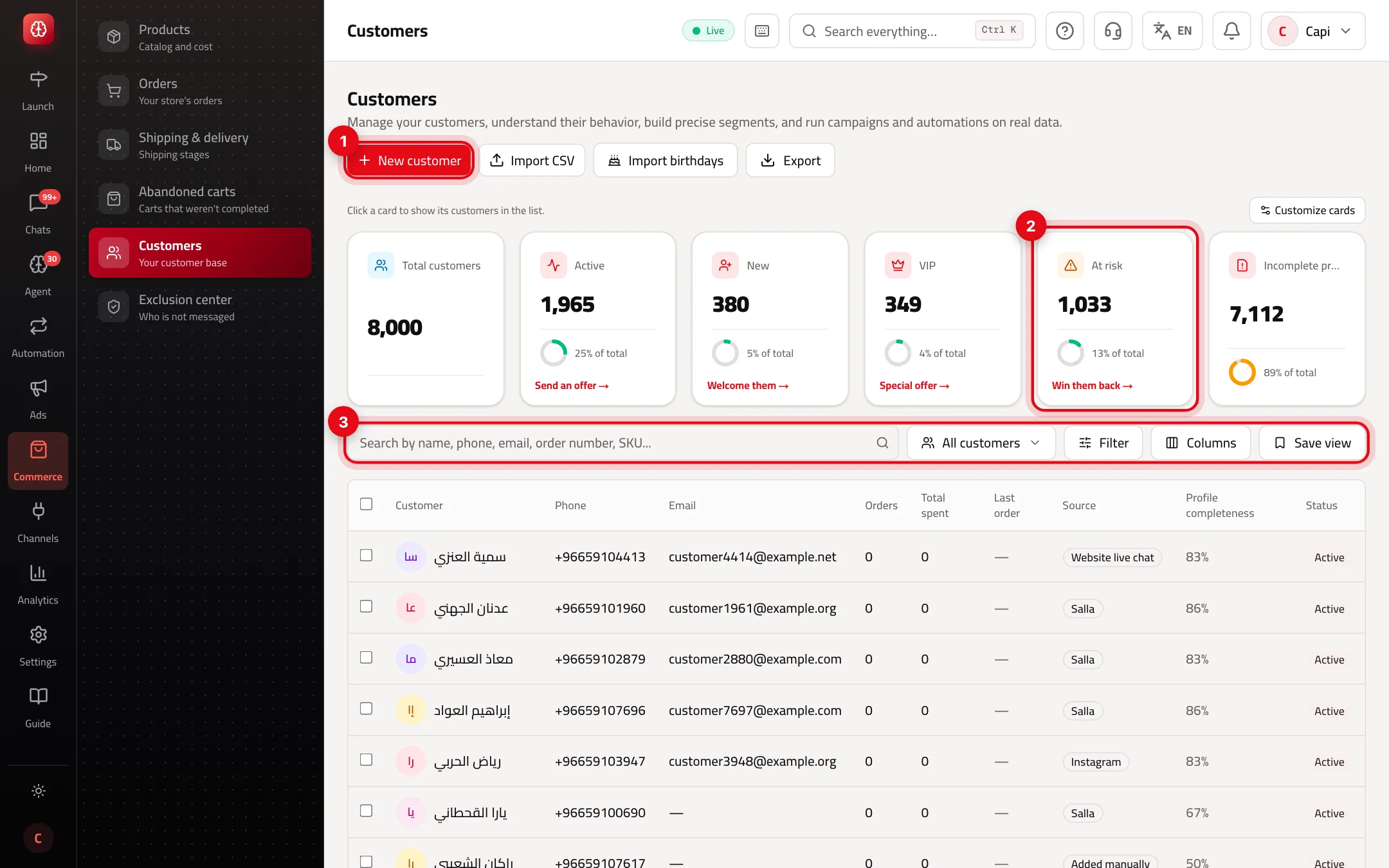
- 1Add a customer by hand; next to it “Import CSV”, “Import birthdays” and “Export”.
- 2A segment card such as “At risk”: press it to filter the list; the link under it suggests a fitting campaign.
- 3Search (name, phone, email, order number or SKU, then Enter), the segment picker, “Filter”, “Columns” and “Save view”.
Automatic segments
Capi works these out from your store's data; nothing to set up:
Active
- What it is
- Customers in touch with you in the last 30 days.
- When to use it
- For a new offer to people who know you now.
- How to start
- Press the “Active” card.
New
- What it is
- First seen in the last 30 days.
- When to use it
- For a welcome and a first discount.
- How to start
- Press the “New” card.
VIP
- What it is
- The top 5% by spend. Needs at least 20 buyers to be calculated.
- When to use it
- For special offers and early access.
- How to start
- Press the VIP card.
At risk and inactive
- What it is
- No purchase for 60 and 90 days by default. With enough purchase history, both adapt to your store's reorder cycle (1.5× and 3×).
- When to use it
- To win customers back before they go.
- How to start
- The “At risk” card, or the segment picker.
Incomplete profiles
- What it is
- Customers missing a number, email or other details.
- When to use it
- Before a campaign, to know who can't be reached.
- How to start
- Press the “Incomplete profiles” card.
Build a segment and save it
- 1
Open the filter
Press “Filter” above the list.
- 2
Add conditions
For example: total spent over 1,000, last order more than 60 days ago, city Riyadh. You can also filter by channel, tag, abandoned cart, a product they bought and subscription.
- 3
Apply and check
Press “Apply” and make sure the names in the list are who you mean.
- 4
Save it as a segment
Press “Save as segment”. It appears under “My segments” in the segment picker, and in the audience step when you launch a campaign.
Actions on several customers
Tick customers with the checkbox and the action bar appears:
| Action | What it does |
|---|---|
| Tag | Adds a tag you can filter by later |
| Block | Stops every marketing message to them, after a confirmation. They appear in the “Exclusion center” |
| Unblock | Makes them reachable again |
| Export | Choose columns, then export by the current filter or the selection only (up to 20,000 rows) |
Best practices
- Import birthdays if you have them — the birthday automation runs on them alone.
- Save the segments you use every month instead of rebuilding them for each campaign.
- Start win-back campaigns with “At risk”; they're closer to coming back than “Inactive”.
Common mistakes and how to fix them
ProblemSearch shows nothing while I type.
FixSearch runs when you press Enter.
ProblemThe VIP card is empty.
FixIt needs at least 20 buyers before it's calculated.
ProblemI blocked a customer by mistake.
FixTick them and press “Unblock”, or press “Unblock” in the “Exclusion center”.
Screenshot from a demo store
Parts of the page
- 1
The list
Each customer with their channel, number of orders, spend and last contact.
- 2
Segments and filters
Filter customers by conditions and save them as a segment to use in campaigns.
ExampleA segment “spent over 1,000 SAR and hasn't bought in 60 days” for a win-back campaign. - 3
Customer profile
Click a customer to see their orders, conversations and your team's notes in one place.
Playbooks that use this page
Related articles
Didn't find your answer?