Channels & platforms
Messaging channels
Channels are where customers message you. Every channel you connect lands in one inbox, and the agent replies there.
Open the page in the dashboardHow messaging channels work
Connect WhatsApp, Instagram and Messenger and your customers' messages from every channel land in one inbox, where the agent replies. All three connect through your Facebook account — there are no codes to copy.
The agent doesn't reply on any channel until you press “Publish now” on the home page. Messages still reach the inbox before you publish, but get no automatic reply.
X, TikTok and Snapchat show at the bottom under “Coming soon”; connecting them isn't available yet.
Read the page
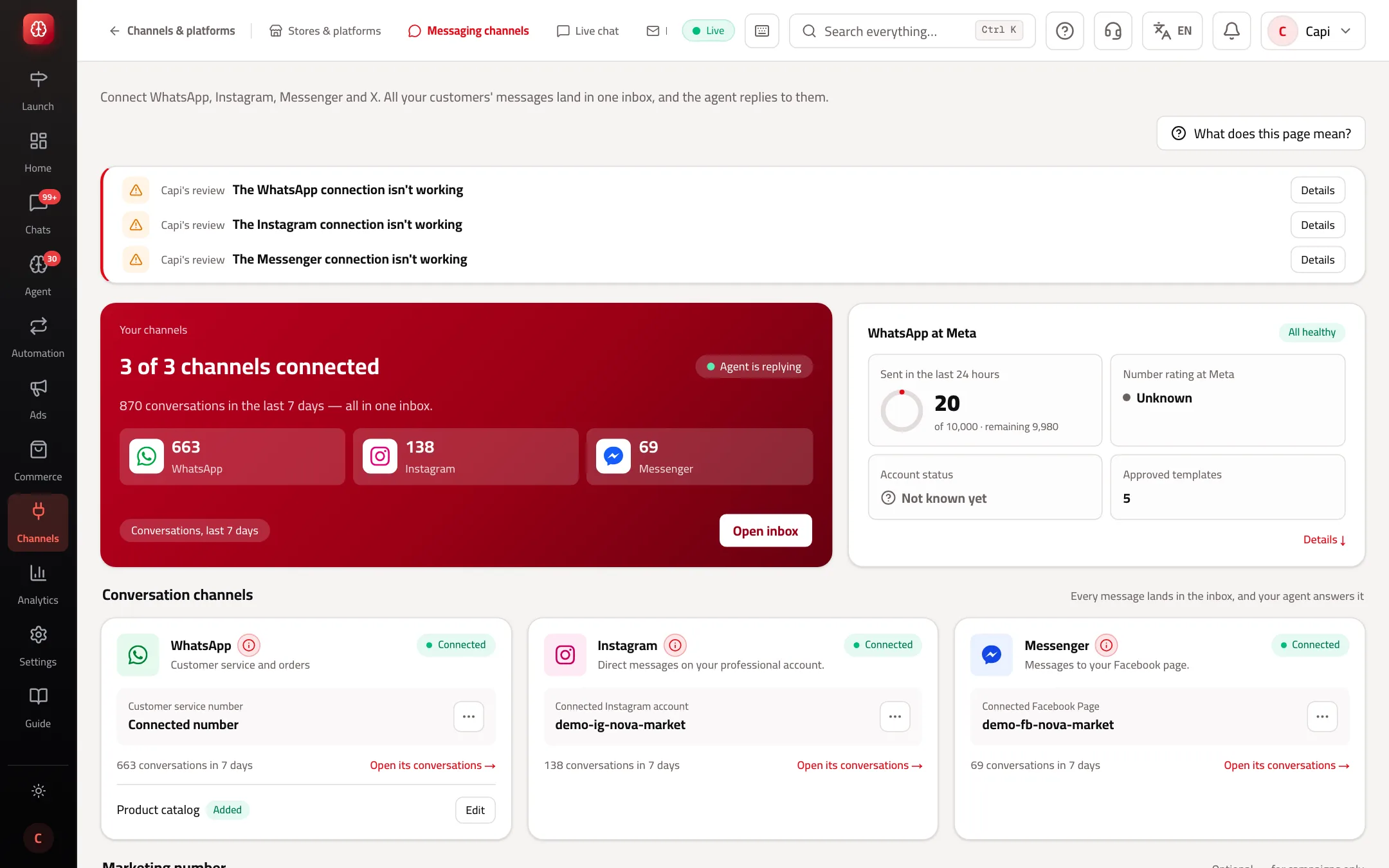
- 1WhatsApp: the customer service number, conversations in the last 7 days, and “Product catalog”.
- 2Instagram: the connected professional account.
- 3Messenger: the connected Facebook Page.
- 4The “⋯” button: connect another account or Page, or disconnect the channel.
A channel's status
| Status | What it means |
|---|---|
| Connected | Connection complete; messages arrive and send |
| Connected, receiving not set up | The account is linked but receiving isn't enabled on the platform yet. Contact support |
| Not connected | Not connected yet |
| Not available yet | Connecting through Facebook isn't enabled on the platform yet. Contact support |
Connect WhatsApp
You need: a Facebook account, and a phone number for WhatsApp Business that can receive a verification text or call.
- 1
In Capi
On the WhatsApp card press “Connect WhatsApp via Facebook”. A Facebook window opens.
- 2
In Facebook
Sign in, pick or create your business, pick or create the WhatsApp Business account, and enter the number. Facebook sends a code to the number; enter it and finish.
- 3
Capi does the rest
It checks the number, registers it on WhatsApp, subscribes to its messages, and reads the product catalog if there is one.
- 4
How you know it worked
The card turns “Connected” with your number under “Customer service number”, and a “WhatsApp at Meta” card shows the number's rating and approved templates. Message the number from another phone and check it lands in the inbox.
Connect Instagram or Messenger
Instagram needs a professional account (Business or Creator) linked to a Facebook Page you manage. Messenger needs a Facebook Page you manage (Admin or Editor).
- 1
In Capi
Press “Connect Instagram via Facebook” or “Connect Messenger via Facebook”. You're taken to Facebook.
- 2
In Facebook
Sign in, choose the Pages Capi may access, and approve the permissions.
- 3
Pick the Page
If you have more than one Page, Capi shows “Choose the Page to connect”; pick one and press “Connect”. The choice is valid for 15 minutes.
- 4
How you know it worked
A “Connected” message appears and the card shows the account or Page name. Send a test message from another account and check it reaches the inbox.
Marketing number (optional)
A second WhatsApp number for campaigns only. Without it, campaigns go out from the customer service number. Once connected, campaigns go only from it, keeping campaign complaints away from your service number's reputation. Connect the service number first.
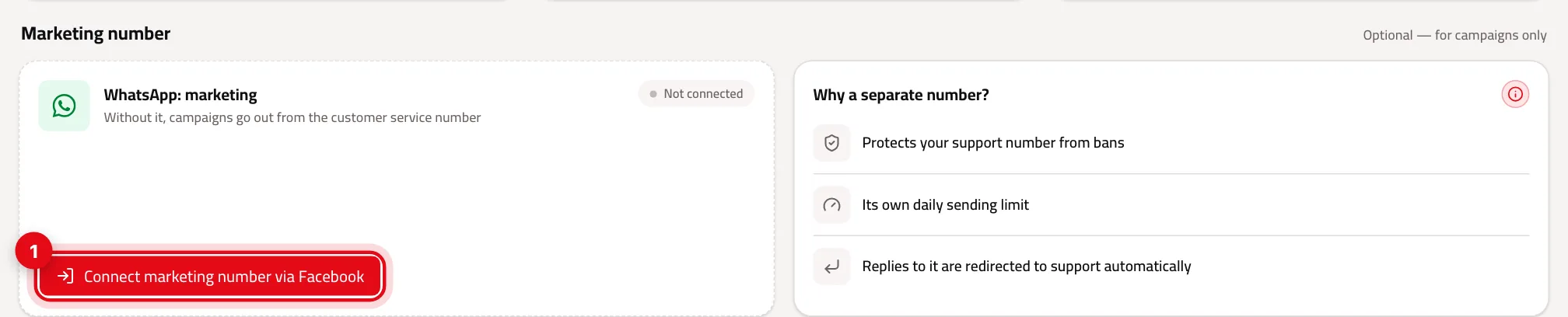
- 1“Connect marketing number via Facebook”: the same steps as WhatsApp, with another number.
Best practices
- Add your WhatsApp catalog under “Product catalog” → “Add” so the agent can show products inside the chat.
- On Instagram and Messenger you can't reply more than 24 hours after the customer's last message — that's Meta's policy. Reply quickly.
- If your campaigns are large, connect a separate marketing number to protect the service number.
Common mistakes and how to fix them
ProblemThe number is in use in the WhatsApp Business app on a phone.
FixRemove the number from the app first, then connect it. Capi doesn't support running a number in the app and in Capi at the same time.
ProblemMeta returns an error about the number's PIN.
FixThe number has two-step verification with a different PIN. Turn off two-step verification for the number in WhatsApp Manager, then connect again.
Problem“We couldn't find a Facebook Page with a professional Instagram account linked”.
FixIn the Instagram app: Settings → Account → switch to a professional account and link it to a Facebook Page, then try again.
Problem“You cancelled the connection on Facebook”.
FixThe window was closed or a permission was declined. Press the connect button again and approve every permission.
ProblemMessages arrive but the agent doesn't reply.
FixMake sure the store is published: press “Publish now” on the home page.
Screenshot from a demo store
Parts of the page
- 1
WhatsApp, Instagram and Messenger
Each channel connects with one button. WhatsApp customer service is the number for conversations and orders.
ExampleA customer asks on Instagram “Is size L in stock?”; the message lands in your inbox and the agent answers from your products. - 2
WhatsApp marketing
A separate number for campaigns only. A campaign can draw blocks and reports that lower the number's quality with Meta; on a separate number your customer-service number stays safe.
Related articles
Didn't find your answer?