Channels & platforms
AI platforms
AI platforms: make your products show up when people ask ChatGPT, Claude, Google or Copilot about something you sell.
Open the page in the dashboardWhat AI platforms are
Many shoppers now ask AI assistants (Google Gemini, Copilot, Claude and others) before they buy. This page gets your products into their answers, and measures the visitors and orders that come from them.
This page has nothing to do with the AI keys your agent runs on — those are in the agent settings.
Read the page
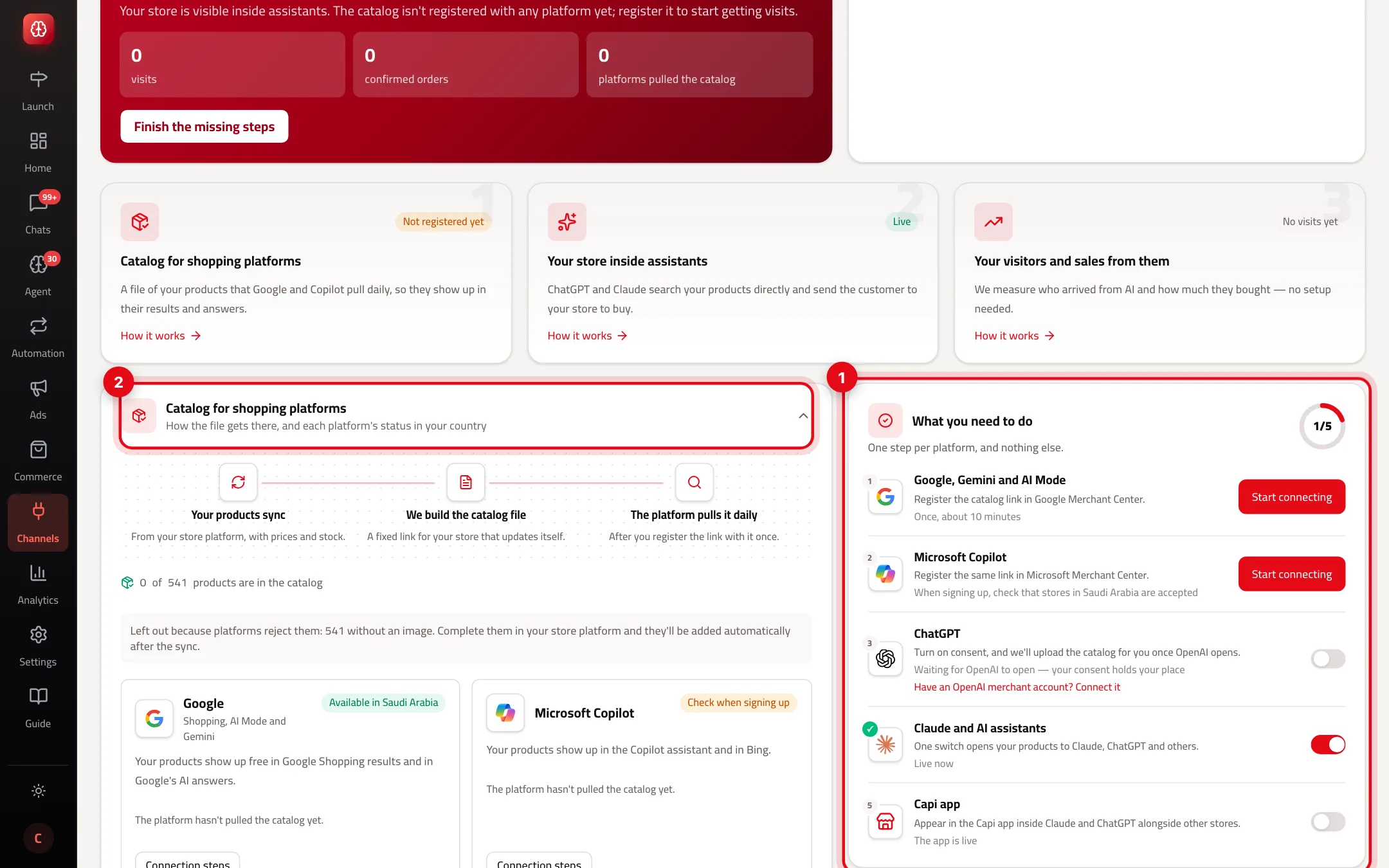
- 1“What you need to do”: one step per platform, nothing else needed. The counter shows how many are done.
- 2“Catalog for shopping platforms”: how your product file reaches each platform, and each one's status.
Ways to appear
Catalog for shopping platforms
- What it is
- A fixed link to a file with your products, prices and stock that updates itself; the platform pulls it every day.
- When to use it
- To show your products in Google, Gemini, AI Mode and Microsoft Copilot results.
- How to start
- Copy the link from “What you need to do” and register it once in Google Merchant Center or Microsoft Merchant Center.
Your store inside AI assistants
- What it is
- The assistant searches your products directly and sends the customer to your store to buy. It never sees your cost price, stock quantities or customer data.
- When to use it
- To appear in Claude and assistants that connect to stores directly.
- How to start
- It turns on automatically after “Publish now”. You can switch it off with “Open the store to AI assistants”.
Your visitors and sales from AI
- What it is
- Visits and confirmed orders that came from these assistants in the last 30 days.
- When to use it
- To know whether appearing brings sales.
- How to start
- No setup. Numbers appear after the first visitor.
Appear in Google
- 1
Copy the link
In “What you need to do” press the start button next to Google and copy the catalog link.
- 2
In Google Merchant Center
Open your Google Merchant Center account (or create one), add a new product source from a link, and paste the link. You do this once; Google then pulls the file every day.
- 3
How you know it worked
Google's status on the page changes after the first pull, and “Last pulled” shows its date.
Best practices
- Assistants pick products with a clear description, an image and a price. Fix “Active products with no image” and “too little description” in your platform first.
- Register the link in both Google and Microsoft — each platform needs its own one-time step.
Common mistakes and how to fix them
Problem“Your store inside AI assistants” doesn't work.
FixThe store isn't published yet. Press “Publish now” on the home page.
ProblemNext to the switch: “Turned off by the platform team — contact support”.
FixCapi's team switched it off for your store. Contact support to find out why.
ProblemI can't change the switches on this page.
FixYou need permission to connect integrations. Ask the account owner.
Screenshot from a demo store
Parts of the page
- 1
How your products appear
A link to your product catalogue you register with each platform, and the Capi app inside Claude and ChatGPT. Each platform has its own steps.
ExampleSomeone asks ChatGPT for “an oud perfume under 200 SAR” and your product appears with its link. - 2
With your consent
Your products appear on no platform until you turn it on yourself, and you can turn it off any time.
Playbooks that use this page
Related articles
Didn't find your answer?