Commerce
Shipping & delivery
Shipping stages
Orders from your campaigns and automations across shipping stages, as your store platform reports them.
Open the page in the dashboardHow the shipping page works
This page shows orders from your campaigns and automations only, by shipping stage, as your platform reports them. It's read-only: you don't move an order between stages here, because the platform owns the status.
Cancelled and refunded orders don't appear on the board. Every order, not just campaign orders, is on the “Orders” page.
Read the page
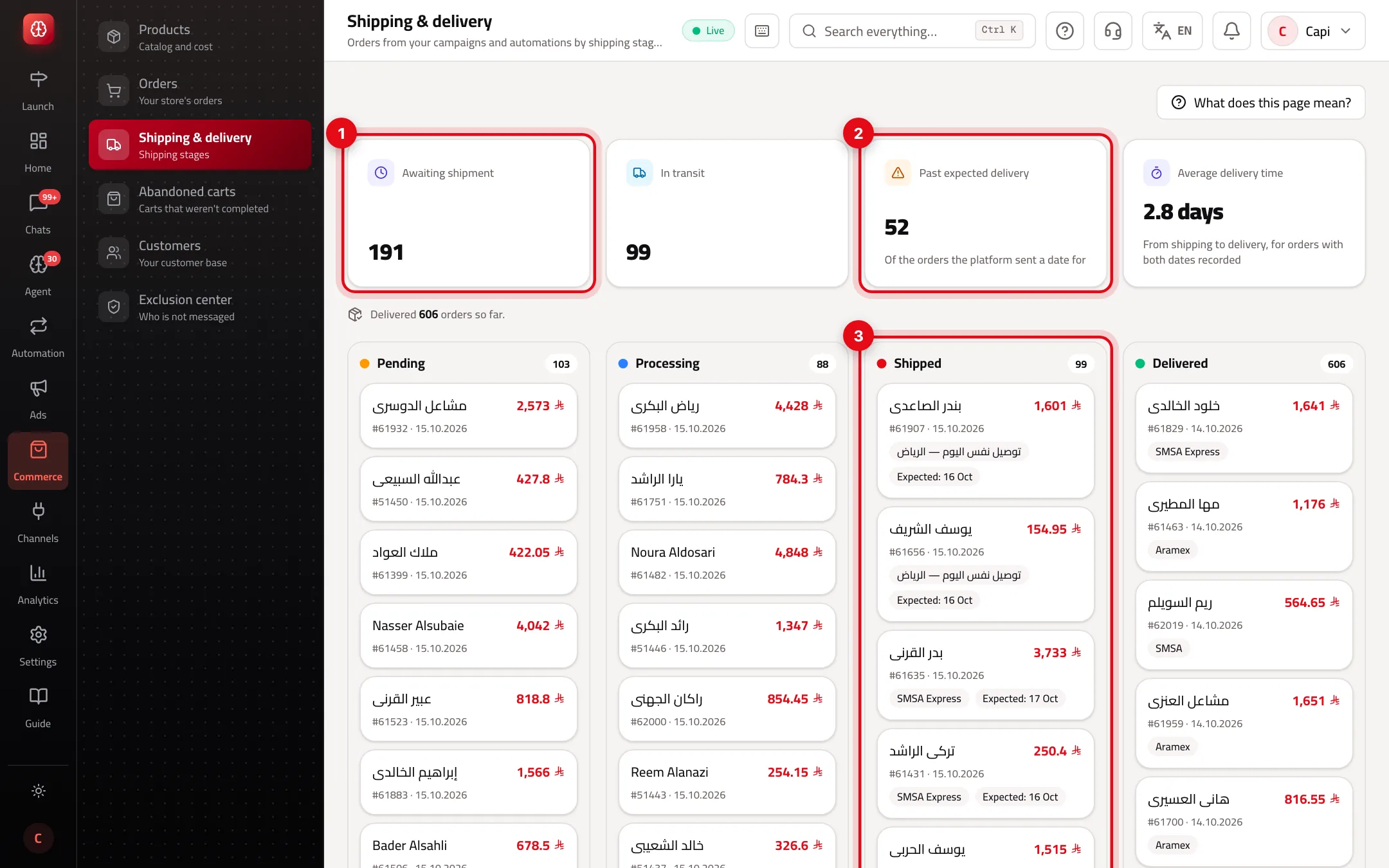
- 1“Awaiting shipment”: pending and processing orders together. Next to it, “In transit”: shipped orders.
- 2“Past expected delivery”: out of the orders your platform sent a delivery date for. Next to it, “Average delivery time” from shipping to delivery.
- 3A column per stage with the newest 8 orders, plus carrier and expected date when present. The “All orders” link under a column opens the orders page.
The board's stages
| Column | What's in it |
|---|---|
| Pending | An order that arrived and hasn't started |
| Processing | An order being prepared |
| Shipped | An order that left, with the carrier and “Expected:” if the platform sent it |
| Delivered | An order that arrived. The line under the KPIs counts every delivered order so far |
“Not measured” on “Past expected delivery” or “Average delivery time” means your platform didn't send an expected date, or both ship and delivery dates. It isn't zero — Capi doesn't guess a number it doesn't know. Salla and Zid don't send shipping data to Capi today, so those stores show “Not measured”.
Best practices
- Check the “Shipped” column daily: orders past their date are the ones customers will ask the agent about.
- If delays keep coming from one carrier, that's a question for the carrier, not the agent.
- Keep order statuses current in your platform — the agent answers “where is my order?” from that same status.
Common mistakes and how to fix them
ProblemThere are fewer orders here than on the orders page.
FixThis board is campaign and automation orders only. Every order is under “Orders” → “All orders”.
ProblemNo carrier or expected date shows.
FixYour platform didn't send them with the order. Add them in your platform when shipping, if it supports that.
ProblemI want to move an order to “Shipped”.
FixChange its status in your platform. It moves here with the next sync.
Screenshot from a demo store
Parts of the page
- 1
Stages
Awaiting shipment, on the way, delivered. It updates on its own from your platform.
- 2
Late
Orders past the delivery date the platform sent. If the platform sends no date, the measure shows “Not measured”.
Example5 late orders, all with one courier: time to review that courier.
Related articles
Didn't find your answer?