Social media ads
Campaigns
All your campaigns and managing them
All your campaigns on every platform, managed from here.
Open the page in the dashboardHow the campaigns page works
All your campaigns on all platforms in one table: those launched from Capi and those made in the platform's own Ads Manager. Each shows its platform spend next to the orders it brought to your store, for the period you pick (default: this month).
From the table you pause, resume, change the daily budget or stop a campaign. The change goes to the platform and shows in its Ads Manager. Managing needs the “Manage ads” permission; without it you see the numbers only.
Read a campaign row
Filters above the table: platform, status and source (from Capi or from Ads Manager). The table is wide — scroll sideways to reach “Actions” at the end.
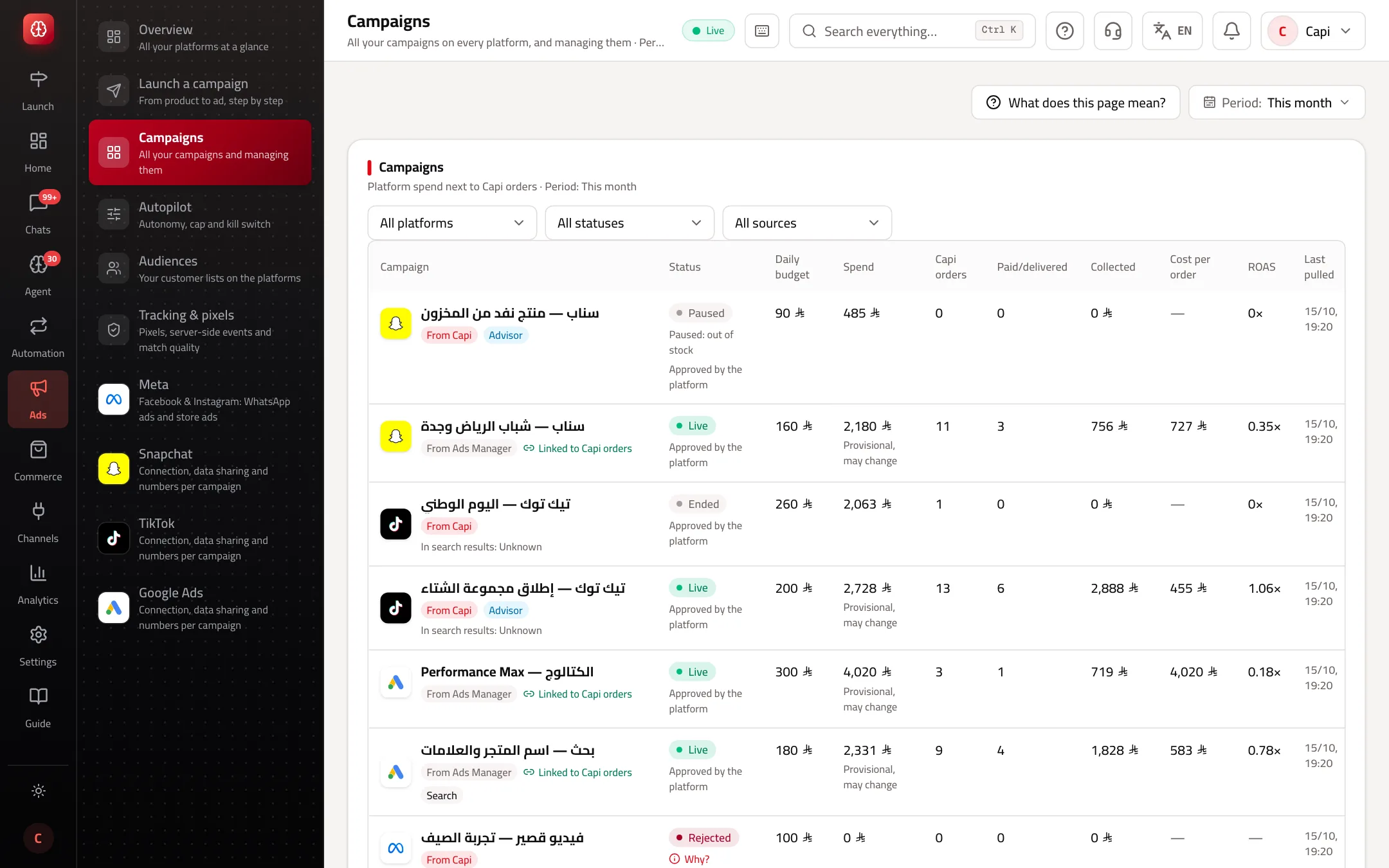
- 1The campaign, its platform and source — “From Capi” or “From Ads Manager” — and an “Advisor” badge when the advisor manages it.
- 2The status and, below it, why it was paused: by you, the platform, the advisor, out of stock, the monthly cap or the kill switch.
- 3“Capi orders”: orders the campaign brought to your store. Then paid/delivered, collected, cost per order and ROAS.
Campaign actions and what happens
| Action | What happens | Before you press |
|---|---|---|
| Pause | Spending stops on the platform until you resume | Nothing is deleted |
| Resume | It spends again at its current daily budget | Not while the kill switch is on |
| Change budget | The new daily budget goes to the platform | Once an hour per campaign. You see the month's projection against your cap, with a warning if it passes — your call |
| Stop campaign | It ends on the platform and won't run again from Capi | Type the campaign's name to confirm |
| Let the advisor manage it | The advisor manages this campaign's budget at your Autopilot level | Set the level and cap first |
| Retry | For a failed launch: continues where it stopped, nothing created twice | Read the failure reason first |
Google may spend up to twice the daily budget on one day, never more than budget × 30.4 in a month.
Change a campaign's budget
- 1
Open the campaign's actions
In the “Actions” column at the row's end, press “Change budget”.
- 2
Enter the new budget
You see the current budget, the platform minimum and this month's projection against your cap.
- 3
Confirm
Press “Change budget”. It goes to the platform and is recorded in the Autopilot “Action log”.
Managing your campaigns
- Decide by cost per order and ROAS. A campaign whose cost per order is double the others: pause it and move its budget to the best one.
- Don't change budgets daily — platforms need days to relearn after each change.
- Campaigns made in Ads Manager show here too with your store's numbers, so you compare them with Capi's on one basis.
- Click a campaign's name for its page: the creative, budget history, the platform's feedback and the cash-on-delivery risk of its orders.
Common mistakes and fixes
Problem“Resume” doesn't work.
FixThe kill switch is on, or the campaign was paused for stock. The reason is under the status.
ProblemThe budget change is refused.
FixThe budget changed less than an hour ago, or the amount is below the platform minimum.
ProblemA campaign shows “Rejected”.
FixThe platform rejected it. Open the campaign page to read the platform's feedback as written, with Capi's explanation.
Screenshot from a demo store
Parts of the page
- 1
Managing
Pause, resume, change the budget or end a campaign — and the change shows in the platform's ads manager.
ExampleA campaign whose cost per order is twice the others': pause it and move its budget to the best one. - 2
Each campaign's numbers
The platform's spend, the orders the campaign brought into your store, and the cost of each order.
Related articles
Didn't find your answer?