Social media ads
Launch a campaign
From product to ad, step by step
Launch an ad campaign step by step: Capi suggests the product, platforms, audience, budget and creative; you review and launch.
Open the page in the dashboardHow launching from Capi works
You pick a platform; Capi proposes the product, audience, budget, images and text from your store's data; you preview, change what you like, and launch. Everything is created on the platform paused and switched on together in the last step, once every part is ready.
Each platform is paid directly from your own ad account — Capi holds no money. Launching needs a connected platform that's ready; one that's missing something shows “Needs one step before launch”.
The wizard saves your draft as you go, so leaving and coming back restores it.
Launch a campaign step by step
Three phases: setup, then targeting and budget, then design and launch. You can't move on until the current step is complete.
- 1
Pick the platform
Pick one platform to start. Each shows its state: “Ready” or “Needs one step before launch”. You can add the others later inside the wizard.
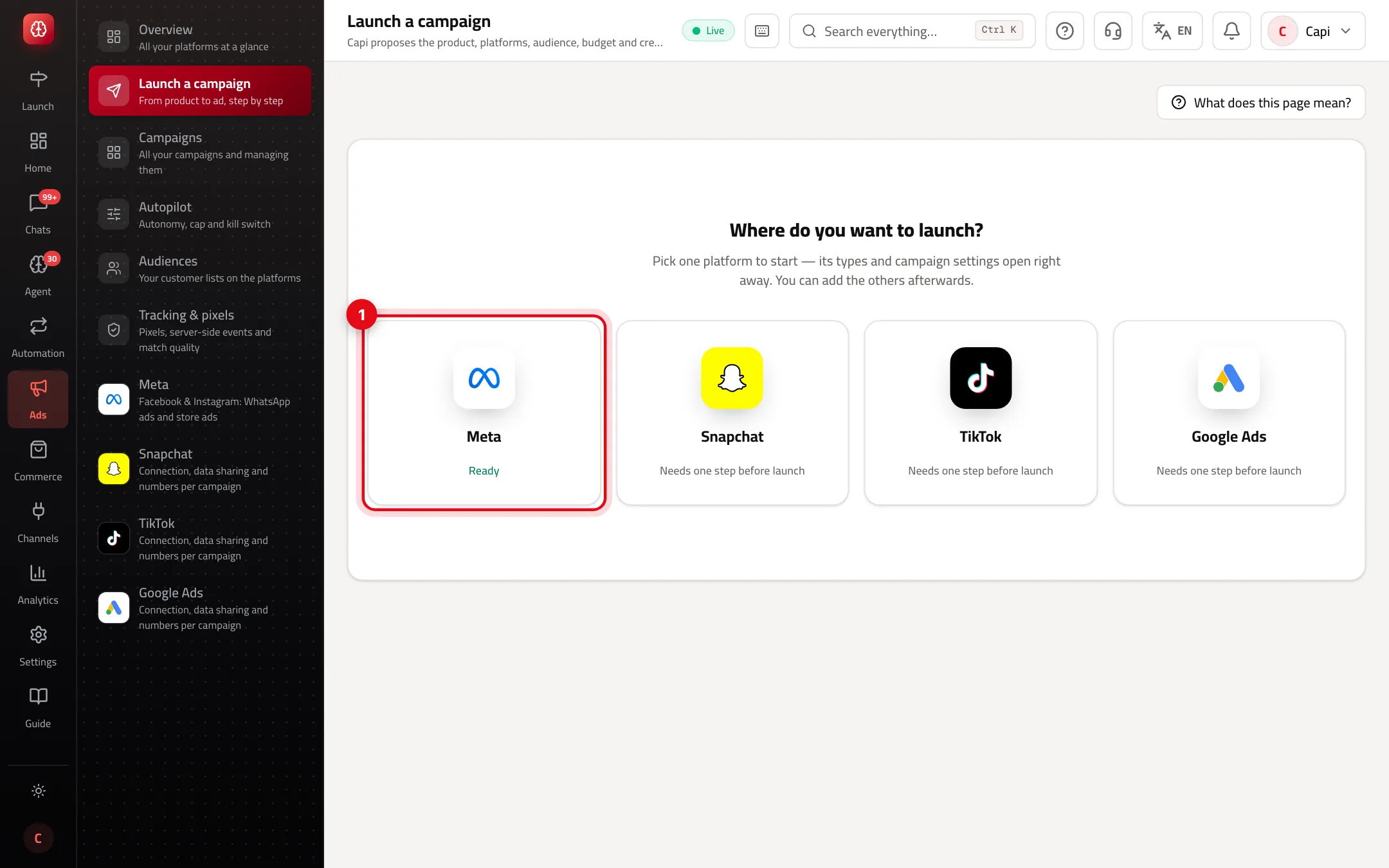
- 1A platform ready to launch. Click it to open the campaign steps.
- 2
Platform and campaign type
Choose the goal: “WhatsApp messages” (the ad opens a WhatsApp chat and your agent answers right away — on Meta), “Sales on the website” (needs a pixel that reports purchases) or “Visits to the product page” (when purchase tracking isn't ready).
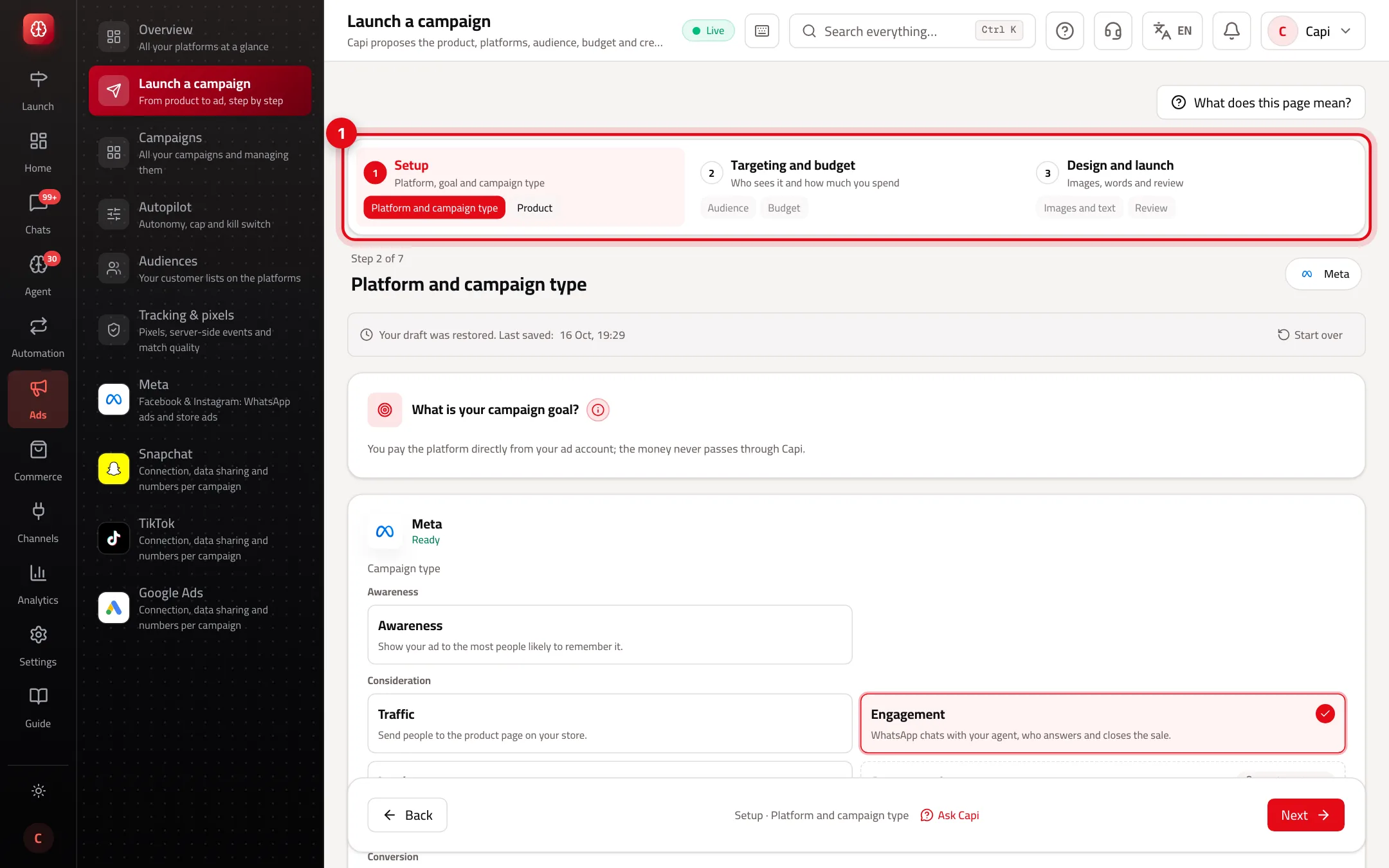
- 1The three phases and their steps. The current step is highlighted; you can go back to any completed one.
- 3
Product
Capi suggests your best seller that can be advertised now, showing units sold in 90 days, stock and margin when the cost price is known. Out-of-stock or ineligible products can't be picked.
- 4
Audience
Choose countries, and optionally cities or regions. Capi turns on each platform's automatic audience, so it finds buyers within your limits. Ads reach adults only (18+). You can leave out customers who bought in the last 30 days once that list is ready under Audiences.
- 5
Budget
A daily budget per platform in its ad account's currency, with the platform minimum. Below it, “The month”: spend so far + these budgets for the days left + your running campaigns, against your monthly cap.
- 6
Images and text
Choose the product photos each ad shape needs. You can add an AI version (uses AI credits; the product itself is never changed). The text fits each platform's limits and is labelled when AI wrote it, so you review it.
- 7
Review and launch
Capi runs its checks and asks each platform for a dry run — nothing is created yet. Fix what shows, choose “Now” or “Schedule”, and press “Launch the campaign”. Without permission to approve ad spend the button is “Send for approval” and the request waits in the Action Center.
Campaign goals
WhatsApp messages
- What it is
- The ad opens a WhatsApp chat with your store; the agent knows the ad from the first message.
- When to use it
- When you sell through chat, or the product needs questions before buying.
- How to start
- On Meta; needs a Facebook Page linked to a WhatsApp number.
Sales on the website
- What it is
- The platform looks for people likely to buy on your site.
- When to use it
- When the platform's pixel is on your store and reports purchases.
- How to start
- Check “Tracking & pixels” before launching.
Visits to the product page
- What it is
- The platform brings people to the product page.
- When to use it
- When purchase tracking isn't ready yet.
- How to start
- Move to the sales goal once the pixel works.
Before you press “Launch the campaign”
Launching starts spending from your ad account as soon as the platform approves. Check the daily budget and “The month” against your cap. While the kill switch is on, launching isn't possible until you lift it in Autopilot.
Tips for a good first campaign
- Start with a product that already sells and has enough stock — that's what Capi suggests first.
- Start small on one platform and watch cost per paid order for a week before raising the budget.
- If customers ask a lot before buying, the “WhatsApp messages” goal with your agent turns questions into orders.
- Turn on “Leave out recent buyers” so you don't pay to reach people who just bought.
- Let the automatic audience run at first; advanced targeting is optional.
Common mistakes and fixes
ProblemThe platform shows “Needs one step before launch”.
FixOpen the platform page: the connection card says what's missing, such as a payment method on the ad account, with a fix link.
ProblemThe launch button became “Send for approval”.
FixYou don't have permission to approve ad spend. Someone who does approves it in the Action Center.
ProblemChecks say “You changed the plan after the check”.
FixPress “Check again” before launching.
ProblemNo product shows.
FixAdd products or sync your store, then come back. Capi only proposes from products in stock.
Screenshot from a demo store
Parts of the page
- 1
The steps
Pick the product, platforms, audience, budget, image and text, then review everything before launching. Readiness badges tell you if something is missing.
ExampleCapi suggests an in-stock product with a good margin, its image and text, and you change whatever you want before launching. - 2
Created paused
Every campaign is created on the platform paused, and only starts spending at the last step after you confirm.
- 3
Who pays?
You pay the platform directly from your ad account. Capi never touches your money.
Related articles
Didn't find your answer?