Getting started
Launch center
The Launch Center lays out every step between opening your account and an agent that sells to your customers on its own. Each task you finish disappears and the percentage goes up.
Open the page in the dashboardHow the Launch Center works
The Launch Center is one list of everything between opening your account and an agent that answers and sells to your customers. Each task is read from your store's real data, not from a box you tick: “Connect WhatsApp” is done when the number is actually connected, and it leaves the list on its own.
Tasks come in two kinds: “Essential” ones the agent can't work without, and recommended ones that improve results. Essential tasks weigh three times as much in the percentage, so it climbs fastest when you finish them first.
Tasks are arranged in four stages: Connect, Train, Configure, Launch. The stage marked “You're here” is the first one that still has an essential task open.
The four stages and what's in each
The order is deliberate: data before training, and training before a campaign to hundreds of customers.
1. Connect
- What it is
- Your store, at least one messaging channel, and your plan.
- When to use it
- Right after you open your account. Without a connected store the agent has no products to answer from; without a channel nobody can reach it.
- How to start
- Connect your store platform, check that products arrived, then connect WhatsApp or turn on chat on your website.
2. Train
- What it is
- The knowledge base and the agent's tools. This is where it goes from “talking” to “helping”.
- When to use it
- Straight after connecting. Three knowledge entries is the minimum; ten make a real difference.
- How to start
- Add the three questions you get most (returns, delivery time, payment methods), and turn on at least one tool such as order tracking.
3. Configure
- What it is
- What happens when the agent doesn't know: the escalation team, working hours, reply targets, reply rules and notifications.
- When to use it
- Before your first real customer arrives, so no conversation gets lost in an inbox nobody opens.
- How to start
- Set the escalation team first (it's essential), then review working hours and reply targets.
4. Launch
- What it is
- WhatsApp templates, your first campaign, and automations such as abandoned cart.
- When to use it
- Once the agent is ready for the people you send them to.
- How to start
- Prepare at least one template, turn on the abandoned-cart automation, then launch a first campaign to a small segment.
Essential tasks and when they count as done
These tasks can't be postponed or hidden. Each one is done automatically when its condition is true:
| Task | Done when |
|---|---|
| Choose your plan | Your account is on the trial or an active subscription. |
| Create your store workspace | Your account has a brand (store). |
| Check that products synced | At least one product has arrived from your platform. |
| Connect WhatsApp / Turn on chat on your website | At least one channel is connected. Both are essential only while there's no channel at all. |
| Train the agent with the knowledge base | You've added at least 3 knowledge entries. |
| Turn on the agent's tools | At least one tool is on. |
| Set the escalation team | Escalations have a recipient: a team or a person. |
| Test your agent with a real question | Your store has at least one conversation. |
A recommended task can be put off with “Later”. Postponed tasks aren't lost: a “hidden — show them” link under the progress brings them all back.
Finish setup step by step
- 1
Start from the open stage
The page opens on the stage you're in. Click any stage in the top strip to open it and jump to it. Inside each stage, “Why does this stage matter?” gives the practical reason.
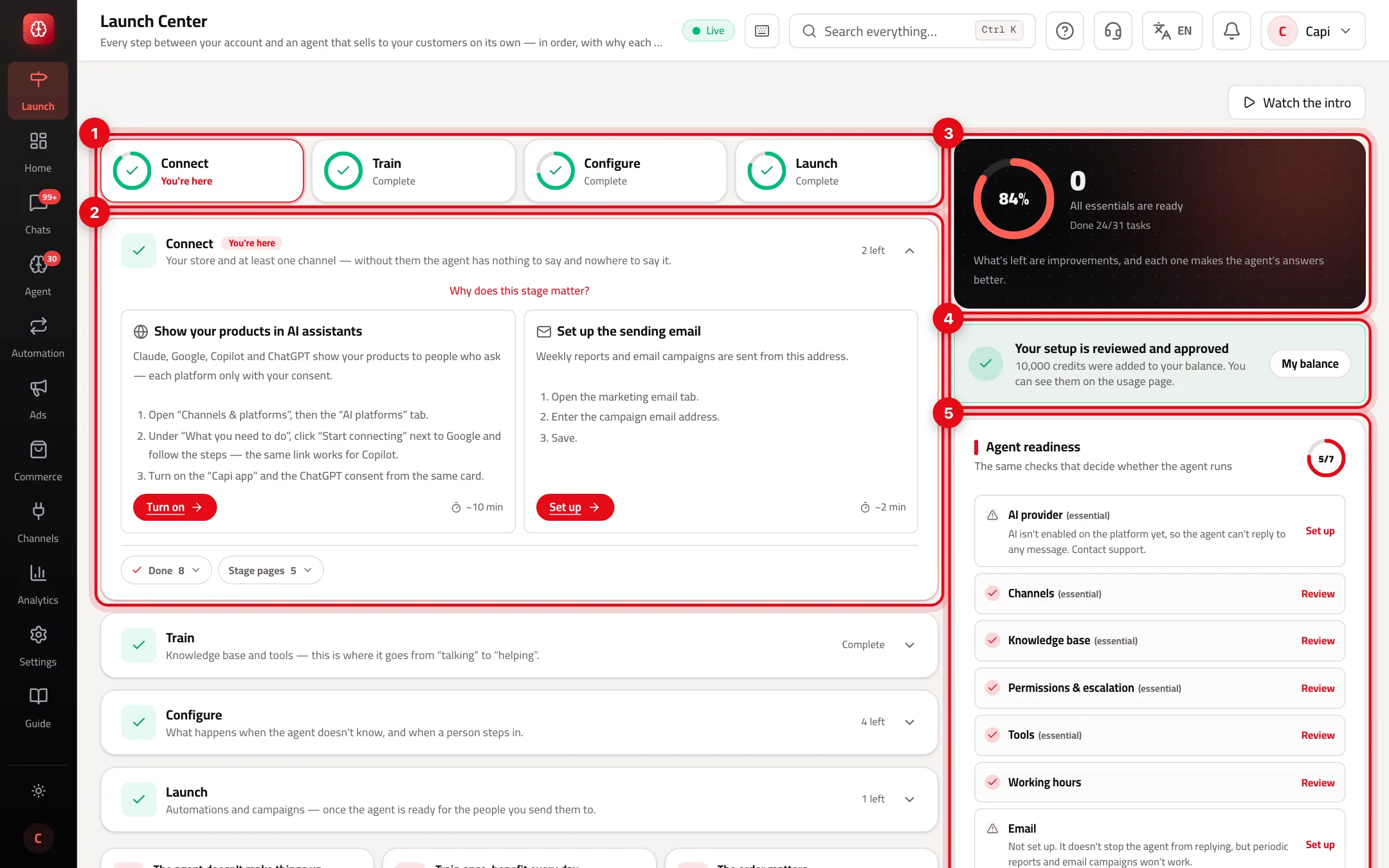
- 1The four-stage strip: each stage's progress, and “You're here” on the current one.
- 2A stage card: its remaining tasks, each with steps and a button.
- 3Setup progress, and how many essential tasks are left before the agent's first reply.
- 4The setup review reward.
- 5“Agent readiness”: the same checks that decide whether the agent runs; each line opens its page.
- 2
Do the task from its card
Each task explains why it matters, lists numbered steps and an estimated time (such as “~10 min”). Press the red button on the card to go to the right page, then come back: a finished task disappears and the percentage goes up. Tasks finished since your last visit appear in a “Done since your last visit” strip.
- 3
Check “Agent readiness”
The side column lists the agent's checks: AI provider, channels, knowledge base, permissions and escalation, tools, working hours and email. A missing line has a “Set up” button; a finished one has “Review”.
- 4
Press “Publish now”
Customers see nothing of your store until you publish: no chat window, no replies, no automations, no campaigns. Publishing switches all of it on at once. The publish banner sits at the top of the page while the store is unpublished, and publishing is available to members who can edit settings.
- 5
Send your setup for review
Once every essential task is done, “Send for review” unlocks. The platform team reviews your setup by hand and, if everything checks out, adds 10,000 credits to your AI balance. If the request is rejected you'll see the team's note; fix it and press “Resend”.
Best practices
- Finish the essential tasks in order before any campaign. A campaign to 1,000 customers before training means everyone who replies meets an agent that doesn't know your policies.
- Start the knowledge base with your three most frequent questions, then grow it to ten in the first week.
- Test the agent with a real question before publishing, and check how it handles returns and delivery.
- Don't put escalation off. It's the safety net: a conversation the agent can't resolve must reach a responsible person.
- If you want the agent to answer around the clock, leave working hours as they are — but make it your decision, not an accident.
Common mistakes and how to fix them
ProblemA “A setting that was ready is now incomplete” alert appeared.
FixSomething that was set up stopped: a connection dropped, a key was removed or a field was cleared. Open the task named in the alert and set it up again.
ProblemI finished setup but customers don't see the chat.
FixThe store isn't published yet. Press “Publish now” in the banner at the top of the page.
Problem“Publish now” isn't available to me.
FixPublishing is available to members who can edit settings. Ask the account owner or an admin who has that permission.
ProblemA recommended task disappeared without being done.
FixIt was put off with “Later”. Click “hidden — show them” under the setup progress to bring it back.
Problem“Send for review” is locked.
FixIt unlocks once every essential task is done. The number left is written on the card itself.
Screenshot from a demo store
Parts of the page
- 1
The four stages
Connect your store and channels, train the agent with the knowledge base, set escalation, hours and rules, then launch campaigns and automations. The order matters.
ExampleA campaign to 1,000 customers before training means everyone who replies meets an agent that doesn't know your policies. - 2
Required and recommended
The agent can't work without a required task, and it can't be hidden. Recommended ones improve results, and you can put them off with “Later”.
- 3
Publish now
Customers see nothing of your store — no chat, no replies, no automatic messages — until you press “Publish now”. Then everything starts at once.
Related articles
Didn't find your answer?