Automations & campaigns
Chat & pop-up campaigns
Chat messages and pop-ups
Chat campaigns are pop-ups shown to visitors while they browse your store, leading to a sales chat with the agent or a direct link.
Open the page in the dashboardWhat a chat campaign does
A chat campaign isn't sent to anyone's phone. It's a pop-up shown to a visitor who is on your store right now; a click starts a sales chat with the agent about that offer, or takes the visitor to a link you set.
Only one campaign shows per page load. When several match the same visitor, the one with the lowest “Priority” number shows.
Campaigns need your store chat to be on. If it's off, the top of the page says no campaign will show to visitors until you turn it on in widget settings.
“Attributed revenue” is a confirmed minimum, not an estimate: an order counts for a campaign only if the visitor interacted with it (clicked, opened the chat or replied) and then bought within the attribution window (7 days by default), and we know it's the same person. Just seeing the campaign doesn't count.
Campaign types
Product
- What it is
- A catalog product with its image, price and link, read from the synced catalog.
- When to use it
- A product you want to push to people browsing near it.
- How to start
- Pick “Product” and search by name or SKU. The campaign doesn't show when the product is out of stock.
Offer or discount
- What it is
- A limited offer with a coupon; the agent presents it in the chat.
- When to use it
- Converting a hesitant visitor: a discount before leaving.
- How to start
- Pick “Offer or discount” and enter the code. Create it on your store platform first — the agent only gives out this code.
Image
- What it is
- An image, a title and a button.
- When to use it
- A new collection or a season banner.
- How to start
- The image URL starts with https://.
Video
- What it is
- A short video or a YouTube link.
- When to use it
- A product that needs showing.
- How to start
- A YouTube link or an mp4 / webm file starting with https://.
Announcement
- What it is
- News or a notice, with no sales pitch.
- When to use it
- Eid delivery dates, or a change to your return policy.
- How to start
- Pick “Announcement” and write the text.
Custom
- What it is
- You set all the content yourself.
- When to use it
- When no other type fits.
- How to start
- Pick “Custom”.
Read the chat campaigns page
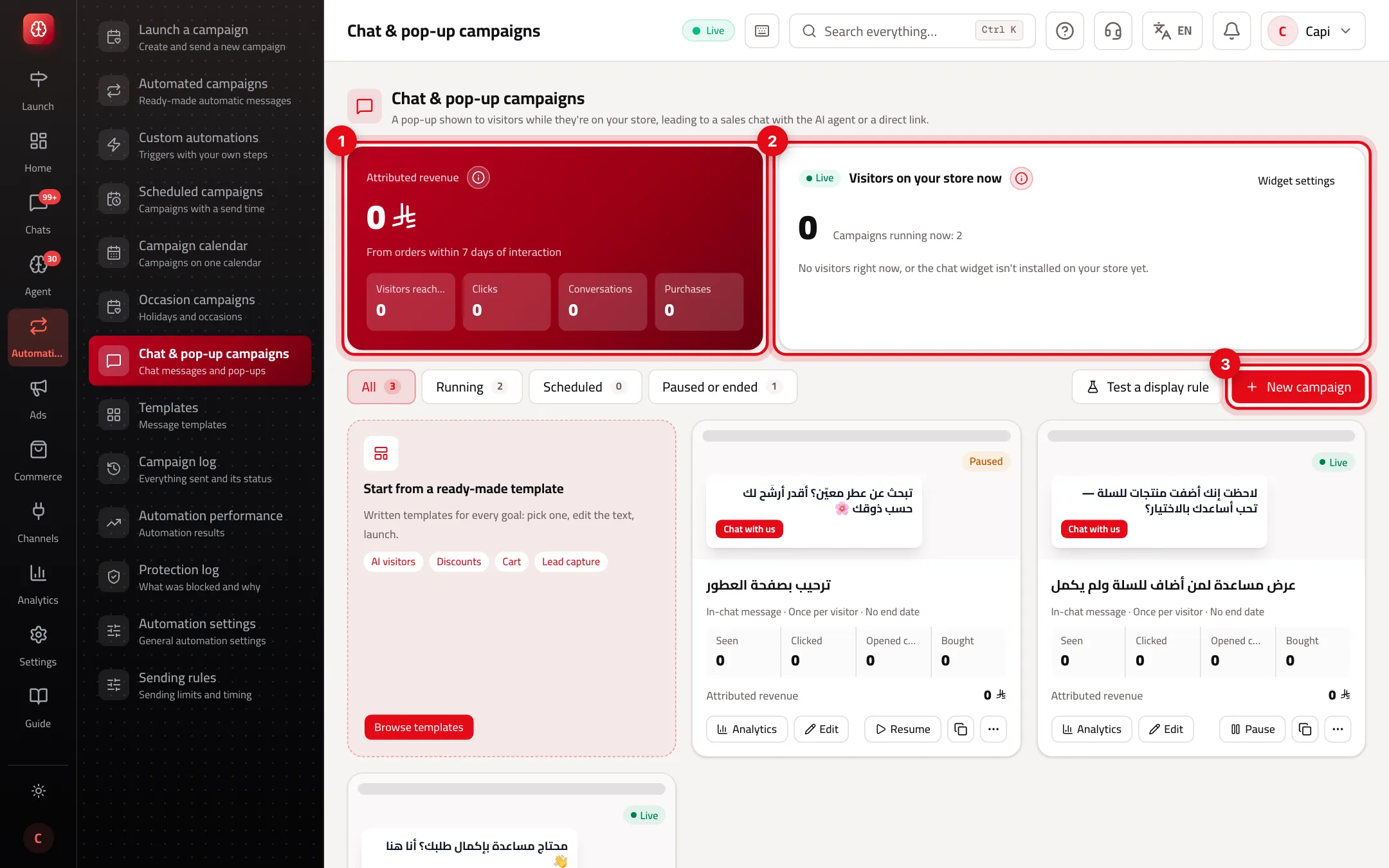
- 1“Attributed revenue”: confirmed sales from campaigns, with visitors, clicks, conversations and purchases below.
- 2Who is on your store now, and the pages they're on.
- 3“New campaign”, and “Test a display rule” to see which campaign a sample visitor would get, and why.
Create a chat campaign
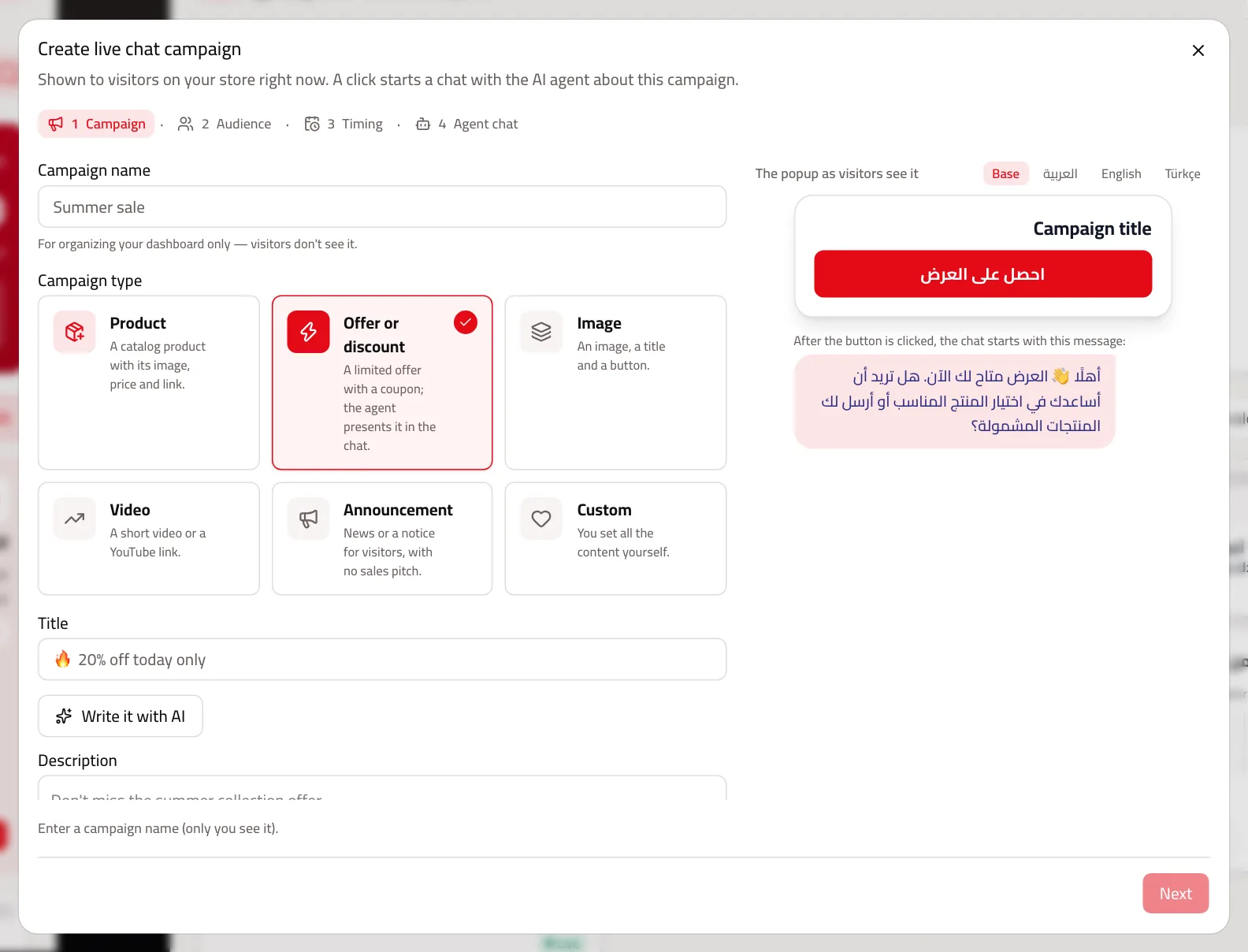
The window has four steps, with a preview of the pop-up as visitors see it beside them.
- 1
Campaign
Press “New campaign”, or “Browse templates” to start from a written one. Enter the “Campaign name” (only you see it), pick the “Campaign type”, the title and description. Then “What does the button do?”: “Opens a chat with the agent” (recommended), “Goes to a link + chat”, “Popup only”, or “Collect email or phone” with the visitor's consent.
- 2
Audience
The campaign shows only to a visitor who meets every condition: “Visitor type”, “Past purchases”, “Device”, “Country”, “Traffic source” (including “AI assistants” such as ChatGPT), “Page path contains” such as /product/, “Viewed at least (pages)”, and “Has an open abandoned cart”.
- 3
Timing
Start and end, or a duration (6 hours, 24 hours, 3 days, 7 days). “Display trigger”: “After time on page” (at least 5 seconds), “Before the visitor leaves”, or “After scrolling” (10–100%). “Display frequency”: once per visitor, once per visit, every 24 hours or every 7 days. “Smart stop” ends it for anyone who closed it, started a chat, added to cart or bought.
- 4
Agent chat
The “First chat message” shows when the chat opens; the agent then continues in the visitor's language. In “Agent instructions for this campaign” write what it should do: no extra discount, ask about size, send the product link. Or press “Write it with AI” and review it — it doesn't invent a discount or price you didn't mention.
- 5
Try it, then launch
“Launch campaign” turns it on; “Save without launching” keeps it paused. After saving, use “Try on my store”: it opens your store and shows the pop-up only to you, with no conditions; the link lasts an hour and isn't counted in the numbers.
Limits and values
| Setting | Value |
|---|---|
| Campaigns per page load | One; lowest priority number first |
| Minimum time before showing | 5 seconds |
| Scroll depth | 10 to 100% |
| Attribution window | 7 days after interaction (change it in attribution settings) |
| Proactive chat messages per visitor per day | 2 by default, at most 5, when sending rules are on |
Campaigns that sell
- Start with AI visitors: “Traffic source” = “AI assistants”, with a welcome that offers help. They came looking for a specific product.
- An exit offer on product pages only (“Page path contains” = /product/) beats one on every page.
- Pick “Opens a chat with the agent”: the agent answers about size and delivery and closes the sale, while a link alone leaves the visitor on their own.
- Use “Once per visitor” for discounts. Repeating them teaches visitors to wait for one.
- Write in the instructions what the agent must not do: “Don't give any extra discount”.
Common mistakes and how to fix them
ProblemThe campaign is “Running” but nobody sees it.
FixPress “Test a display rule”: it shows which campaign a sample visitor would get and why the others wouldn't. And check the chat is on in “Widget settings”.
ProblemThe product campaign disappeared.
FixThe product is out of stock. A campaign doesn't show for an unavailable product.
ProblemVisitors from one country don't see it.
FixThe country comes from the IP address; a visitor whose country is unknown won't see a country-restricted campaign.
ProblemYou want to stop it for now.
FixUse “Pause”, not “Delete”. Deleting erases its impression history and performance numbers.
Screenshot from a demo store
Parts of the page
- 1
The campaign
Choose who it targets (for example visitors of a given page, or those arriving from AI assistants), the message, and an image or video.
ExampleA visitor arriving from ChatGPT sees: “Hi! Ask me about any product and I'll help you choose.” - 2
Attributed revenue
An order counts for a campaign only if the visitor interacted with it (clicked, opened the chat or replied) and then bought within the set window.
- 3
Chat turned off?
If chat is off on your store, no campaign shows. Turn it on in the widget settings.
Related articles
Didn't find your answer?