AI agent
Knowledge base
Your store's information for the agent
The knowledge base is everything the agent knows about your store: your policies and your answers to common questions. It answers customers from it alone, and hands anything it can't find to your team instead of guessing.
Open the page in the dashboardHow the agent uses the knowledge base
The knowledge base is questions and answers about your store: shipping, returns, payment, hours, contact. When a customer asks, the agent searches here and answers with what you wrote. What it can't find, it doesn't invent: it apologises and hands the customer to your team, and the question is logged under Knowledge suggestions for you to answer.
The agent needs at least 3 entries before it can be turned on, and the setup score is complete at 10. A change is used from the very next reply.
Three ways to add knowledge
Pull it from your website
- What it is
- Paste your store link and we read the shipping, returns, payment, FAQ and contact pages and suggest questions and answers. Or upload a file instead: PDF, Word or text, up to 4 MB.
- When to use it
- When your policies are already written on your site or in a file.
- How to start
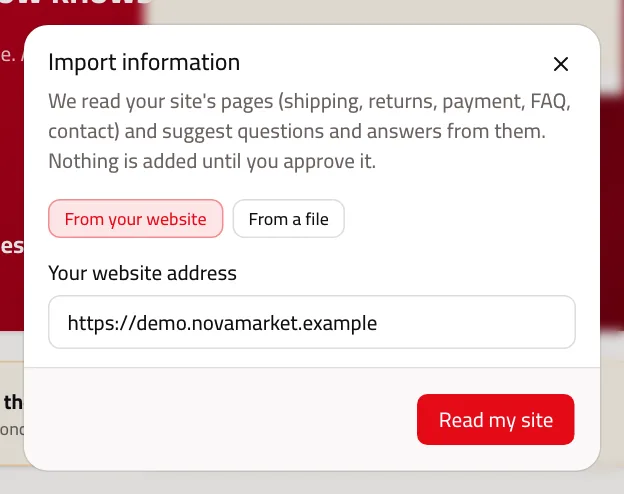
- “Import”, then “Read my site”. What's read from the site waits for your approval in Suggestions; a file is added directly, each fact in its section.
Let Capi write it
- What it is
- A short interview: you write about your store in your own words, and Capi organises it into drafts. It never writes a fact of its own.
- When to use it
- When you know the facts but haven't written them down.
- How to start
- “Fill with AI”, then review and approve the drafts in Suggestions.
Write it yourself
- What it is
- A question and an answer, exactly as you want the customer to hear it.
- When to use it
- For one precise fact, or to correct an answer.
- How to start
- “Add content”, or open a section and add there.
Add an entry yourself
- 1
Write the question and the answer
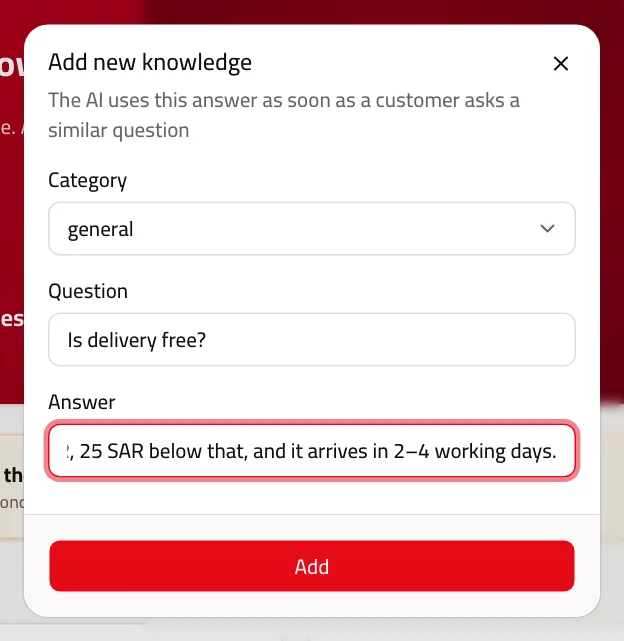
Press “Add content”, pick a category or “+ New category”, write the question as a customer asks it and the answer as you want them to hear it, then press “Add”.
- 2
Or import from your website
Press “Import”, check your website address, then “Read my site”. The result shows up as suggestions awaiting your approval. Under “From a file” you upload a file and its content is added directly.
- 3
Review the sections
Open any section to see what's in it, and edit or delete an answer with the icons beside it. Deleting is permanent.
Read the Knowledge base page
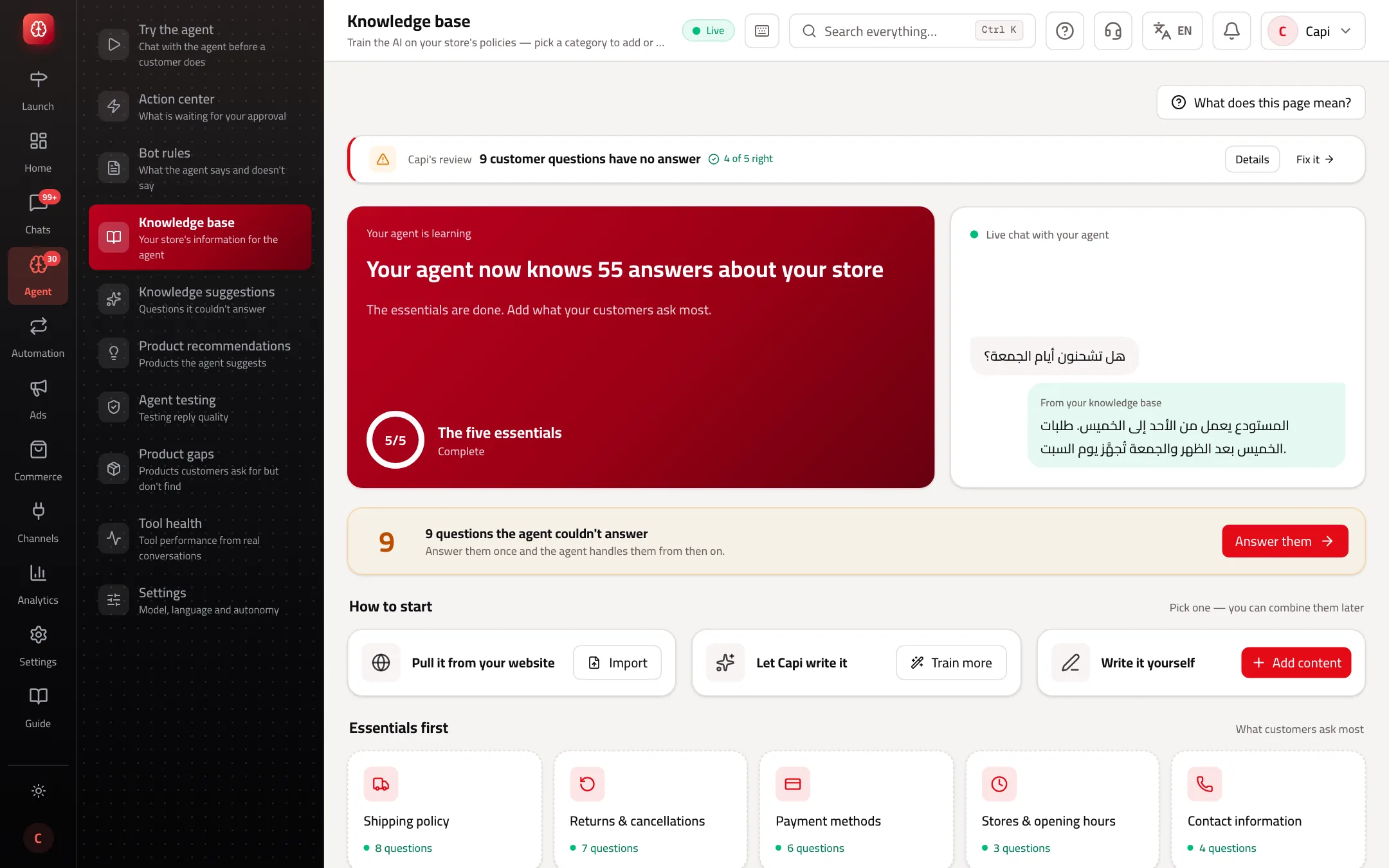
- 1How many answers your agent knows now, and how many of “The five essentials” are done.
- 2Live chat: your store's answers as the agent says them, or what it replies today if the base is empty.
- 3Questions the agent couldn't answer: “Answer them” opens Suggestions.
- 4“How to start”: the three ways to add. Below it, “Essentials first” and every other section.
The five essentials
Most customer questions fall into these sections. Complete them first:
| Section | What to write |
|---|---|
| Shipping policy | Cities, delivery time, cost, the free-shipping threshold |
| Returns & cancellations | The allowed period, item condition, who pays shipping, how the customer starts |
| Payment methods | Available methods, cash on delivery and its fee, instalments |
| Stores & opening hours | Your team's hours and when it answers messages |
| Contact information | Numbers, email and official support channels |
There are 15 more sections, such as warranty, sizes, international shipping and the agent's persona & tone. Add to them as your store needs.
Best practices
- Write the whole answer with numbers: “Free over 200 SAR, 25 SAR below that, in 2–4 working days” beats “Shipping is fast and cheap”.
- One question per topic. If the duplicate warning shows, merge the two answers into one.
- Update an answer as soon as the policy changes; the agent only says what's written here.
- Open Knowledge suggestions weekly; it holds what your customers really asked and didn't get an answer to.
Common mistakes and how to fix them
ProblemThe agent hands every returns question to your team.
Fix“Returns & cancellations” is empty. Add your policy there.
ProblemThe agent gives two different answers to the same question.
FixThere are two duplicate entries. The warning at the top names them; delete the old one or merge them.
ProblemI imported from my site and nothing appeared in the base.
FixA website import creates suggestions. Approve them in Knowledge suggestions.
Screenshot from a demo store
Parts of the page
- 1
Adding an entry
A question and its answer, exactly as you want the customer to hear it. “Fill with AI” runs a short interview: you give the facts, it organises them for you to approve.
ExampleQ: Is delivery free? A: Free on orders over 200 SAR, 25 SAR below that, and it arrives in 2–4 working days. - 2
Categories
Entries are grouped into categories such as shipping, returns and payment. An “Empty” category means the agent knows nothing about it.
ExampleIf Returns is empty, the agent hands every returns question to your team. - 3
Questions it couldn't answer
Questions customers asked that the agent had no answer for, each with a drafted answer. Find them under “Suggestions” to approve or edit.
Playbooks that use this page
Related articles
Didn't find your answer?