Settings
Profile & security
Your name, photo and sign-in security
Your profile: your name, photo and language, and how your sign-in is protected.
Open the page in the dashboardYour profile and your sign-in
This page is yours, not the store's. It covers your own account: name, photo and dashboard language, the email you sign in with, your password, and two-step verification. Every team member has their own.
The card at the top sums up your account: language, whether two-step verification is on, how you sign in (password, or Zid or Google) and when you joined. “Security & password” jumps straight to the security section.
Read the page
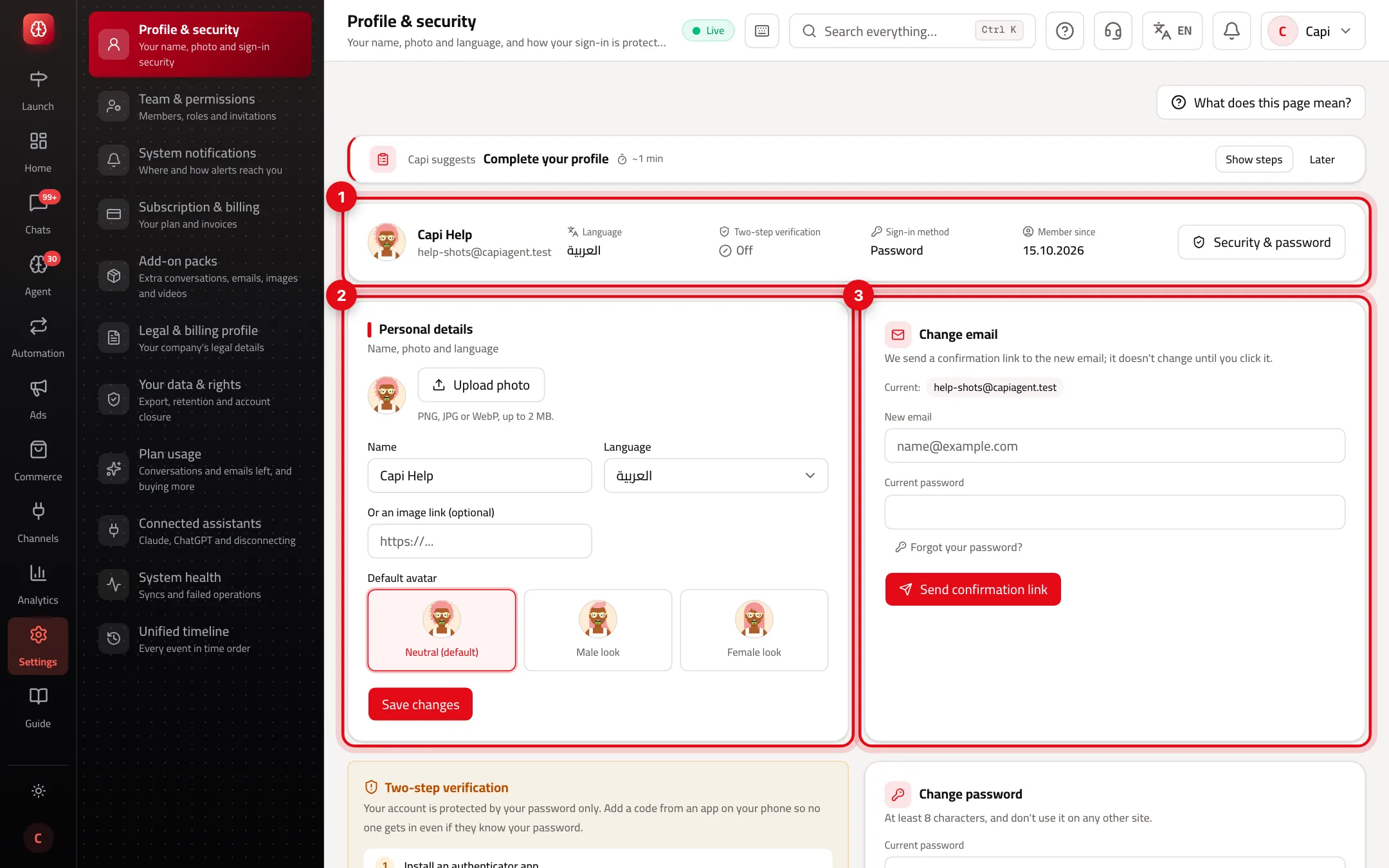
- 1The account card: language, two-step status, sign-in method and join date.
- 2“Personal details”: name, photo and language. Your team sees the name and photo in conversations and tasks; the language changes the dashboard for you only.
- 3“Change email”: a confirmation link goes to the new address, and nothing changes until you click it.
What's on the page
Personal details
- What it is
- Name, photo (PNG, JPG or WebP up to 2 MB, or an image link), dashboard language, and a default avatar shown when you have no photo.
- When to use it
- On your first sign-in, and whenever you want your team to recognize you easily.
- How to start
- Edit the fields, then press “Save changes”.
Change email
- What it is
- Enter the new email and your current password; a confirmation link goes to the new address.
- When to use it
- When your work email changes or you hand the account over.
- How to start
- Press “Send confirmation link”, then open the link from the new inbox.
Password
- What it is
- “Change password” if you have one, or “Set a password” if you sign in only through Zid or Google.
- When to use it
- If you think someone knows it, or you want to sign in with email too.
- How to start
- At least 8 characters, and don't use it on any other site.
Two-step verification
- What it is
- A code from an authenticator app on your phone, asked for together with your password.
- When to use it
- Now — especially for anyone with wide access to the account.
- How to start
- See the steps below.
Turn on two-step verification
You need a phone with an authenticator app. It takes two minutes.
- 1
Install an authenticator app
Google Authenticator, Microsoft Authenticator or Authy.
- 2
Start
Press “Security & password” at the top, then “Turn on two-step verification” on the two-step card.
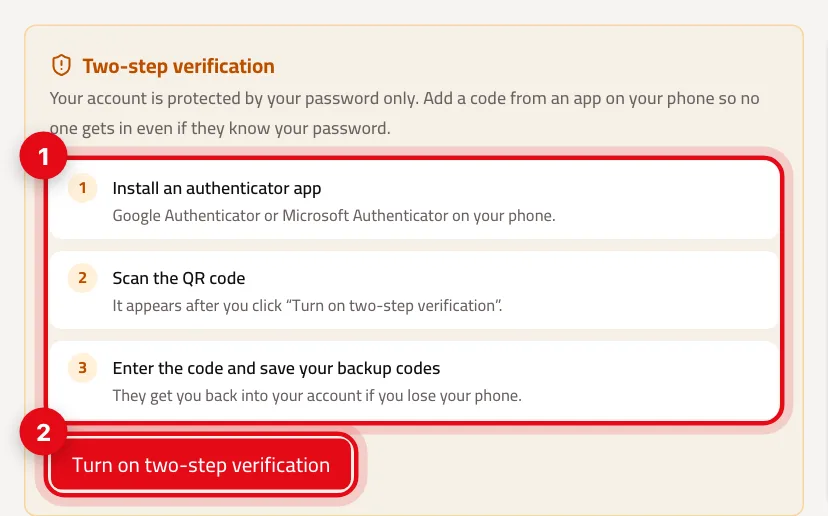
- 1The three steps, as the card shows them.
- 2“Turn on two-step verification”.
- 3
Scan the QR code
A QR code appears with a text key under it. Scan it with the app, or type the key in by hand.
- 4
Enter the code and confirm
Type the 6-digit code from the app into “Verification code”, then press “Confirm & turn on”.
- 5
Save your backup codes
8 backup codes are shown once only. Press “Copy codes” and keep them somewhere safe, off your phone. Each code works once if you lose your phone. Then press “Done”.
Once it's on
| Action | What it asks for |
|---|---|
| Generate new backup codes | Your current password plus an app code or a backup code. The old codes stop working. |
| Turn off two-step verification | Your current password plus an app code or a backup code. |
| Signing in without your phone | A backup code instead of the app code — each one works once. |
Every app code is accepted once only, even while it's still within its time window.
Security tips
- Turn on two-step verification for everyone who can manage billing or the team — those are the accounts that matter most.
- Keep backup codes in a password manager or on paper somewhere safe, not as a photo on the same phone.
- If you sign in only through Zid or Google, set a password. Without one you can't change your email here.
- Changing your password or two-step verification ends your connected AI assistants (Claude, ChatGPT) as a security measure. Reconnect them from “Connected assistants”.
Common mistakes and how to fix them
ProblemThe email form doesn't show — it says your account has no password.
FixSet a password first in the security section, then come back to change the email.
Problem“That code is incorrect” while turning it on.
FixMake sure your phone's time is set automatically and type the current code before it changes. If it keeps failing, start again.
ProblemI lost my phone.
FixSign in with a backup code, then turn two-step verification off and on again with the new phone.
ProblemI changed my email and it didn't change.
FixIt only changes after you click the confirmation link sent to the new address.
Screenshot from a demo store
Parts of the page
- 1
Personal details
Your team sees your name and photo in conversations and tasks. Language changes the dashboard's language for you alone.
- 2
Two-step verification
A code from an app on your phone as well as your password, so nobody gets in with the password alone.
ExampleEven if someone learns your password, they can't sign in without the code on your phone.
Related articles
Didn't find your answer?