AI agent
Agent testing
Testing reply quality
Agent testing replays fixed cases against the agent with its rules and tools after every change, so you know whether a change helped or hurt before a customer notices.
Open the page in the dashboardHow agent testing works
Each case is a fixed conversation ending with a customer message, plus a description of a good reply. The agent answers it with its current rules and tools, and the reply is checked: fixed checks first, then a judge that reads the reply and grades it against the description.
Tools run in test mode for the whole run: no message to any customer, no coupon redeemed, no order or refund changed, nothing in the inbox.
Testing is off by default. Turn it on and ready-made cases are added; it runs every week and after every bot-rules change, and compares each run with the one before.
Limits
| Item | Limit |
|---|---|
| Cases per store | 100 |
| Cases in one run | 60 |
| Runs per day | 6 |
| Runs kept in the history | The last 30 |
| A deleted case | Kept 30 days under “Deleted cases”, then removed for good |
| Candidate cases from conversations the agent failed | Up to 10 a week |
If your store runs on the platform's provider, the platform pays for testing and it isn't deducted from your credit. On your own key, testing uses your key.
Run a test and read the result
- 1
Turn it on
On the “Turn on agent testing” card, press the switch beside “Testing is off”. The ready-made cases are added and the first run starts.
- 2
Read the comparison
“Pass rate”, “Improved” (used to fail, now pass) and “Regressed” (used to pass, now fail). A case only counts as regressed if it fails twice, so a one-off failure won't mislead you.
- 3
See why it failed
Under “Failed in the last run” press “Details” on a case: the customer's message, the agent's reply and the judge's verdict in its own words.
- 4
Fix and re-run
Change the rule or the knowledge-base entry, then press “Run the test now”. Capi may suggest a rule that fixes a failure — at most once a week — applied only with your approval in the Action Center. If results get worse after it, press “Undo the change”.
- 5
Add your own cases
Save any conversation from the inbox as a test case. The weekly review also suggests conversations the agent failed under “Candidates from failures”; press “Keep it as a permanent case” on the useful ones.
Read the Agent testing page
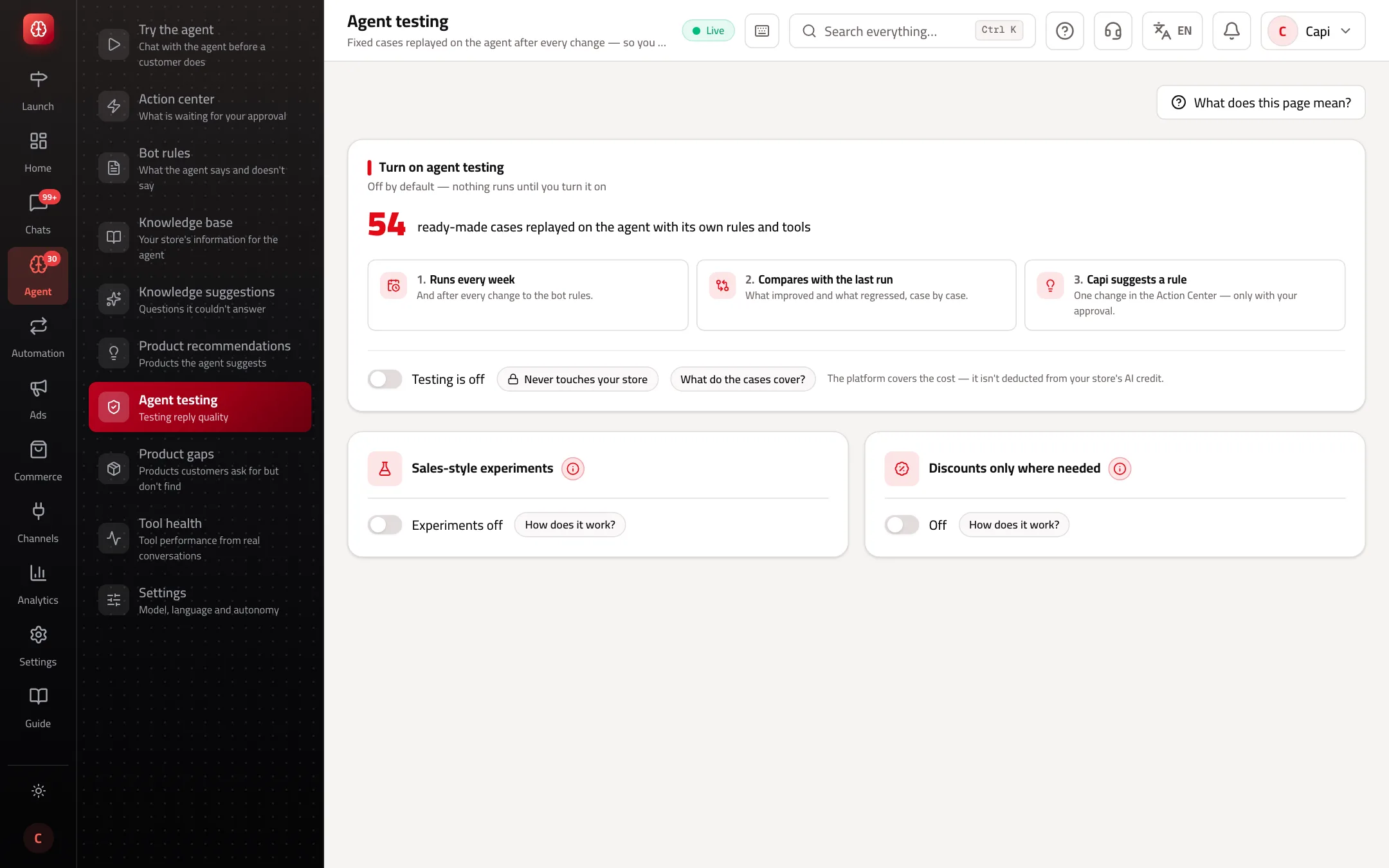
- 1“Turn on agent testing”: how many ready-made cases, what testing does, and the switch.
- 2“Never touches your store”: press it to see what doesn't happen during a test.
Best practices
- Turn testing on before opening the agent to customers, so you have a baseline run to compare with.
- Make “What makes a reply good?” one specific sentence, e.g. “Explains the returns policy and doesn't promise a refund”.
- After a big rules change, wait for the run and check “Regressed” before changing anything else.
Common mistakes and how to fix them
ProblemI can't run it again today.
FixThe limit is 6 runs a day. “A run is already queued” shows while one hasn't finished.
ProblemSome cases “Didn't run”.
FixThe provider couldn't be reached or credit ran out. Those cases aren't counted in the score; run again later.
ProblemA tool's check was skipped.
FixThat tool is off in your store. Turn it on under “Permissions & tools” if you want it tested.
Screenshot from a demo store
Parts of the page
- 1
Cases
Ready-made customer messages with what the agent should do, replayed weekly and after every rules change.
Example“I want to return an item I opened”: the agent should explain the returns policy, not promise a refund. - 2
Doesn't touch your store
Tools run in test mode: no message to a customer, no coupon, no change to an order.
- 3
Compared with the last run
What improved and what got worse, case by case. Capi may suggest a rule to fix a failure, applied only with your approval.
Related articles
Didn't find your answer?