AI agent
Action center
What is waiting for your approval
The Action Center: customer requests that need your decision, such as a discount or refund, and Capi's suggestions based on your store's numbers.
Open the page in the dashboardHow the Action Center works
The agent never takes a sensitive action on its own unless you allow it. When it needs your decision, it pauses and sends a request here: a discount, a refund or an order cancellation. The autonomy level in agent settings decides what lands here.
Capi's suggestions built on your store's numbers land here too: a campaign, turning on an automation, or a rule change. No one is waiting on these, so review them whenever you like. Nothing runs before you approve.
Request types and what approving does
Discount coupon
- What it is
- A customer asked for a discount and the agent needs you. The card shows the customer, the reason, the allowed cap and what they spent before.
- When to use it
- Arrives when the autonomy level is “Approve”.
- How to start
- “Approve” creates a discount code for that customer on your store and sends it in the conversation.
Refund
- What it is
- A customer asked to return an order. The card shows the order, its amount and the customer's order count.
- When to use it
- At “Approve”, or at “Execute” when the amount is above the automatic refund limit.
- How to start
- “Approve” marks the order refunded in Capi and tells the customer your team will contact them.
Order cancellation
- What it is
- A customer asked to cancel an order that hasn't shipped.
- When to use it
- By autonomy level, like refunds.
- How to start
- “Approve” marks the order cancelled in Capi and tells the customer.
Capi's suggestions
- What it is
- A campaign on a winning product or hour, turning on an automation, or a rule change after agent testing.
- When to use it
- At most one a day, and one you rejected isn't repeated for 30 days.
- How to start
- “Review and launch” or “Review”, then approve — or “Dismiss”. An approved campaign becomes “Awaiting approval” in Campaigns.
Make a decision
- 1
Start with the oldest
The top card shows how many decisions wait, what's at stake, and how long the oldest request has waited. The customer in the conversation is waiting for you.
- 2
Read the card
Each card shows what you need to decide. Press “Conversation” to see what the customer wrote first.
- 3
Approve or reject
“Approve” carries out the action and messages the customer. “Reject” closes the request and sends the customer nothing, so reply yourself from the conversation.
- 4
Review your decisions
“Your latest decisions” shows the last 6 and who made them; “Full history” shows the last 50.
Read the Action Center
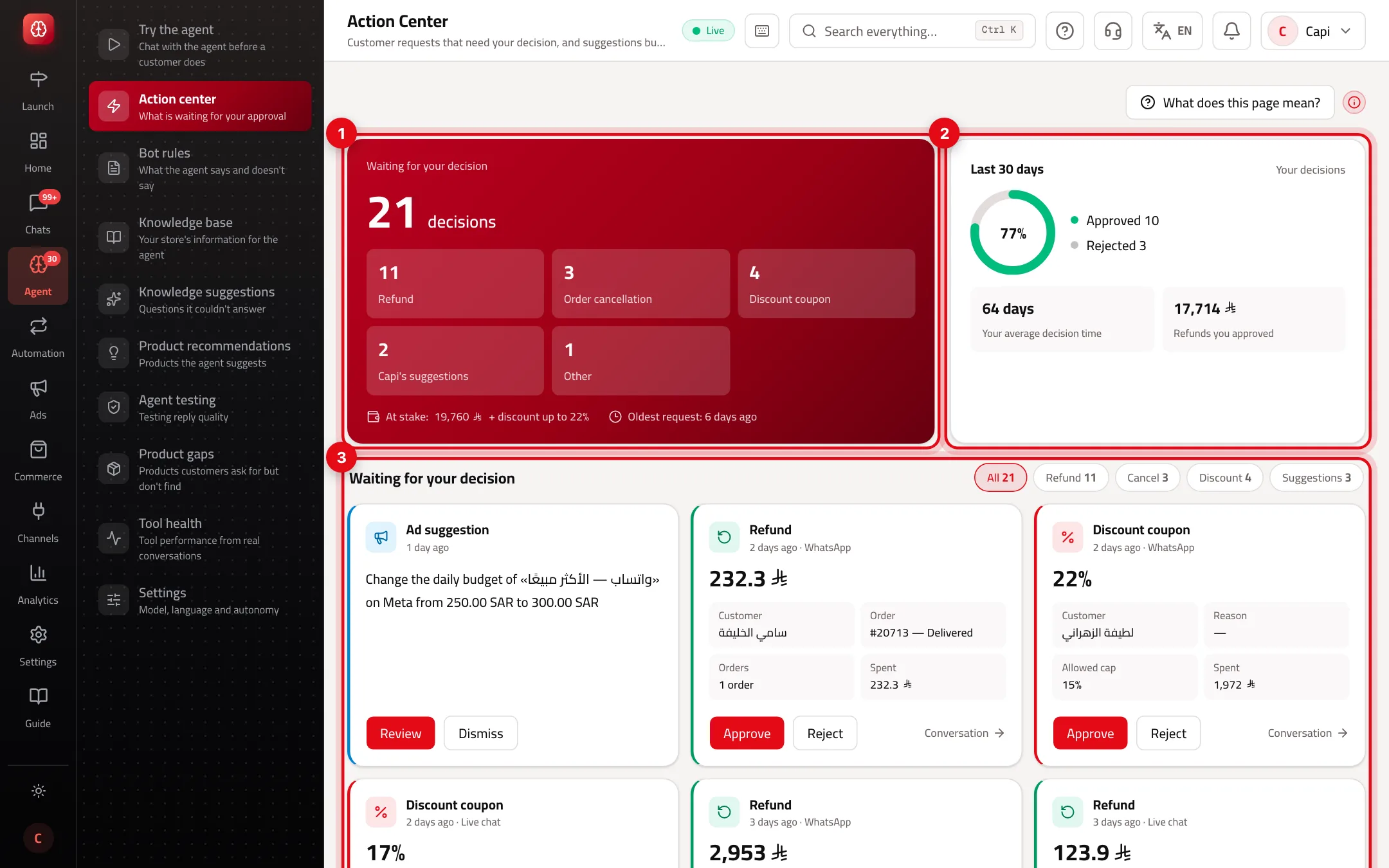
- 1What waits for your decision now. When nothing does, you can ask for a campaign idea with “Ask AI for a campaign idea”.
- 2“Last 30 days”: approved and rejected, your average decision time, and refunds you approved.
- 3The waiting requests, then “Your latest decisions” with “Full history”.
Refunds and cancellations don't reach your store platform
Approving a refund or cancellation changes the order's status in Capi and messages the customer, but it doesn't return the money or cancel the order on your platform. Finish that yourself in your store admin or payment gateway.
Best practices
- Keep the autonomy level at “Approve” for the first weeks, and watch your decisions here before giving the agent “Execute”.
- If you approve every small discount anyway, move the agent to “Execute” and set “Maximum discount” instead of approving by hand each time.
- Decide customer requests quickly: the customer is waiting in the conversation.
- Reject a suggestion that doesn't fit instead of leaving it: rejecting stops Capi repeating it for 30 days.
Common mistakes and how to fix them
ProblemNo requests ever arrive.
Fix“Observe” and “Suggest” raise no requests, and “Execute” acts within limits. The tools must also be enabled under “Permissions & tools”.
Problem“Ask AI for a campaign idea” doesn't show.
FixConnect WhatsApp or email first, and add an approved WhatsApp template. The message in its place says what's missing.
ProblemAn error appears when approving a refund.
FixThe order was already refunded or is no longer in your store. Check it on the Orders page.
Screenshot from a demo store
Parts of the page
- 1
Requests and suggestions
Each card shows what you need to decide: the amount, the customer, the order and a link to the conversation. Then approve or reject.
ExampleA customer asks for a 350 SAR refund on an order that never arrived: you see the order date and shipping status before approving. - 2
Why do requests land here?
Because the agent's autonomy level asks for your approval on this kind of action. You can change it in the agent settings.
Playbooks that use this page
Related articles
Didn't find your answer?